---
updatedAt: 2026-08-03T13:47:20.000Z
agentTools:
projectIndex: https://docs.apphud.com/llms.txt
---
# Analyze Deferred Deeplink
This page describes how you can track the performance of your Web-to-App campaigns using Apphud
The following tools can be used to analyze Web-to-App performance in Apphud:
* View and export events sent to your advertising network in the [Events](https://docs.apphud.com/docs/events) tool.
* Analyze ad campaigns in any report using corresponding filters.
* Track per-deeplink **Clicks** and **Installs** directly in the Deeplinks list.
## View Events
* In the [Events](https://docs.apphud.com/docs/events) tool, click **Add filter**, pick your ad-network **connection** as the filter, and check the **Sent** status to list only events successfully delivered to it. The connection name is the filter; the delivery statuses (Sent / Failed / Skipped / Pending) are the options — see [Events → Connections filter](https://docs.apphud.com/docs/events#connections).
* View event logs or export data to CSV for further analysis.
## Analyze Campaigns
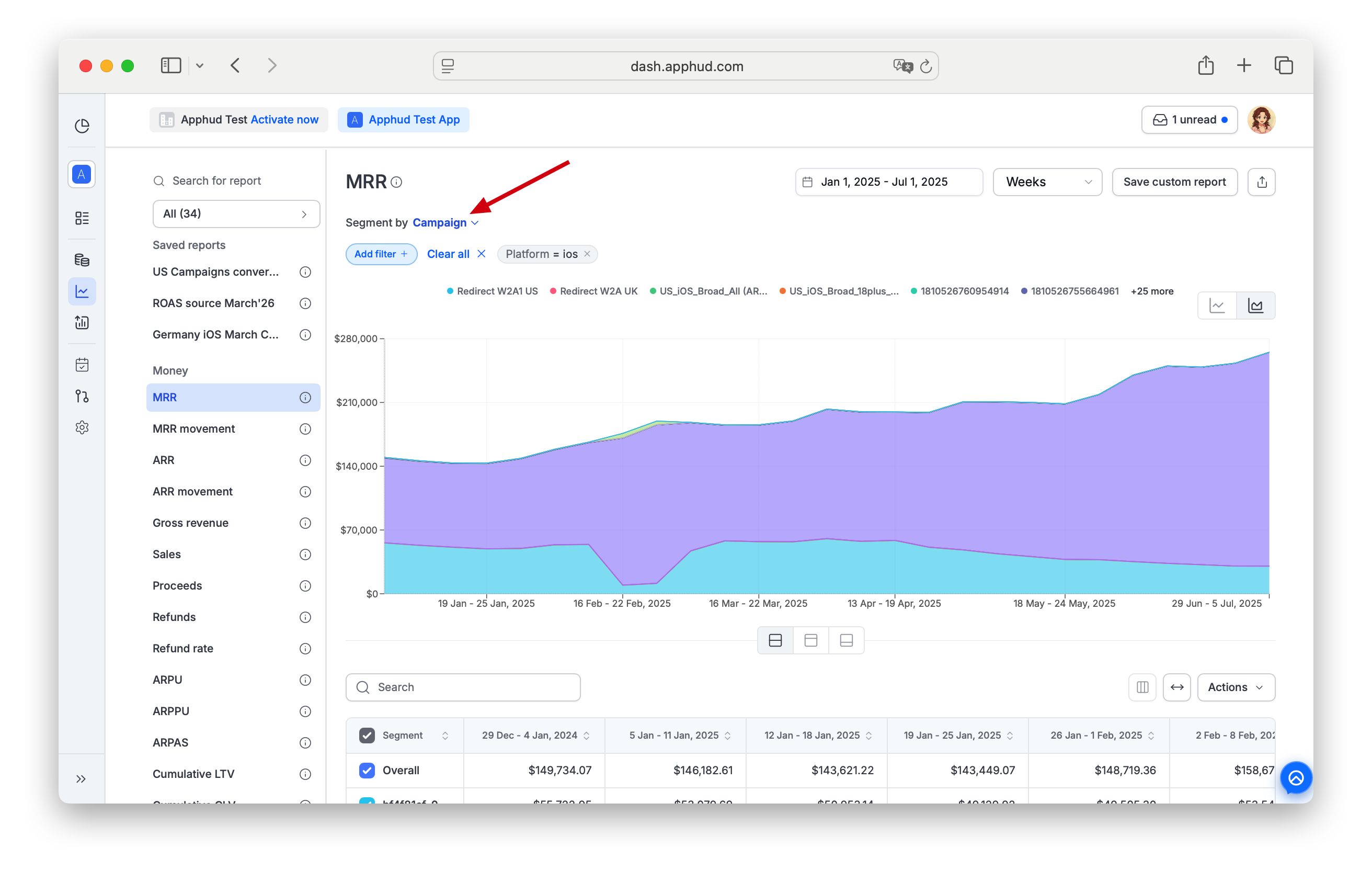
You can analyze your ad campaigns using campaign, ad set, or ad name filters in any chart in real time.
Select **Apphud Attribution -> Campaign **to see the results.
View proceeds, MRR, or cohorts across your marketing campaigns to make the right decisions.
## Clicks and Installs in the Deeplinks list
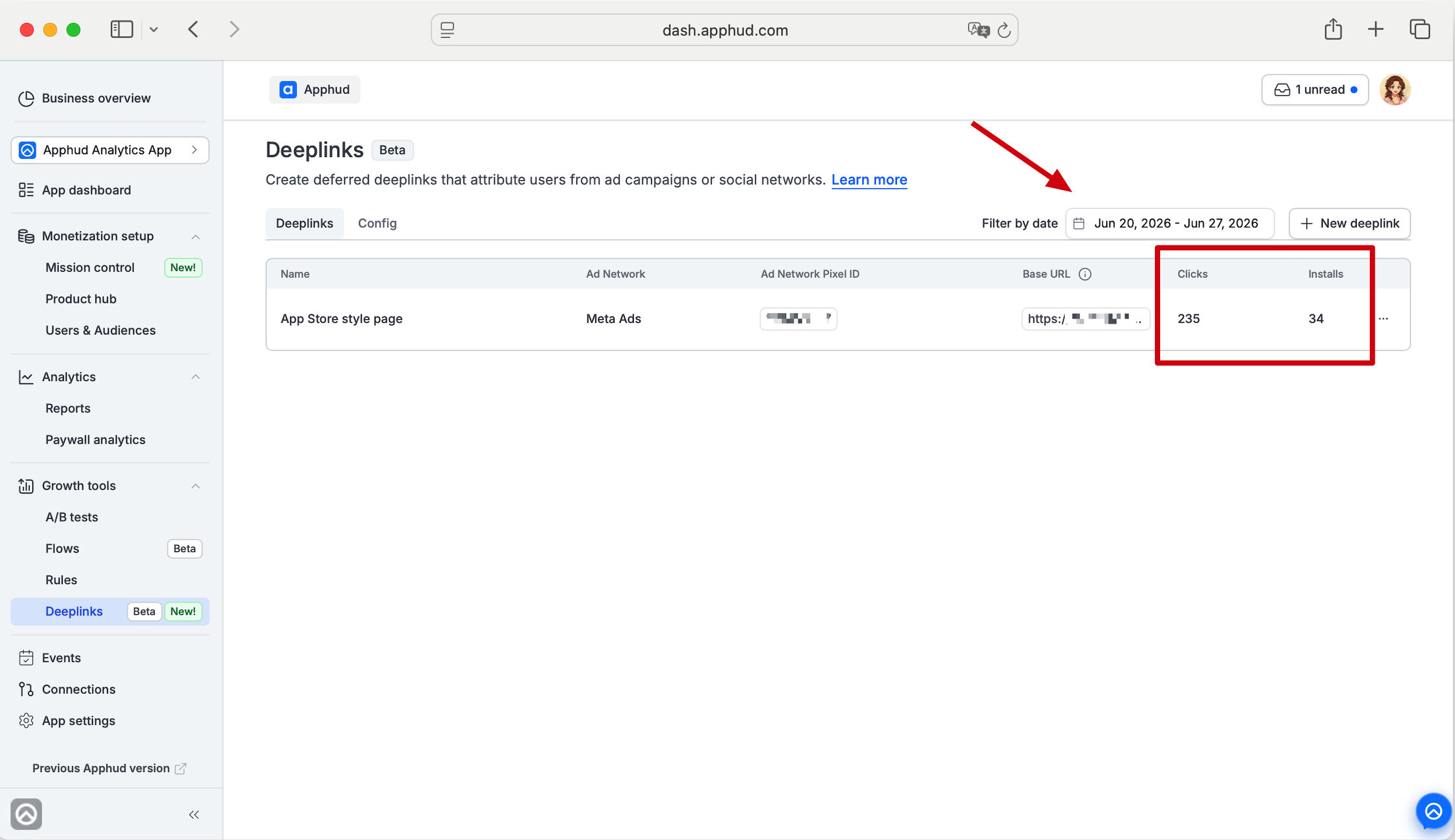
The **Deeplinks** tab shows two metric columns for every deeplink:
* **Clicks** — how many times the deeplink's ad link was opened (pixel hits) in the selected period.
* **Installs** — the clicks that resulted in an attributed app install (matched to an Apphud user) in the same period.
### The date filter scopes these two columns
The **Filter by date** control at the top of the Deeplinks page applies to the **Clicks** and **Installs** columns — they recalculate for the selected range. The deeplink rows themselves are always listed (they are configurations, not date-bound). The selectable range is limited to the **last 90 days**.
### View click logs
To inspect the individual clicks behind a deeplink's **Clicks** count, open the deeplink's **⋯** actions menu → **View click logs**. It opens a per-deeplink log of captured click events for the selected date range (up to the **last 90 days**).
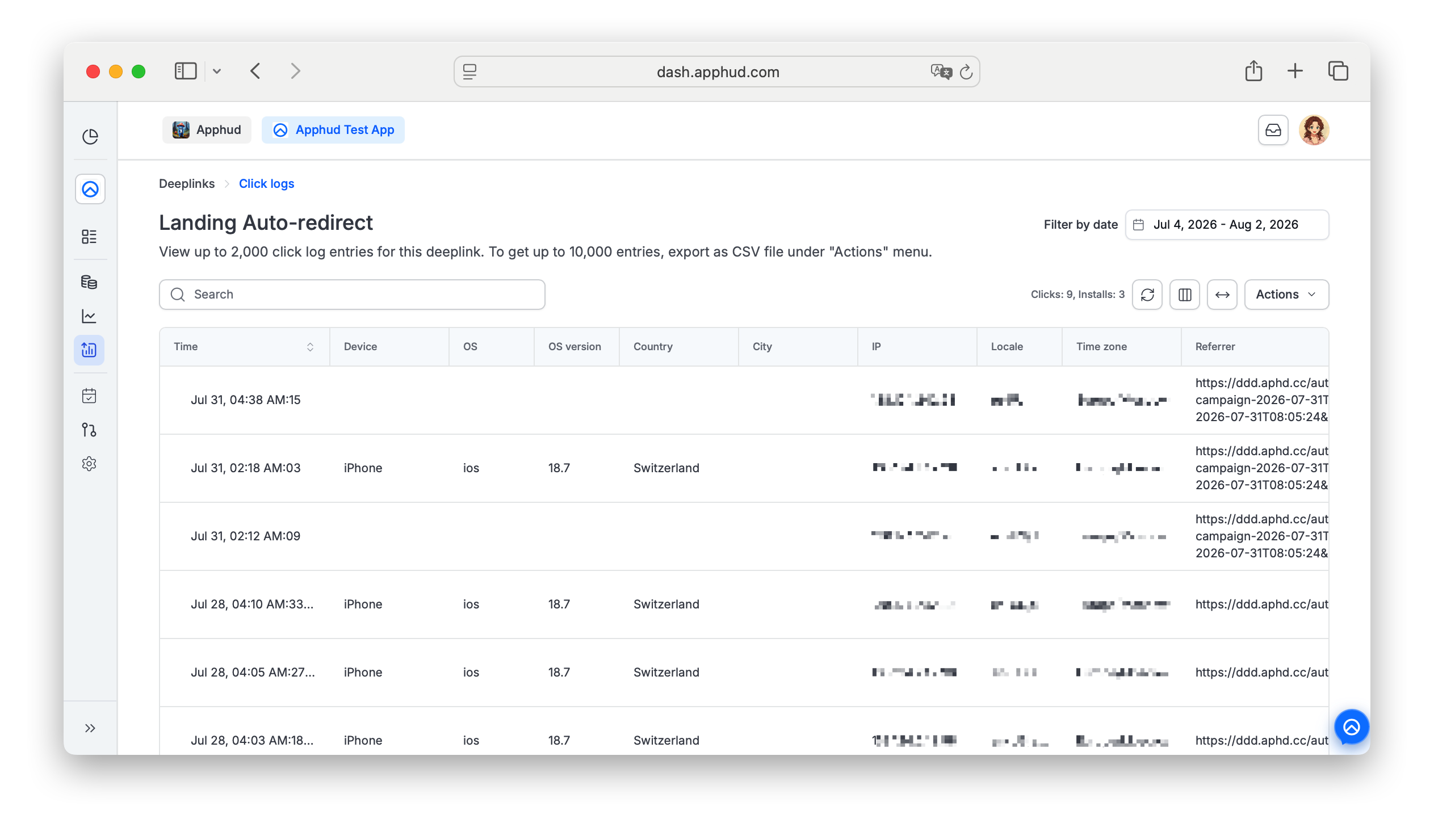
The log includes these columns:
* **Time** — when the click happened
* **Device** — device model (e.g. iPhone)
* **OS** and **OS version**
* **Country** and **City** — GeoIP location of the click
* **IP** — the click's IP address
* **Locale** — device / browser locale
* **Time zone** — the device's reported time zone
* **Referrer** — the source URL of the click, including any UTM parameters
* **User agent** and **Customer** — the raw user-agent and the matched Apphud user (when the click is attributed)
The on-screen list shows up to **2,000** entries. To pull the data out, use **Actions → Copy to clipboard** or **Export CSV** (up to **10,000** entries) — same columns, just more rows.
## Campaign performance ROAS (Coming soon)
You can view ad click performance on the Deeplinks analytics page to find your best performing campaign with ROAS insights.