---
updatedAt: 2026-09-25T13:47:28.000Z
agentTools:
projectIndex: https://docs.apphud.com/llms.txt
---
# Plan and billing
View and manage your Apphud subscription — current plan and MTR usage, payment method, invoices, plan changes, and referrals.
**Plan and billing** is the organization-level billing portal page where you manage everything related to your active organization's subscription, payment methods, invoicing, MTR usage, and referral credits.
Find it in the profile menu (avatar, top-right) → **Plan and billing**.
### Each organization has its own subscription
Plan and billing is scoped to the **active organization**. When you switch organizations (profile menu → Switch organization), this page reloads with the billing context of the new org — different plan, different payment methods, different invoice history, different Tax ID, different MTR usage. To manage which organizations you belong to or to switch the active one, see [Organizations](https://docs.apphud.com/docs/organizations).
**Access:** **Owner** and **Administrator** roles can view and edit. **User** role has no access.
The billing portal provides an overview of your current subscription and usage, and has four tabs:
* **[Billing](#billing)** - current subscription details and **current payment method** definition
* **[Payments](#historical-payments)** - a list of invoices that can be downloaded
* **[Plans](#changing-your-plan)** - available plans and features, so you can change your subscription any time
* **[Referrals](#referrals-tab)** - tab where you can invite other people to Apphud and enroll in the Referral Bonus program
### How your organization's plan is billed
Billing in Apphud is per **organization** — each one has its own plan, payment method, and invoices, so a single person can own or belong to several organizations that are billed separately (see *Each organization has its own subscription* above, and [Organizations](https://docs.apphud.com/docs/organizations)).
Most organizations are on **post-payment** plans; custom (Enterprise) plans can be **pre-payment**.
#### Post-payment (standard plans)
Your organization uses Apphud throughout the month, and at the end of the period we bill it based on its usage — MTR and any add-ons. Once a billing period has passed, the service for that period is considered delivered in full, and its invoice becomes due.
If a payment fails, the plan enters a **grace period**, during which we automatically retry the charge. If it still doesn't go through, the outstanding amount stays on the organization's account as a balance due, the subscription is cancelled, and premium access is limited — add-ons are switched off, and third-party integrations are disabled shortly after. To start again, settle the outstanding balance (ask support for the invoice link) and re-subscribe.
#### Pre-payment (Enterprise / custom)
The organization pays a fixed fee up front for the coming month. At the end of the month, its invoice combines any usage **overage** for the month just finished **plus the fixed fee for the next month**.
### Billing
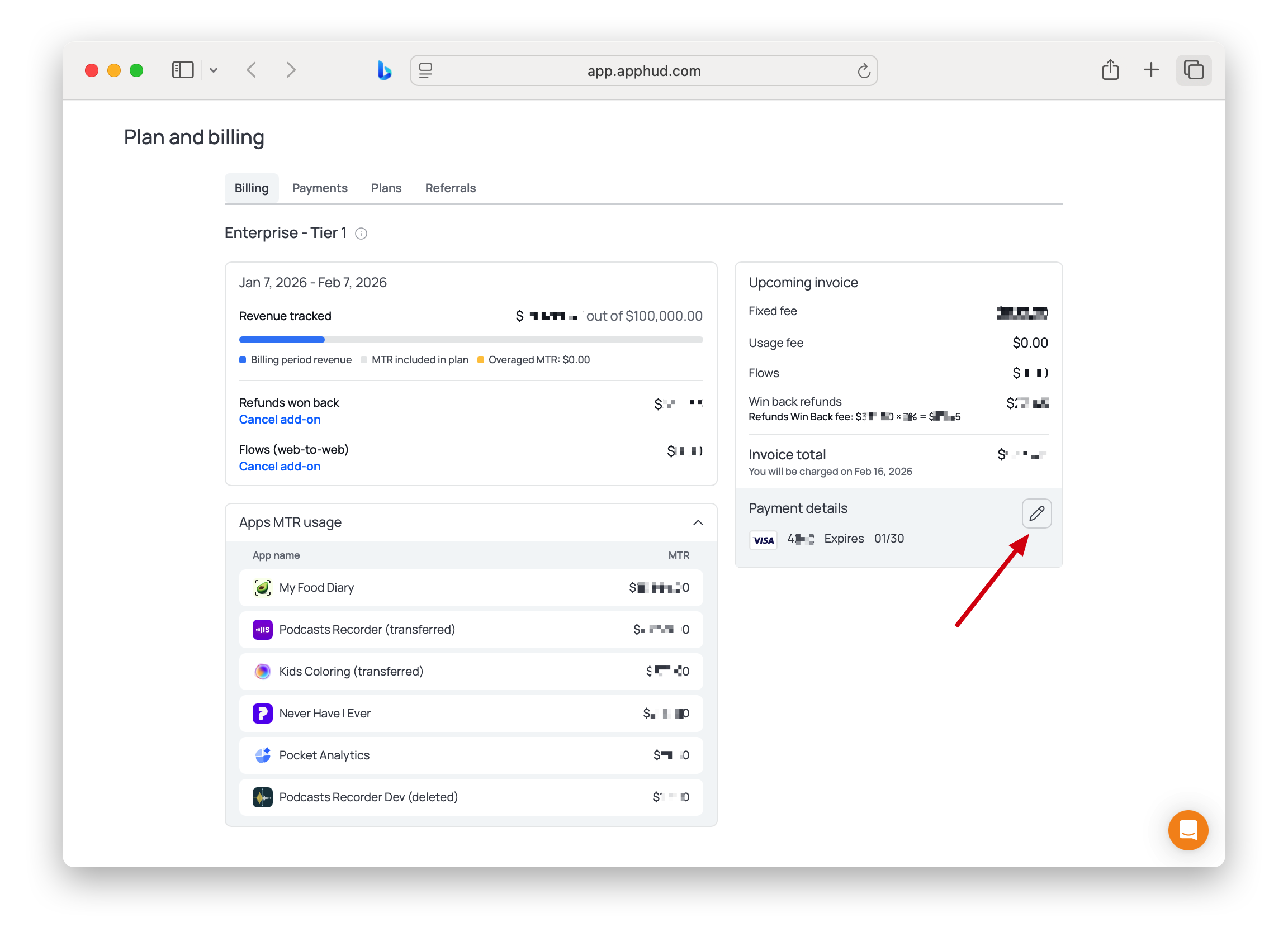
The section contains information about your Apphud plan and subscription period, such as:
1. **Current Plan:** your current subscription plan name at the top, e.g., "Expert" or "Enterprise - Tier 1";
2. **Billing period:** start and end date of the current billing period, e.g., "Jan 7, 2026 - Feb 7, 2026";
3. **MTR included in plan:** Monthly Tracked Revenue (MTR) that is included in your plan price; the number is shown after "... out of";
4. **Revenue tracked:** actual MTR tracked by now for the current billing period;
**Overaged MTR:** MTR tracked beyond the amount included in your plan price;
5. **Refunds won back:** Costs for the Win-Back Refunds feature if it is enabled.
6. **Flows (web-to-web):** Costs for the MTR tracked through Apphud Flows if it is enabled.
7. **Upcoming invoice** will show the estimated amount in USD, specifying how it is composed by providing a breakdown by "Fixed fee", "Usage fee" for overaged MTR fee, and Add-On features fees with calculation, if such features are enabled.
If you have a referral bonus or another **bonus**, the Credit balance amount will be shown, and the invoice total will be adjusted accordingly.
Under **Apps MTR usage**, you can see the list of all your applications registered in Apphud with the relevant MTR>0 for the current billing period. If an app MTR is $0, it won't be shown in the list.
MTR tracked for apps that were then transferred or deleted during the current billing period will be shown with corresponding remarks - (transferred) or (deleted).
#### Payment Details
On the bottom right of the **Plan and billing** tab, you can see **Payment details** section, which shows the current billing method, e.g. *"Visa ending in 6094 Expires 01/28"*.To update the current method, click on the edit pencil icon nearby.
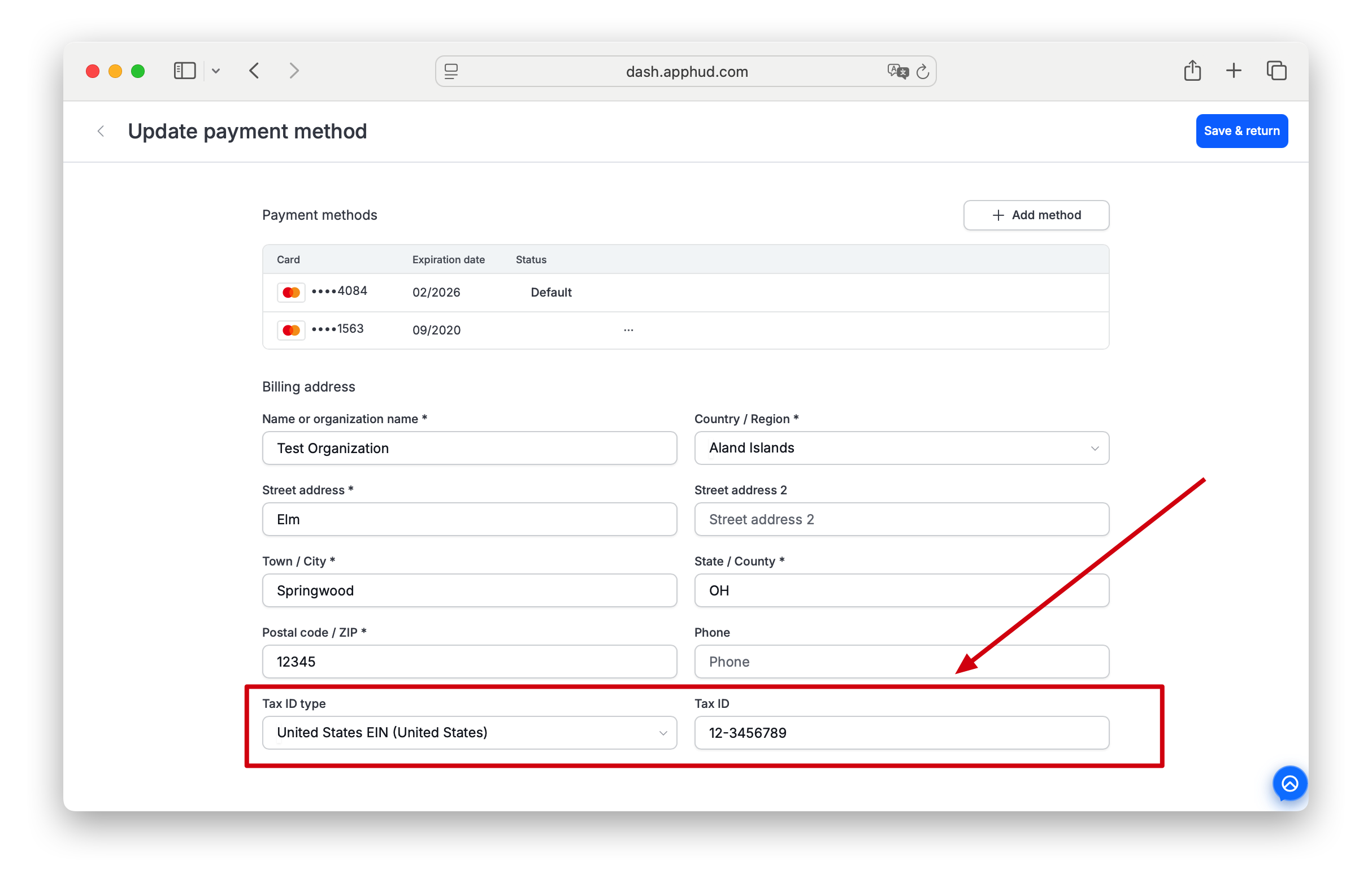
At the top of the opened **Update payment method** view, you can check the list of current and historical **Payment methods** used for your Apphud Subscription.
You can add a new payment method by clicking **+ Add method** button and entering the card details, e.g., when your card is about to expire, to ensure uninterrupted access to Apphud services.
Or you can change the current payment method to a previously registered one by setting it as the default:
#### Billing address and Tax ID
**Billing address** section on Payment method tab can be left untouched/empty, or you can specify here your billing details — Name or organization name, Country/Region, Street address, Town/City, State/County, Postal code, Phone — if you'd like this information to be shown on your Invoices.
The same section also has **Tax ID type** and **Tax ID** fields. Select the type that matches your actual tax registration — Stripe uses it to label the number correctly on your invoice (a short code appears next to the number based on the type you pick).
### Company details and Tax ID in your invoices
Apphud doesn't add your company information or tax registration number to invoices automatically. If you need your full billing address and Tax ID on invoices — often required for tax/accounting purposes — you have to fill in the **Billing address** and **Tax ID** fields here yourself. There's no other setting, and support can't add this after the fact for a specific invoice.
### Cancel an add-on
Paid add-ons are cancelled at the **organization level** from the **Billing** tab, not per app. Each enabled add-on shows a **Cancel add-on** link under its line:
* **Refunds won back** → cancels the [Win Back Refunds](https://docs.apphud.com/docs/win-back-refunds-add-on) add-on.
* **Flows (web-to-web)** → cancels the [Flows](https://docs.apphud.com/docs/flow-introduction) add-on.
Click **Cancel add-on**, then **Confirm** in the dialog (*"Are you sure you want to cancel … add-on?"*). The add-on is disabled for the whole organization and its usage fees stop. This is independent of any per-app toggle inside the feature itself.
An add-on you enabled yourself always shows a **Cancel add-on** link, as above. An add-on enabled by Apphud Support or your account manager — including any custom add-on set up specifically for your organization — is listed the same way, with its name and price, but without a Cancel add-on link. To remove it, contact your account manager or [Apphud Support](mailto:hi@apphud.com), the same way you requested it.
### Historical Payments
In **Payments** tab, you can see the list of all historical payment attempts - successful and not - for the previous billing periods and subscription episodes.
Via click on **Download** button, a relevant Stripe payment order will be opened in a new tab, and from there you can download an Invoice or a Receipt:
### Need invoices sent to another email too?
Invoices and receipts always go to the organization Owner's email — you can't redirect them to a different account entirely. If you also need your finance department to receive them, [contact Apphud Support](mailto:hi@apphud.com) to add that address as a CC recipient.
### Changing Your Plan
You can change your subscription plan at any time by navigating to **Plans** tab in **Billing Portal** module. You'll see the window with subscription plans available and your "Current plan" marked.
Just click the **Choose Plan** button on the new plan, confirm the choice, and your subscription will be updated.
### Note on Downgrade
To avoid disrupting active workflows, we don't immediately disable premium features that are currently in active use.
If your apps rely on functionality not included in the newly selected plan (such as active Rules, Experiments, or Integrations), we may ask you to confirm the plan change before applying it, to ensure a smooth and intentional transition.
You can study the list of [features available](https://apphud.com/pricing) for each plan on your own, or request a consultation with Support to pick up an optimal plan for you.
### Referrals Tab
The tab is available in **Billing Portal** module. It allows you to take part in the Apphud [Referral Program](https://legal.apphud.com/referral-program) - invite others to Apphud and get entitled to a Referral Bonus.
There are two ways to invite referrals:
* **Copy your personal referral link** and share it with friends or colleagues. **Invite others via email** by entering their email addresses in the provided field and clicking Invite.
### FAQ
If your organization's subscription was cancelled after a failed payment and your plan was changed to Free, it won't automatically return to a previous premium one after you address the debt.
Paying the outstanding balance settles the period your organization has already used — it doesn't automatically switch the plan back on. To pick things back up (as an **Owner** or **Administrator**):
1. **Re-subscribe** — open the **Plans** tab and choose your plan again.
2. **Re-activate your integrations** — third-party integrations are switched off after a downgrade to Free, so turn the ones you use back on.
3. **Re-enable your add-ons** — add-ons such as Flows and Win-Back Refunds are turned off too, so switch them back on.