
Audiences
Group users with built-in segments or custom filter combinations, and use them in targetings, A/B tests, and rules.
An audience in Apphud is a group of users — either a built-in segment (Trial subscribers, Customers, Non-paying users, etc.) or a custom segment defined by filters on purchases, properties, experiments, attribution, or your own user properties. Use audiences to drill into who's in your app right now, bind paywalls per placement via Targetings in Mission Control, pick cohorts for A/B tests (run on a Targeting that uses the audience), and trigger messages or screens in Rules.
Find Audiences in the sidebar under Monetization setup → Users & Audiences.
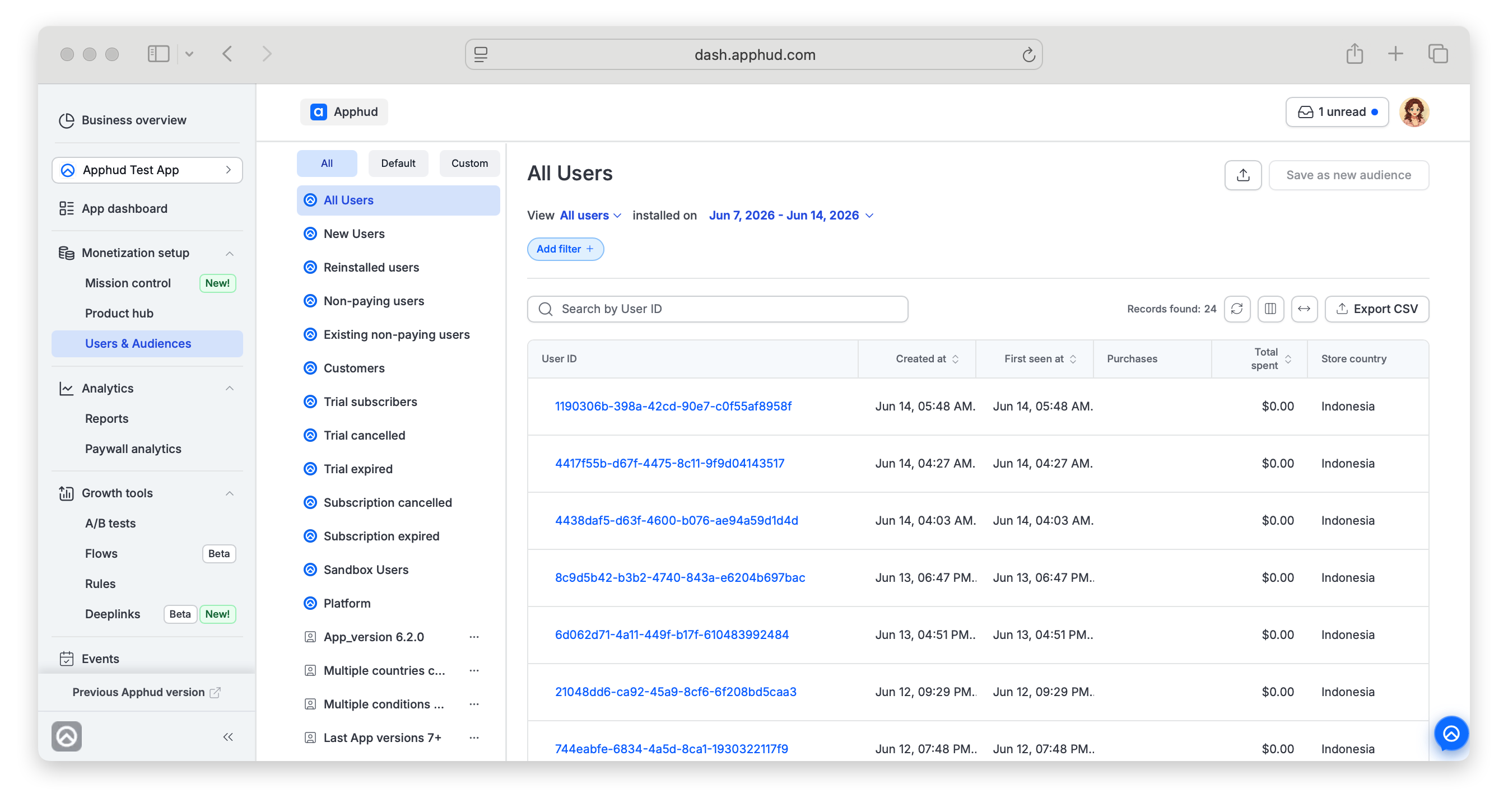
Default vs. Custom audiences
The sidebar groups audiences into three views: All, Default, and Custom.
- Default — built-in segments that come with every app. They cannot be renamed, deleted, or updated. The exact list is below.
- Custom — segments you define yourself by combining filters. Custom audiences can be renamed, updated, or deleted, and saved from any filter combination via the Save audience… menu.
- All — both groups together.
Default audiences
| Audience | Definition |
|---|---|
| All Users | Every user in your app. |
| New Users | Users who installed the app less than 24 hours ago. |
| Reinstalled users | Users who reinstalled the app in the last 24 hours (based on the App reinstalled event). Useful for win-back strategies or measuring retargeting campaigns. |
| Customers | Users who ever purchased a free trial, paid subscription, or any single purchase. |
| Non-paying users | Users who have never purchased a free trial, paid subscription, or single purchase. Includes new and existing users. |
| Existing non-paying users | Same as Non-paying users, but excludes New Users. |
| Trial subscribers | Users who started a trial (whether or not they converted). |
| Trial cancelled | Users who cancelled a trial that hasn't expired yet. |
| Trial expired | Users with an expired trial. |
| Subscription cancelled | Users who cancelled a subscription that hasn't expired yet. |
| Subscription expired | Users with an expired subscription. |
| Sandbox Users | Users from the sandbox environment — typically identified through sandbox purchases or testing interactions. See Sandbox testing. |
| Platform | Auto-generated segments by user platform (iOS / Android / Web). |
Custom audiences
Custom audiences are filter combinations you've saved with a name. They drive dynamic content delivery elsewhere in Apphud:
- Bind paywalls per placement to an audience via Targetings in Mission Control.
- Run A/B tests on those Targetings to compare paywalls or full monetization schemes for the audience. A/B tests are not attached to an audience directly — they run on a Targeting, which uses the audience.
- Trigger messages, push notifications, or screens in Rules for users matching the audience.
Common use cases: discounted pricing for lower-income countries, extended trials for highly engaged non-converters, region-specific paywalls. Audiences can combine default user properties (Store Country, Locale, Language, Platform) with custom User Properties you set from your SDK.
Create a custom audience
You can create a custom audience in two places:
- From this page (the main route) — Users & Audiences is the canonical place to build, browse, and manage audiences.
- Inline from a Targeting — when setting up a Targeting in Mission Control, the audience picker lets you create a new audience inline without leaving the targeting flow. The audience is saved here in your library and behaves identically to one created on this page.
To create one from this page:
- Pick a default audience to start from (or start from All Users).
- Click Add filter + and combine the filters you need — see Filters below.
- Click Save audience… → Save as new in the top right.
- Give the audience a name and save. It appears in the sidebar under Custom.
Rename or delete a custom audience
Click the ⋯ menu on a custom audience in the sidebar:
- Rename audience — opens a dialog with the current name pre-filled. Edit and Save Changes.
- Remove audience — opens a confirmation dialog ("Are you sure you want to remove this audience? This action cannot be undone."). Click Remove audience to confirm.
Default audiences don't have a ⋯ menu — they can't be renamed or removed.
You can't delete an audience that's in useIf the audience is referenced by a Targeting in Mission Control or by a Rule, Apphud blocks deletion. The current error message is "Cannot delete segment with associated scheme." "Scheme" here means the monetization assignment in Mission Control — usually a Targeting that uses this audience.
A/B tests in Experiments run on a Targeting (not directly on the audience), so removing or reassigning the Targeting also clears the audience's link to any active A/B test.
To delete the audience, first remove every reference to it:
- Open Mission Control → Targetings and either delete the targeting that uses the audience, or change its audience to a different one.
- Check Rules for any rule that uses the audience and reassign or remove it.
Then return to Audiences and delete it.
Update a custom audience
Open a custom audience, change the filters, then click Save audience… → Update selected.
Update selected is enabled only when the conditions hold:
- The audience is custom (default audiences cannot be updated).
- At least one unsaved filter is applied.
Otherwise the option is disabled with a tooltip explaining why.
Save as New
You can use an existing custom audience as a starting point for a new custom audience creation.
Open a custom audience, change the filters, then click Save audience… → Save as new.
Save as New option is enabled only when the conditions hold:
- The View is set to filter only Production users.
- At least one filter is applied.
Otherwise the option is disabled with a tooltip explaining why.
View / installed on
Three controls at the top of the page scope the audience preview:
View
Choose which user environment is included in the table:
- All users — production and sandbox together.
- Production users — only production.
- Sandbox users — only sandbox.
installed on
Standard date range with presets and a calendar — see Common controls → Period.
The range filters users by install date — the table shows users who installed the app within the selected period.
Date range now applies to Sandbox tooIn the previous Apphud version, switching to the Sandbox users view ignored the date range and other filters — all sandbox users were listed regardless. In v2.0, the installed on date range (and any Add filter + filters) apply to Sandbox users the same way they apply to Production. If you don't see a sandbox user you expect, widen the date range first.
Delete all sandbox users
With View set to Sandbox users, click Delete all sandbox users under the search field. The dialog shows how many sandbox users the app has. It counts all of them, regardless of the installed on date range and the filters applied on the page. Click Delete to confirm. This action can't be undone.
The deletion is scheduled: the users disappear from the list within a few minutes. If a previous deletion is still running, you'll see a message that it's already scheduled — try again later.
The button is available to team members with write access to Products. Production users are never deleted this way. To delete a single user, use the trash icon on the User Page.
Search
The search field above the table searches by User ID.
Search respects the View onlyThe search runs globally within the selected View (Production / Sandbox / All users). The installed on date range and any applied filters are ignored during search — only the View selector matters.
To find a Sandbox user, set View to Sandbox users or All users. To find a Production user, View should be Production users or All users.
Merged usersSearching by a previous (merged) User ID resolves to the surviving user. After a merge the old user no longer exists as a separate record — the search lands you on the merged (surviving) user, shown under their current User ID. See how user merging works.
Filters
Click Add filter + to scope an audience by additional parameters. Filters are grouped into seven categories.
Purchases
| Parameter | Type & Description |
|---|---|
| In-App Purchase Status | Predefined — Trial, Regular, Intro, Promo, Expired, Refunded, etc. The user's current subscription / purchase state. |
| In-App Purchase Type | Multi-select: Auto-renewable subscription / Non-renewing purchase. |
| Autorenewal | Enabled — select to match users whose subscription is set to auto-renew. |
| Is Customer | Single value — select to match users who are (or were) paying customers. |
| Product ID | Multi-select from your product IDs — users who purchased the selected product(s). |
| Permission Group | Multi-select from your permission groups — users with access to the selected group(s). |
| Expires in next 24h | True — select to match users whose subscription expires within the next 24 hours. |
| Payment Provider | App Store / Play Store / Stripe / others — where the purchase was processed. |
Properties
| Parameter | Type & Description |
|---|---|
| Country by IP | Multi-select country list — the user's current country detected from their IP address. |
| Store Country | Multi-select country list — the storefront country of the user's App Store / Google Play account. |
| Locale | Multi-select — the device locale (e.g., en_US). |
| Language | Multi-select — the device language. |
| Platform | iOS / Android / Web — platform(s) the user has opened the app on. |
| Anonymous | Single value — select to match anonymous users (not yet identified with your own User ID). |
Experiments
| Parameter | Type & Description |
|---|---|
| Experiment | Multi-select from your A/B tests; pick a variation as the value — users assigned to that experiment variation. |
User
| Parameter | Type & Description |
|---|---|
| Has at least One Payment | Single value — select to match users who have made at least one payment. |
| User Lifetime | Two options: New user (installed less than 24 hours ago) or Existing user (installed 24 hours ago or more). |
| Install Month | Picker — the calendar month the user installed. |
| App Version | Numeric comparison (=, <, >, ≥, ≤) — matches the app version(s) the user has been seen on (their current / observed versions), not the install version. |
| OS Version | Numeric comparison — the OS version(s) observed for the user. |
| Has Event | Multi-select from event list — users who triggered the selected event(s). |
| Last Reinstalled in 24h | Single value — select to match users who reinstalled the app within the last 24 hours. |
| Install Source | Multi-select — how the user was acquired (e.g., organic, or Flows for web-to-web users). |
| Install Source Identifier | Free-form text — a specific source identifier (e.g., a particular Flow). |
Apphud Attribution
Attribution as computed by Apphud from SDK and integration signals.
| Parameter | Type & Description |
|---|---|
| Status | Predefined (Organic, Non-Organic, etc.) — Apphud's attribution result for the user. |
| Provider | Multi-select (Apple Search Ads Integration, etc.). |
| Ad Network | Multi-select. |
| Channel | Multi-select. |
| Campaign | Multi-select or free-form. |
| Ad Set | Multi-select or free-form. |
| Creative | Multi-select or free-form. |
| Keyword | Multi-select or free-form. |
| Custom 1, Custom 2 | Free-form. |
MMP Attribution
Same parameter set as Apphud Attribution, but matched against attribution data received from connected mobile measurement partners (Adjust, AppsFlyer, Branch, Singular, Tenjin).
User Properties
Dynamic list of every system-reserved and custom User Property defined in your app (e.g., $age, $cohort, $email, $gender, $name, $phone, plus your own Facebook1, Google, QA_User_Property, …).
Searching by Custom User Properties
- Start typing a property name to quickly find it.
- To set a condition, start typing the first few characters of the value — matching options appear in the dropdown. The full list is not preloaded for performance reasons.
- You can create an audience using a property that has not yet arrived in Apphud — just type the expected value in the
…is equal tofield.
Boolean filtersFilters like Autorenewal, Expires in next 24h, Is Customer, Has at least One Payment, Anonymous and Last Reinstalled in 24h expose a single value to select (e.g.,
Enabled,True). You pick it to match users who meet the condition — the filter can't be applied without choosing the value, and the opposite value isn't selectable.
For operator behavior, multi-select, predefined vs. free-form values, and chip mechanics, see Common controls → Filters.
Shared toolbar and table controls
The Users toolbar uses the same building blocks as other Apphud tables. Universal mechanics are documented once in Common controls; User-specific behavior is documented here.
From Common controls (same as elsewhere)
- Edit columns — toggle and reorder columns, or reset customization to defaults. See Reports → Edit columns.
- Auto-fit columns — fit widths to content. See Reports → Auto-fit columns.
- Sort — click a column header to sort. See Reports → Sort.
- Share URL — copy a URL that captures the current view. Events URL format:
https://dash.apphud.com/<app>/share/e/<id>. See Reports → Share URL.
User-specific controls
- Refresh — the circular-arrow icon next to the search field. Click to pull users that arrived after you opened the page. New events do not stream in automatically.
- Export CSV — downloads the current filtered set as a CSV file. A confirmation dialog shows the exact row count: Export events (N). The export respects current filters, sort order, and visible columns.
- Pagination — at the bottom of the table:
- Page navigation —
1–N of totalwith previous/next arrows. - Show per page — 50, 100, 250, or 500 rows per page.
- Page navigation —
Permission required to exportExporting detailed user-level data (CSV download from Events or Users & Audiences) is available to Owners and Admins of the company by default.
Regular team members with User role can export only if an Owner or Admin has granted them the relevant permission.
Table columns
The table has one pinned column and several toggleable ones. Open Edit columns to change which are shown and to reorder them. Click Reset to default to restore the default set.
Pinned (always shown)
| Column | Description |
|---|---|
| User ID | Public user identifier. Clicking opens the User Page in a new tab. Sandbox users are prefixed with a </> icon for quick visual identification. | |
Toggleable
| Column | Description |
|---|---|
| Created at | When the user record was first created in Apphud. |
| First seen at | When the user was first seen in any session. |
| Purchases | Total purchase count by the user. |
| Total spent | Lifetime spend in USD. |
| Platforms | iOS / Android / Web. |
| Country by IP | Full country name from IP. |
| Country by IP code | ISO code from IP. |
| Store country | Full country name from the store. |
| Store country code | ISO code from the store. |
| Install source | Organic / paid / attribution provider. |
FAQ
Why is "Update selected" disabled?
One of three conditions isn't met: the audience is a default (predefined) one, no filter is applied, or you're in the sandbox environment. Switch to a custom audience, apply at least one filter, and confirm you're viewing production users.
Why do I see "Cannot delete segment with associated scheme" when removing an audience?
The audience is still referenced by a Targeting in Mission Control or by a Rule. A/B tests run on Targetings (not directly on audiences), so removing or reassigning the Targeting clears the audience's link to any active A/B test too. Apphud blocks deletion to prevent breaking those configurations. Remove every reference first (or reassign them to a different audience), then delete. See Rename or delete a custom audience for details.
Can I save a default audience under a new name?
Yes. Open the default audience, optionally add filters, and use Save audience… → Save as new. The new audience appears under Custom.
Where can I use a custom audience?
- As a Targeting audience in Mission Control — the Targeting picks paywalls per placement for users matching the audience.
- In A/B tests — tests run on a Targeting that uses the audience (not on the audience directly).
- In Rules — trigger messages, pushes, or screens for users matching the audience.
How do I find a specific Sandbox user?
Set View to Sandbox users (or All users) and paste the User ID into the search field. The date range and any applied filters are ignored during search — only the View selector affects what's searched. With View set to Production users, sandbox users won't be found.
How do I share a saved view with my team?
Click the Share URL icon in the top-right of the table. Apphud generates a URL that captures your audience selection, filters, sort, and column setup.
Why doesn't my user show up after I set a custom user property?
When you target an Experiment to a custom audience defined by custom user properties, set and flush properties back-to-back — call Apphud.setUserProperty(...) immediately followed by Apphud.forceFlushUserProperties. Audience matching happens server-side using the latest stored values; a gap of more than ~2 seconds can cause the user to miss the intended audience. See Audience Based on User Properties.
Updated 5 days ago