
Account settings
Manage your personal Apphud account — name, photo, email, password, two-factor authentication, passkeys, communication preferences, appearance, and active sessions across devices.
The Account settings popover holds everything tied to your individual Apphud account — your profile and security — alongside general settings for your current organization.
Open it from the profile menu (avatar, top-right) → Account settings. Your Profile and Security details are personal and stay the same across every organization you belong to; the Organization tab applies to the organization you're currently in.
For deeper organization topics — plan, billing, payment method, members — see Organization settings, Plan and billing, and Team and permissions.
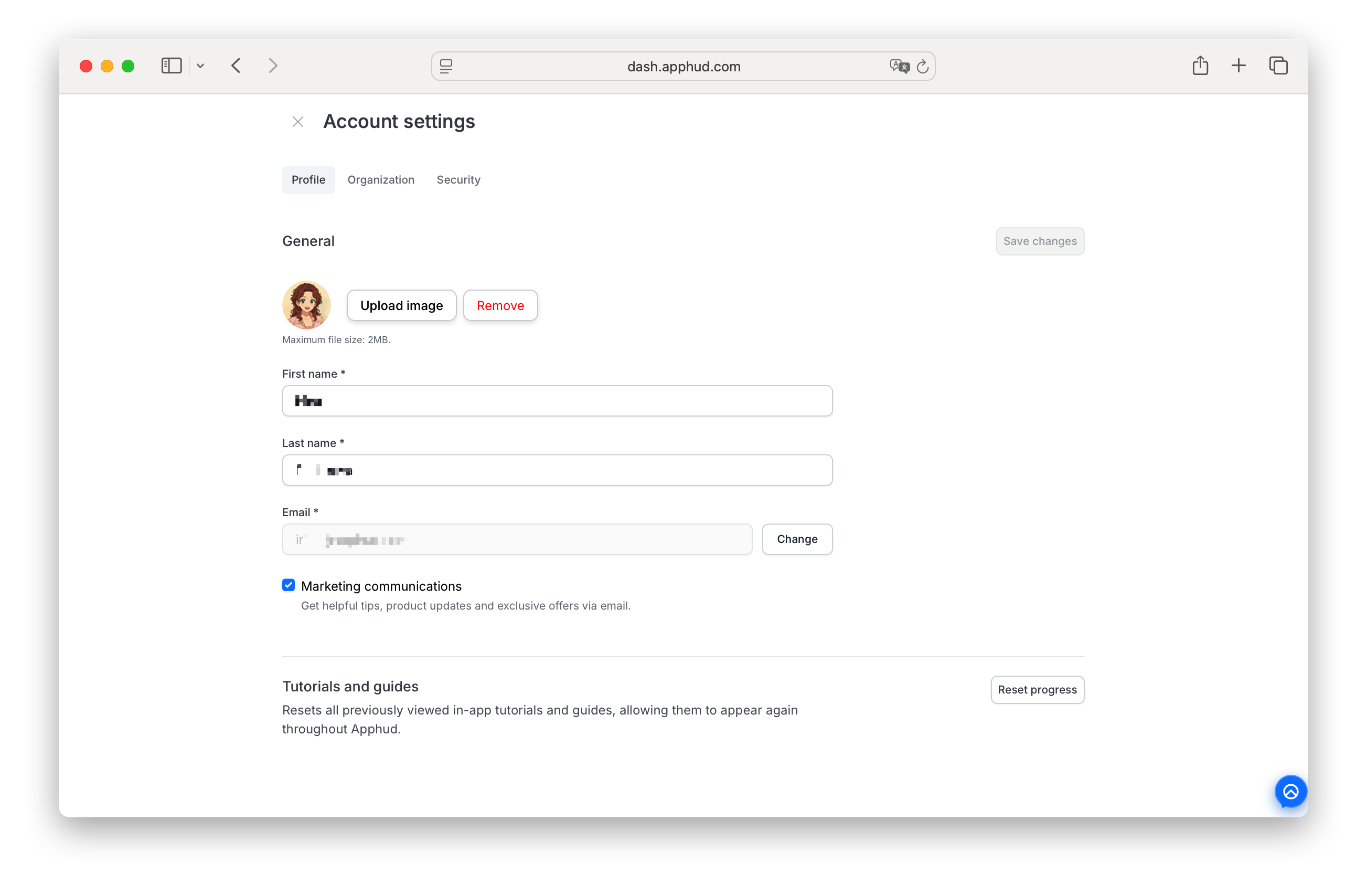
Tabs
The page has three tabs:
- Profile — your name and photo, login email, marketing communication preferences, and tutorial progress.
- Organization — general settings for the organization you're currently in: logo, name, Organization ID, analytics cache, and S2S API keys. See Organizations for the full reference.
- Security — password, two-factor authentication, passkeys, and your active sessions.
Profile tab
Profile photo
- Upload image — set or replace your avatar (max 2 MB). The photo appears in the profile menu, in team lists, and on activity logs.
- Remove — revert to the default placeholder.
Name
- First name *
- Last name *
Editable any time. Used in the dashboard chrome, on team lists across all your organizations, and in account emails.
Email
Your login email and the address Apphud uses for all account-related notifications. To update:
- Click Change in the Email row.
- Enter the new email address.
- Apphud sends an 8-digit verification code to the new address.
- Enter the code in the confirmation field to apply the change.
The code is single-use and expires after 10 minutes — if it expires, just request a new one from the same flow. You can also cancel the pending change before entering the code.
Once the change is applied, your old email address receives a notification that the account email was updated — useful for spotting unauthorized changes.
Communication preferences
- Marketing communications checkbox — "Get helpful tips, product updates and exclusive offers via email."
Uncheck to stop receiving Apphud's product updates and marketing emails. This is independent of account / billing / security emails — those always send because they're required for operating your account.
Tutorials and guides
- Reset progress — clears the completion state of in-product tutorials, walkthroughs, and tooltips so they appear again the next time you encounter the relevant pages.
Use it when onboarding a new team member while sharing your screen, or to rewatch tutorials you've already dismissed.
Appearance - coming in H2 2026
Toggle the dashboard between light and dark mode (sun / moon icon). The choice is stored in your browser only — it doesn't sync across browsers or devices.
Organization tab
The Organization tab holds general settings for the organization you're currently in:
- Logo — upload or remove your organization's logo (max 2 MB).
- Organization name *
- Organization ID * — your dashboard URL slug (
dash.apphud.com/<id>), 3–20 characters. - Analytics cache — Clear analytics cache removes cached analytics data for the organization; it doesn't affect billing or live analytics ingestion.
- S2S API Key — server-to-server keys shared across all your apps.
Only the Owner and Administrator roles can access the Organization tab. See Organizations for the full reference.
Security tab
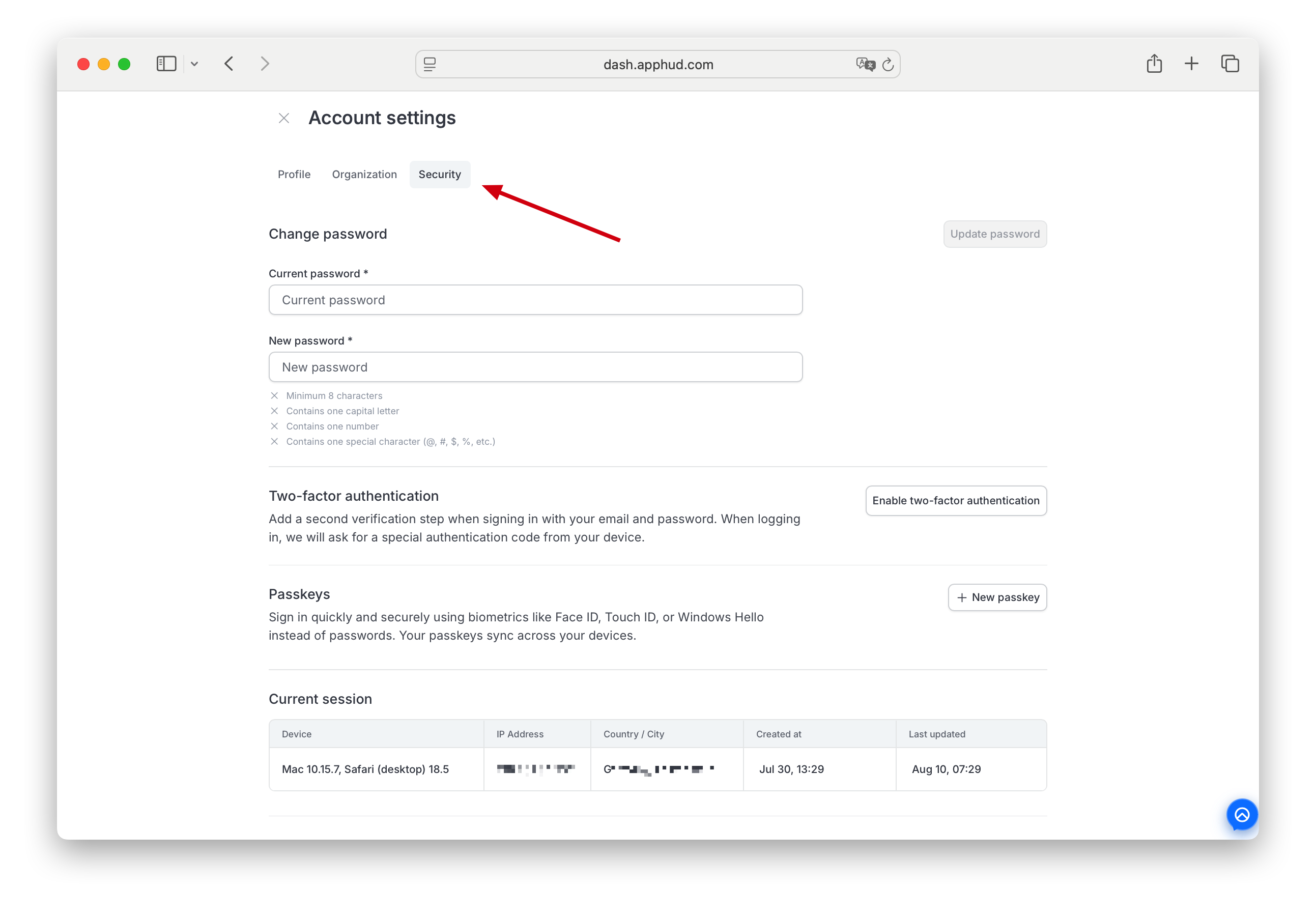
Password
Change your password directly on the Security tab:
- Current password *
- New password * — live validation against four rules:
- Minimum 8 characters
- Contains one capital letter
- Contains one number
- Contains one special character (
@,#,$,%, etc.)
- Repeat new password * — appears once you start typing the new password.
- Click Update password to apply.
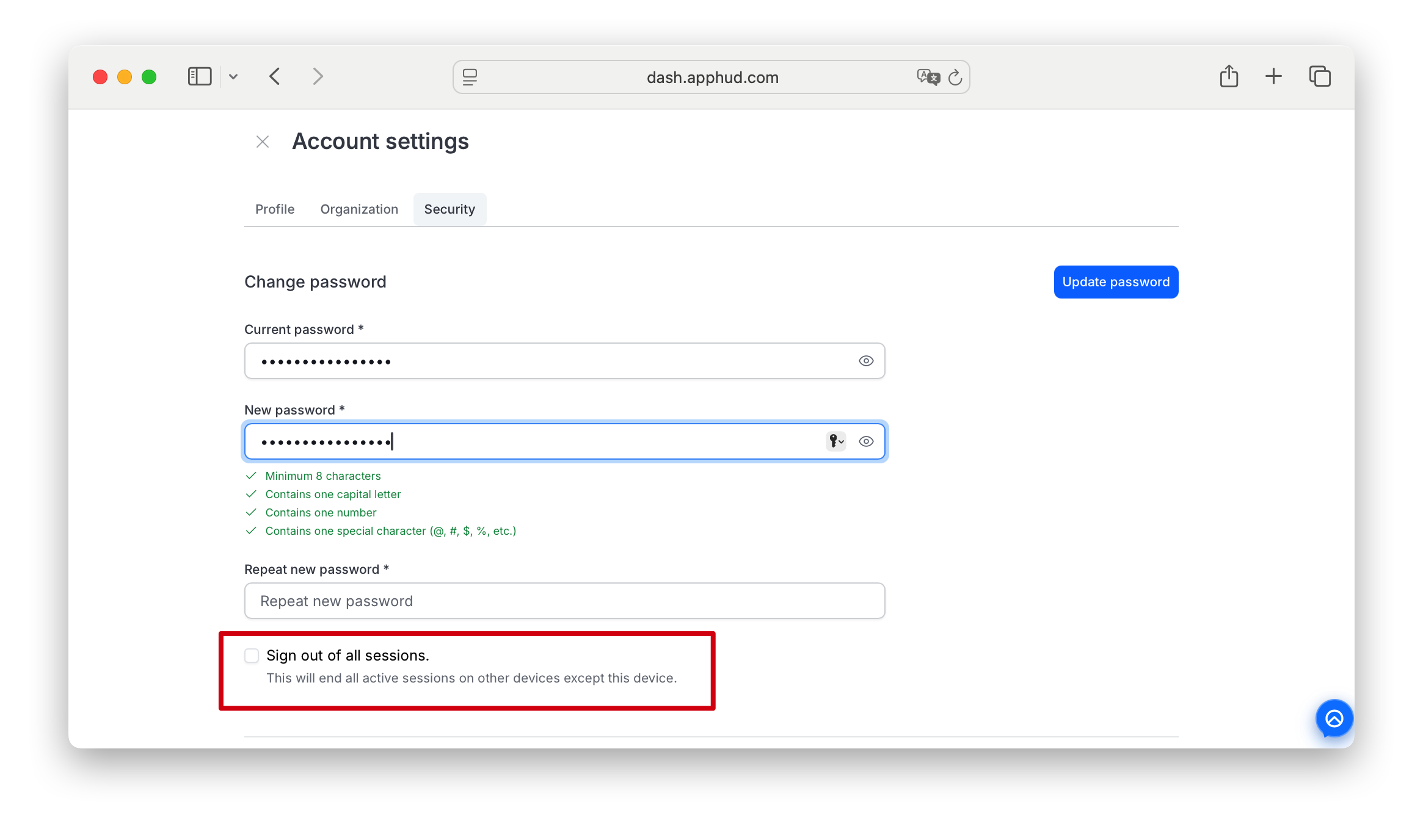
If you have another active session, a Sign out of all sessions checkbox appears once you start typing the new password. Check it to end every other session as part of this password change; leave it unchecked and your other sessions stay signed in, same as before.
If your account has two-factor authentication enabled, a Confirm password change dialog asks for the current 6-digit code from your authenticator before the change is saved.
Apphud sends a confirmation email to your account address whenever the password is changed — useful for spotting unauthorized changes. You can also end other sessions separately at any time, independent of a password change, using Revoke all other sessions further down this tab.
Two-factor authentication
Add a second step that's required at sign-in after email + password. Apphud's 2FA uses TOTP (Time-based One-Time Password) — compatible with Google Authenticator, Authy, 1Password, or any other TOTP authenticator app.
To enable:
- Click Enable in the Two-factor authentication row.
- The Set up authenticator modal opens with a QR code and a manual key fallback.
- Open your authenticator app and scan the QR code — or, if you can't scan it, click the eye icon next to MANUAL KEY and type the key into the app instead.
- Your authenticator app starts generating a rotating 6-digit code.
- Enter the current 6-digit code in the Verification code field of the modal and click Verify and enable.
Recovery codes — save them when 2FA is enabled
After 2FA is enabled, Apphud generates 10 single-use recovery codes (format XXXX-XXXX-XXXX) and shows them to you once. Save them to a password manager or another secure location — you can't view them again.
If you ever lose access to your authenticator app, sign in by entering email + password as usual, then on the 2FA step click the recovery option and enter one of the recovery codes instead of the TOTP code. Each code works once; treat them as backup keys.
Once enabled, Apphud requires the rotating 6-digit code from your authenticator (or one of the recovery codes) on every sign-in after email + password.
Passkeys
A passkey lets you sign in to Apphud with the device biometrics you already use — Face ID, Touch ID, Windows Hello, or a hardware security key — instead of typing a password. Passkeys are stored in your operating system's keychain (Apple iCloud Keychain, Google Password Manager, 1Password, etc.) and sync across your devices that share the same keychain.
The Passkeys row shows your saved passkeys for apphud.com or "No passkeys found" if none.
To add a passkey:
- Click Add new.
- Your browser (or your password manager, if integrated) prompts you to choose where to save it: iCloud Keychain, a phone / tablet / security key (via QR), or your browser profile (e.g., Your Chrome profile).
- Confirm with biometrics (Touch ID / Face ID / Windows Hello / security key tap).
- The new passkey appears in the list.
To use a passkey at sign-in: choose Sign in with Passkey on the sign-in page and authenticate with biometrics.
You can add multiple passkeys — for example, one synced via iCloud Keychain plus a hardware security key as backup.
Current session
The session you're using right now. Columns:
- Device — operating system + browser + version (e.g., Mac 10.15.7, Safari (desktop) 18.5).
- IP Address
- Country / City
- Created at — when this session started.
- Last updated — most recent activity timestamp.
You can't revoke the current session from here — to end it, just sign out from the profile menu.
Active sessions
All other sessions, in chronological order. Each row has the same columns plus a Revoke action that ends that single session immediately. The next request from that device's session token will redirect to sign-in.
Revoke all other sessions
The Revoke all other sessions link at the top-right of the sessions list opens a confirmation modal: "Revoke all other sessions? This will revoke every session on your account. You may need to sign in again."
- Cancel — keep all sessions active.
- Revoke all (red) — end every session except the current one.
Use this when you've signed in from a public computer, suspect unauthorized access, or just want to clear out stale sessions.
FAQ
When I switch organizations, do my Profile and Security settings change?
No. Name, photo, email, password, 2FA, passkeys, communication preferences, appearance, and active sessions are personal to your Apphud account and stay the same across every organization you belong to. Only the organization-scoped settings (the Organization tab, Plan and billing, Team and permissions, apps) change when you switch.
I changed my email but I can still sign in with the old one. Why?
The change isn't final until you enter the 8-digit verification code Apphud sent to the new address. Until you confirm with that code, the old email keeps working. If 10 minutes pass without confirmation, the code expires — request a new one from the Change email flow.
I forgot my password — how do I recover?
Use Forgot your password? on the sign-in page. See Access recovery for the full reset flow.
What if I lose access to my authenticator device after enabling 2FA?
Use one of the 10 recovery codes Apphud showed you when you enabled 2FA. On the sign-in screen, after entering email + password, choose the recovery-code option instead of the TOTP code and enter any unused recovery code. Each code is single-use.
If you didn't save the recovery codes and can no longer use your authenticator, contact Apphud Support — we'll help you regain access and re-enroll 2FA on a new device. After re-enabling, save the new set of recovery codes immediately.
What's the difference between a passkey and 2FA?
- 2FA adds a step after your password — you still type the password, then a 6-digit code from your authenticator app.
- A passkey replaces the password entirely with biometric authentication on a trusted device.
You can use either, both, or neither. Many security-conscious users enable both: a passkey for fast everyday sign-in plus 2FA as a fallback for situations where passkey isn't available (e.g., signing in on a brand-new device).
Why is my country listed as one country in Active sessions but I'm somewhere else?
The country is detected from your IP address, which can resolve to a VPN exit node, an ISP's regional hub, or a proxy rather than your physical location. If a session looks suspicious — unfamiliar IP, unfamiliar device, unexpected location — Revoke it and change your password just in case.
Will a password change log me out of other devices?
Not automatically, unless you use the checkbox for it. When you change your password from the Security tab and have another active session, a Sign out of all sessions checkbox appears — check it and every other session ends as part of that change. Leave it unchecked (the default) and existing sessions on other devices stay signed in; you can still end them anytime with Revoke all other sessions on the Security tab.
What gets cleared when I click "Reset tutorials"?
Apphud's in-product tutorials, walkthroughs, and dismissed tooltips reset to their first-time state. None of your actual data, settings, or progress in the app are affected — only the on-screen guidance.
Updated 18 days ago