
Integrations Overview
Send Apphud events and revenue to external tools through configurable, source-specific connections.
Apphud's integrations system sends your app data — purchases, trials, attribution, user events, revenue — to the external tools you already use for product analytics, attribution, marketing, messengers, and server-to-server pipelines. Each integration is built around a Connection: a configurable, source-specific instance you fully control.
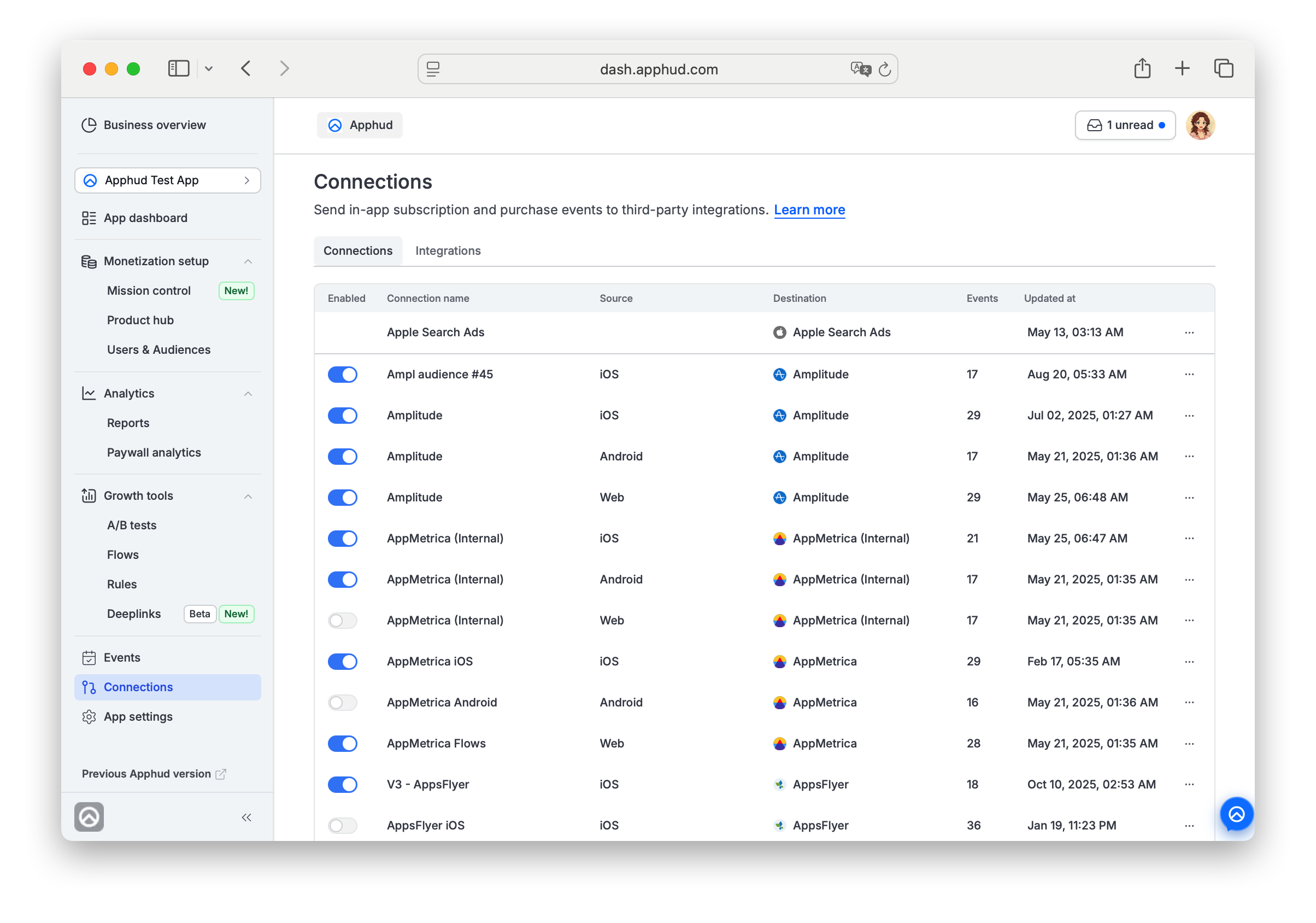
The Integrations module has two tabs:
- Connections — every configured integration, both active (
Enabled = true) and inactive (Enabled = false). - Integrations — the catalog of integration types you can set up.
Capabilities at a glance
- Send Apphud events to external destinations — product analytics, attribution, marketing, messengers, server-to-server webhooks, and daily exports.
- Pair each connection with a platform-specific Source (iOS, Android, Web, iOS / Android Deeplinks).
- Run multiple connections of the same integration type, each with its own settings.
- Apply granular event filters per connection (Expert plan and higher).
- Choose Production, Sandbox, or both, and send revenue as sales or proceeds.
Key concepts
Connection
A configured instance of an integration — a destination type, a Source, credentials, and per-connection settings (Environment, Revenue, Filters, Events). Each connection has a customizable Name that identifies it in the Connections list and in event logs.
Integration
A type of destination you can connect to (Adjust, Amplitude, Slack, and so on). The Integrations tab is the catalog.
You can create multiple connections of the same integration type with different configurations — for example, parallel marketing tools or separate iOS / Android setups.
Source
The platform-specific origin of the data the connection uses. Sources include iOS, Android, Web, iOS (Deeplinks), and Android (Deeplinks).
Each integration type supports a specific subset — for example, Amplitude supports iOS, Android and Web; Meta Conversions API supports all five; and Asapty supports iOS only.
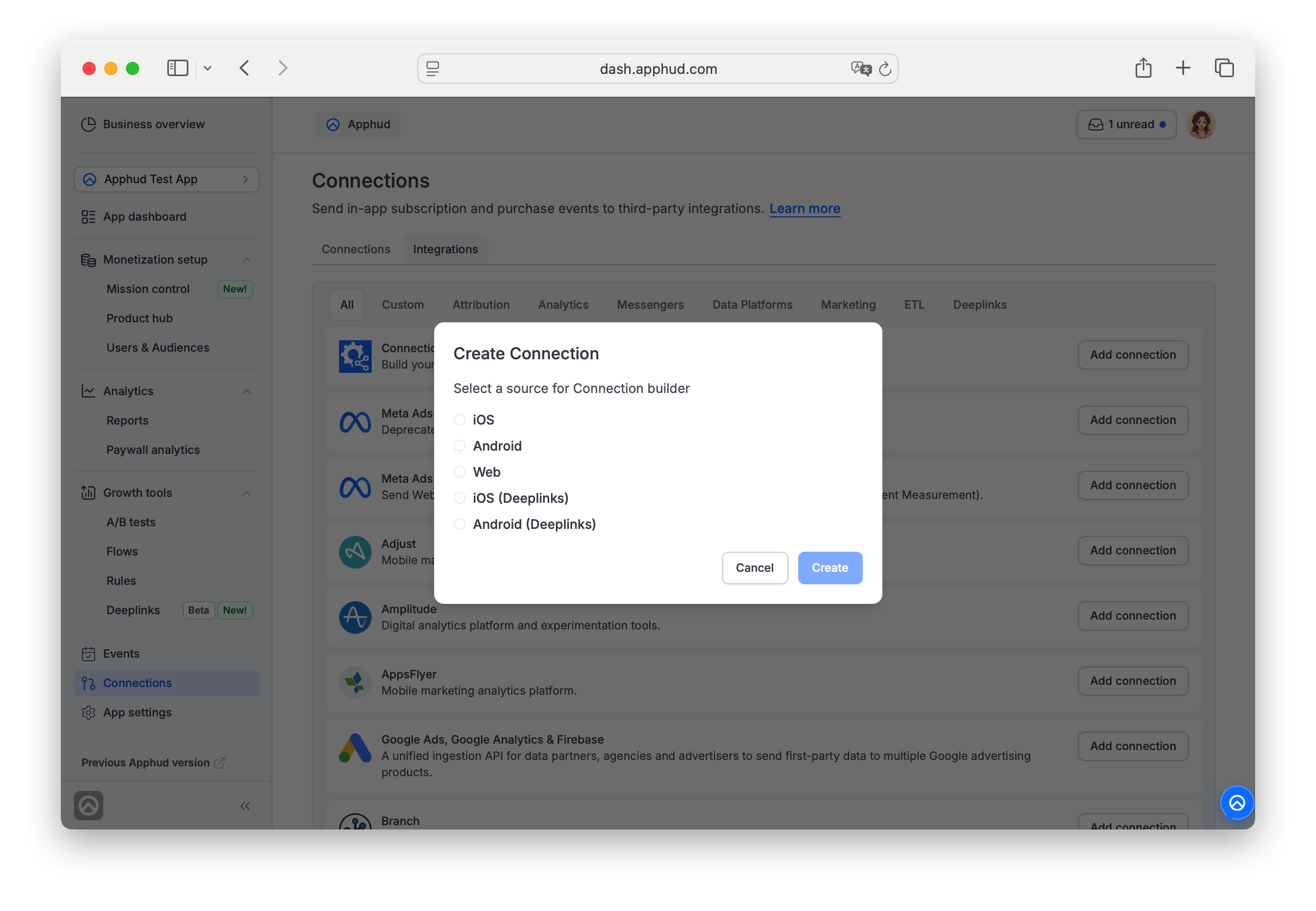
NoteIf your app runs on both iOS and Android and you want to send events to one destination (e.g., Adjust), create two connections for that integration — one with Source = iOS, one with Source = Android.
Deeplinks sources
Choose iOS (Deeplinks) or Android (Deeplinks) for a connection that should receive the events of users attributed to a deeplink click. Only some integrations offer these sources: Connection builder, Meta Conversions API and TikTok Events API.
Such connections work separately from the regular ones. The events of a user who came through a deeplink click go to the Deeplinks connection, not to the iOS or Android connection of the same integration. The events of all other users go to the regular connection, not to the Deeplinks one. To cover both, create a connection for each source. Other integrations (for example, AppsFlyer or Amplitude) are not affected: they receive the events as usual.
Connection setup
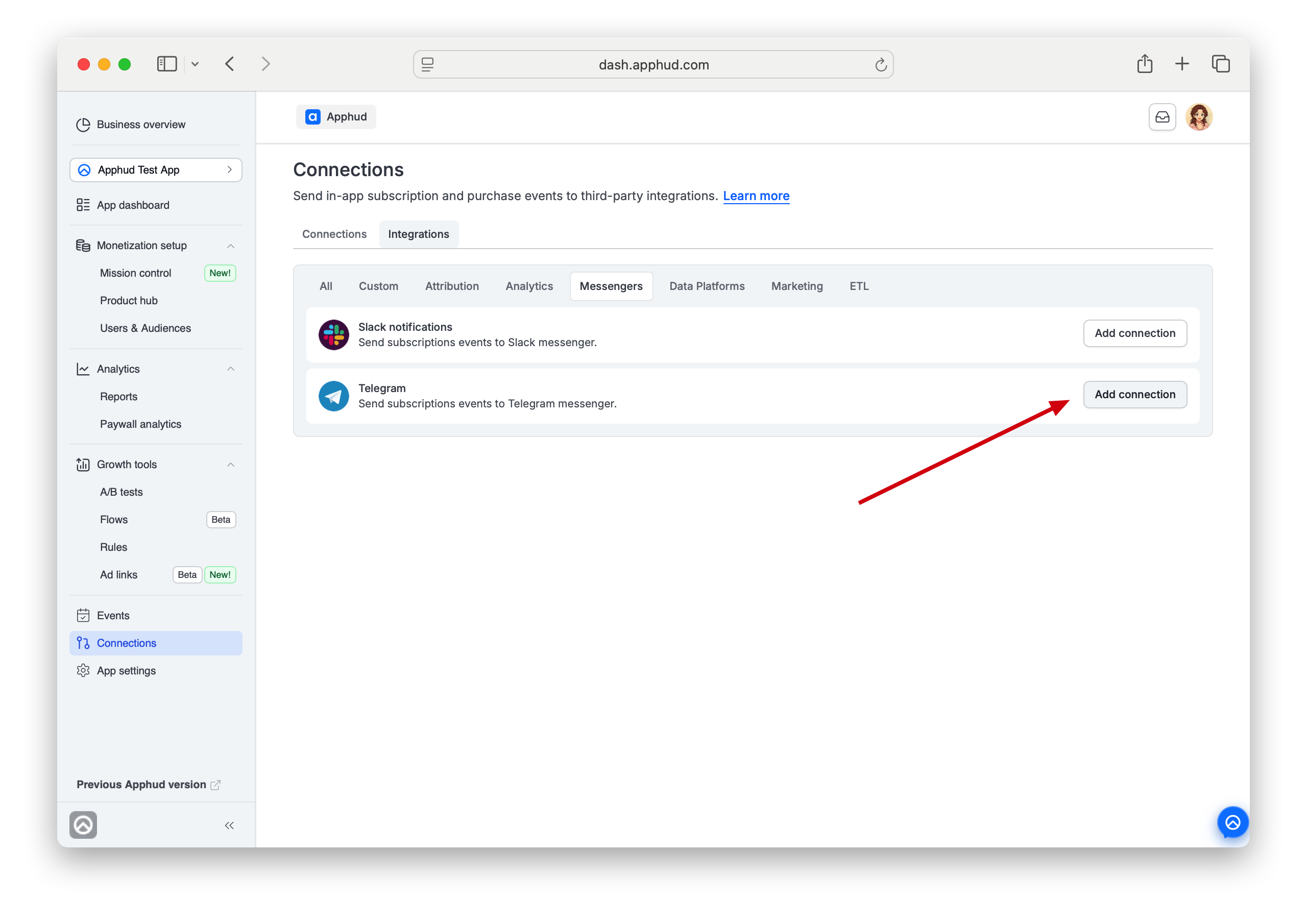
To start a new connection, open the Integrations tab, pick a type, and click Add connection.
You'll be prompted to choose Source. The Source is fixed once selected.
Every connection — regardless of destination — is configured through three tabs (Configuration, Filters, Events) and switched on with the Enable integration toggle in the header.
Destination-specific fields (credentials, event tokens, exact event names) are documented on each integration's own page.
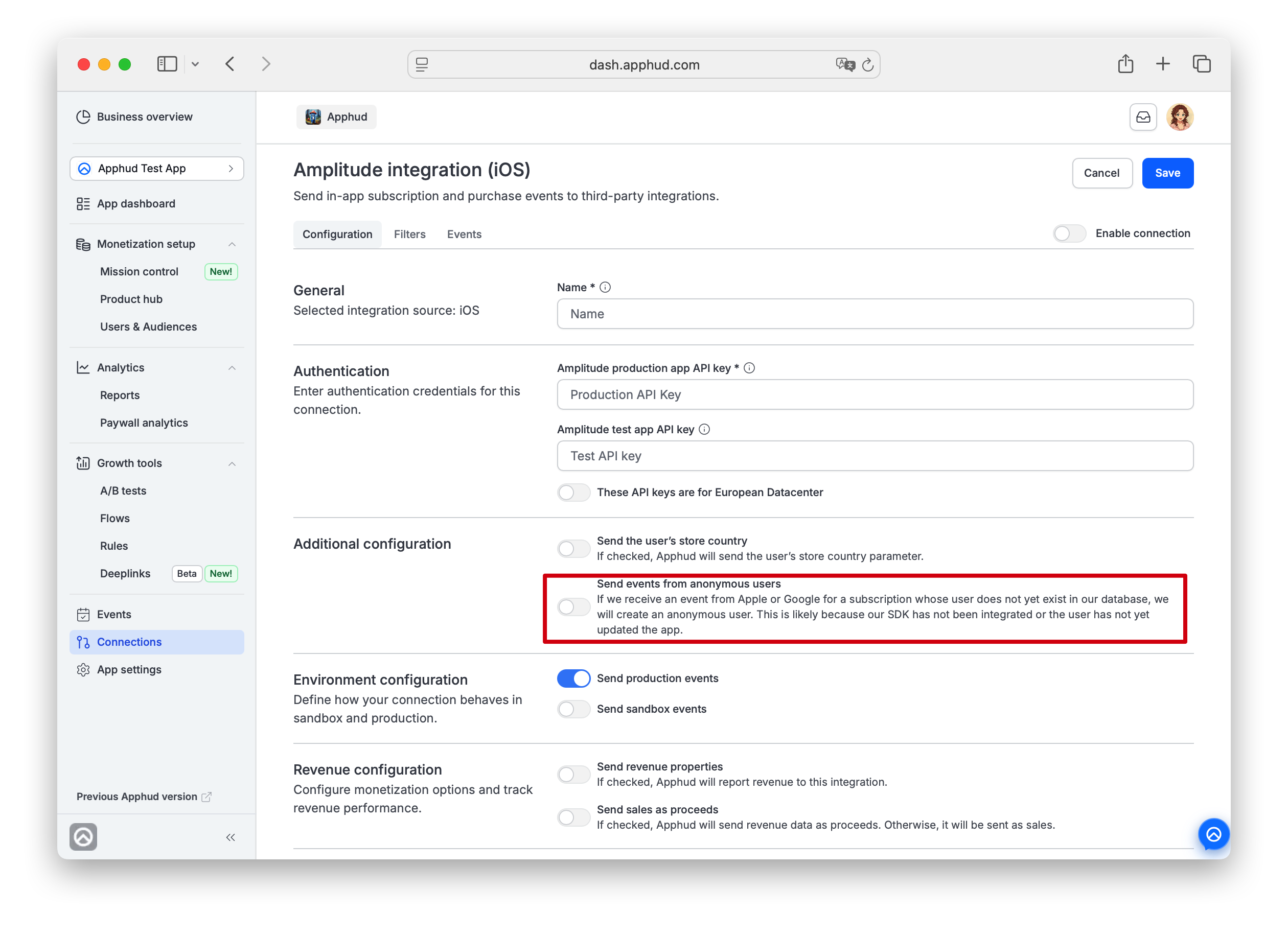
Configuration tab
- General — selected Source and connection Name
- Authentication — credentials for the destination, such as API keys, tokens, or app IDs. Required fields are integration-specific.
- Additional configuration — extra, integration-specific options.
On supported integrations this includes Send events from anonymous users (OFF by default) — turn it on to also forward events from anonymous customers, auto-created from an App Store or Google Play event before your SDK identified them.
-
Environment configuration — which events to send:
- Send production events — ON by default.
- Send sandbox events — OFF by default. Turn on to also send sandbox / test data.
-
Revenue configuration —
- Send revenue properties toggle (optional). Default is OFF. When ON, Apphud reports revenue to the destination service (revenue events with price, currency, etc.). Leave OFF if you don't want Apphud to send revenue data.
- Send sales as proceeds toggle. Default is OFF, meaning revenue is sent as sales. Turn it ON to send proceeds instead. See FAQ for the difference.
Filters tab
Filters availability NoteApplication of custom filters to a connection is available on the Expert plan or higher.
Send only events that match the filters you add. Click Add filter to open the filter dialog and pick from the categories below.
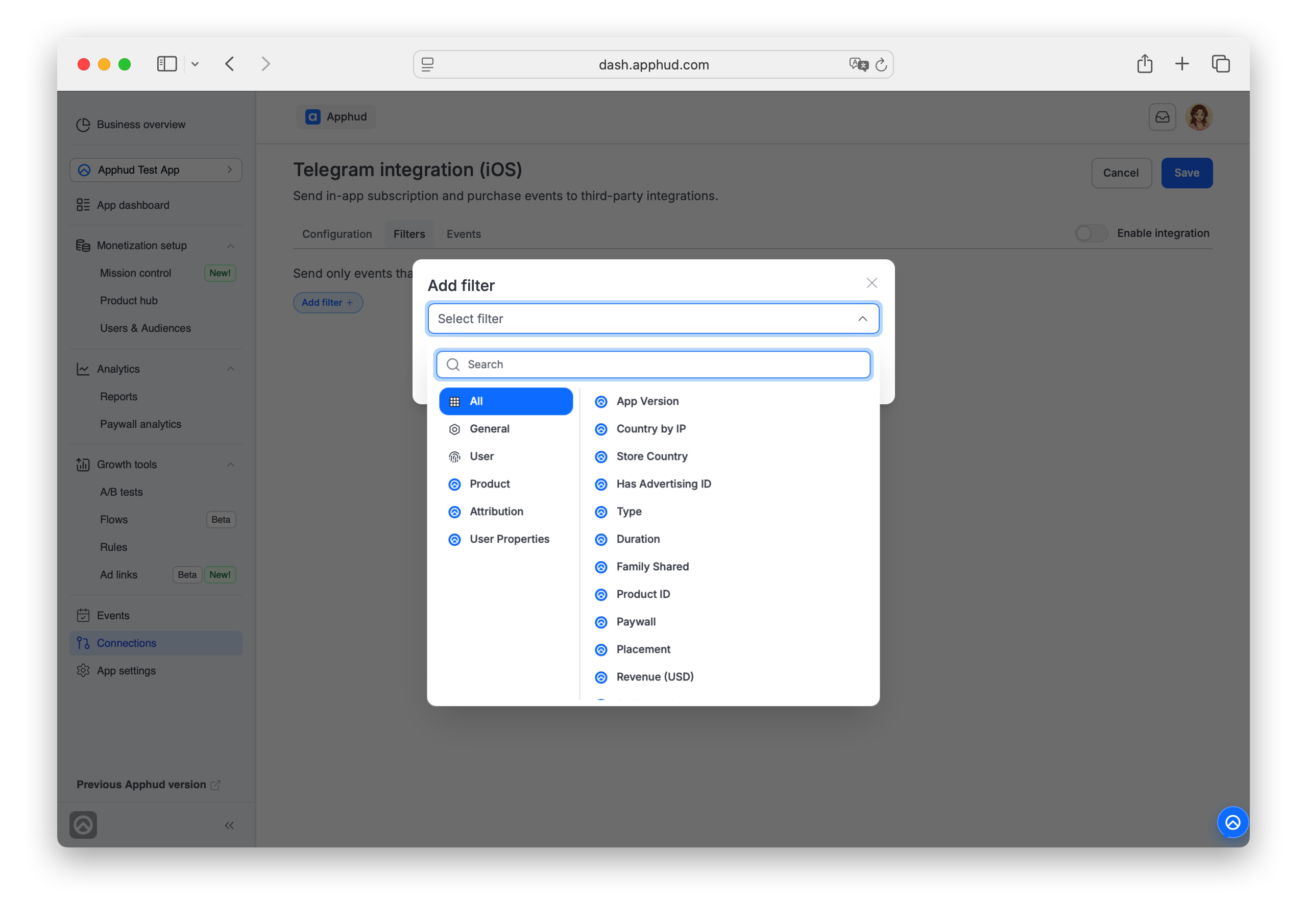
| Category | Filter | Operators / values |
|---|---|---|
| General | App Version | =, >, < (e.g., > 1.20.1) |
| User | Country by IP | exact match |
| User | Store Country | exact match |
| User | Has Advertising ID (IDFA) | true / false |
| Product | Type | Auto-renewable, Non-renewing |
| Product | Duration | Weekly, 2 Weeks, Monthly, 3 Months, 6 Months, Annually |
| Product | Family Shared | true / false |
| Product | Product ID | exact match |
| Product | Paywall | from your paywall list |
| Product | Placement | from your placement list |
| Product | Revenue (USD) | =, >, < |
| Attribution | Ad Network | exact match |
| Attribution | Channel | exact match |
| Attribution | Campaign Name | exact match |
| User Properties | Key + exact value | per defined user property |
Attribution Filters application NoteApphud Attribution values are checked first. If empty, the connection falls back to Partner attribution data.
Events tab
The Events tab lists every Apphud event (Trial started, Trial converted, Subscription started, Subscription renewed, Subscription canceled, and so on) with a column for the destination's event name and an Enabled toggle per row.
Two things vary by destination:
- Partner event name format. Some destinations require event tokens (e.g., Adjust expects a token per event), others use a strict dictionary of names (e.g., Google Play), the majority, like AppsFlyer, use fixed names such as
apphud_trial_started,apphud_trial_active. - Default Enabled state. Some destinations have every event disabled by default, and you opt in row by row; others come with a recommended set pre-enabled.
For the exact tokens, names, and recommended defaults, see the destination's own page.
Test connection
Some destinations expose a Test connection action in the header next to the Enable integration toggle (for example, Slack notifications via webhook) once integration configuration is saved.
Use it to verify your setup before enabling the connection.
Click Test connection and enter an event ID or transaction ID. The connection replays that specific event to the destination so you can confirm it lands correctly.
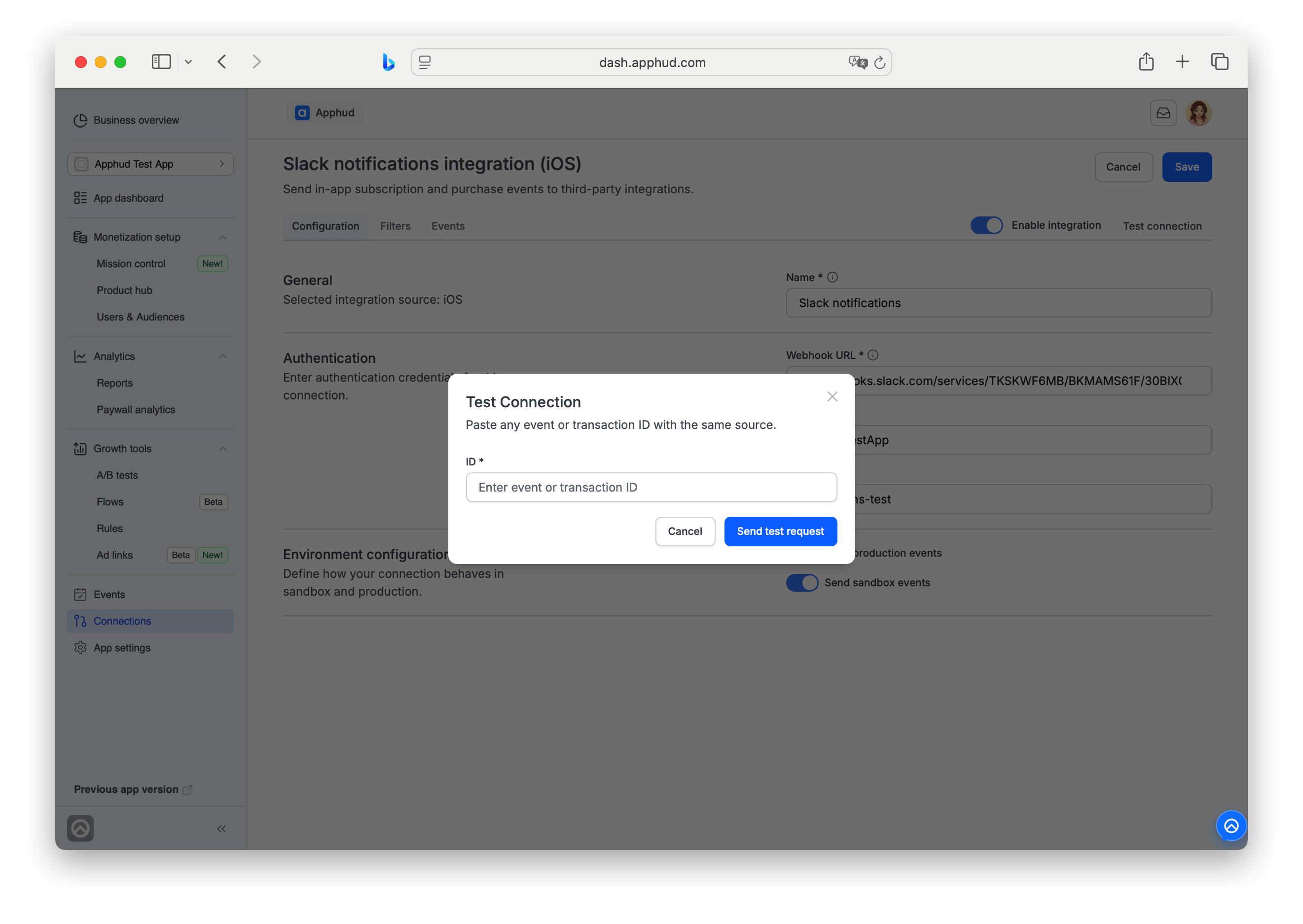
To find IDs, open the top-level Events section in the sidebar and enable the Event ID and Transaction ID columns via the column selector at the top of the table. Copy the ID of any recent past event to use for the test.
Test connectionThe option is only shown on integrations that support it — it depends on what the destination's API exposes. Check the Integration page.
Enable integration
A connection is saved but inactive until the Enable integration toggle (top-right of the header) is turned on. Disabled connections stay in the Connections tab with Enabled = false — they are not deleted, so you can re-enable them later without re-entering credentials, filters, or event mappings.
Automatic disabling
Apphud can automatically disable a connection that keeps failing. If a connection accumulates more than 50 failed delivery attempts in the last 48 hours with no successful 2xx/3xx response — including network-level failures where your endpoint returns no HTTP status at all — Apphud switches it off.
The connection isn't deleted: it stays in the Connections list with Enabled = false and keeps its configuration. Fix the destination, test it, and re-enable the connection when it's healthy.
Manage connections from the list
The Connections tab supports row-level actions, so you don't have to open a connection just to toggle or remove it.
- Enable / Disable inline — every row has an Enabled toggle. Switch it directly from the list to activate or pause the connection. Disabled connections stay in the list with
Enabled = false; credentials, filters, and event mappings are preserved. - The row's ⋯ menu offers two actions:
- Manage (pencil icon) — opens the connection in the editor.
- Delete connection (trash icon, red) — removes the connection entirely.
Deleting vs disablingDisable keeps the connection's configuration so you can re-enable later. Delete removes everything — credentials, filters, event mappings — and can't be undone.
Available integration categories
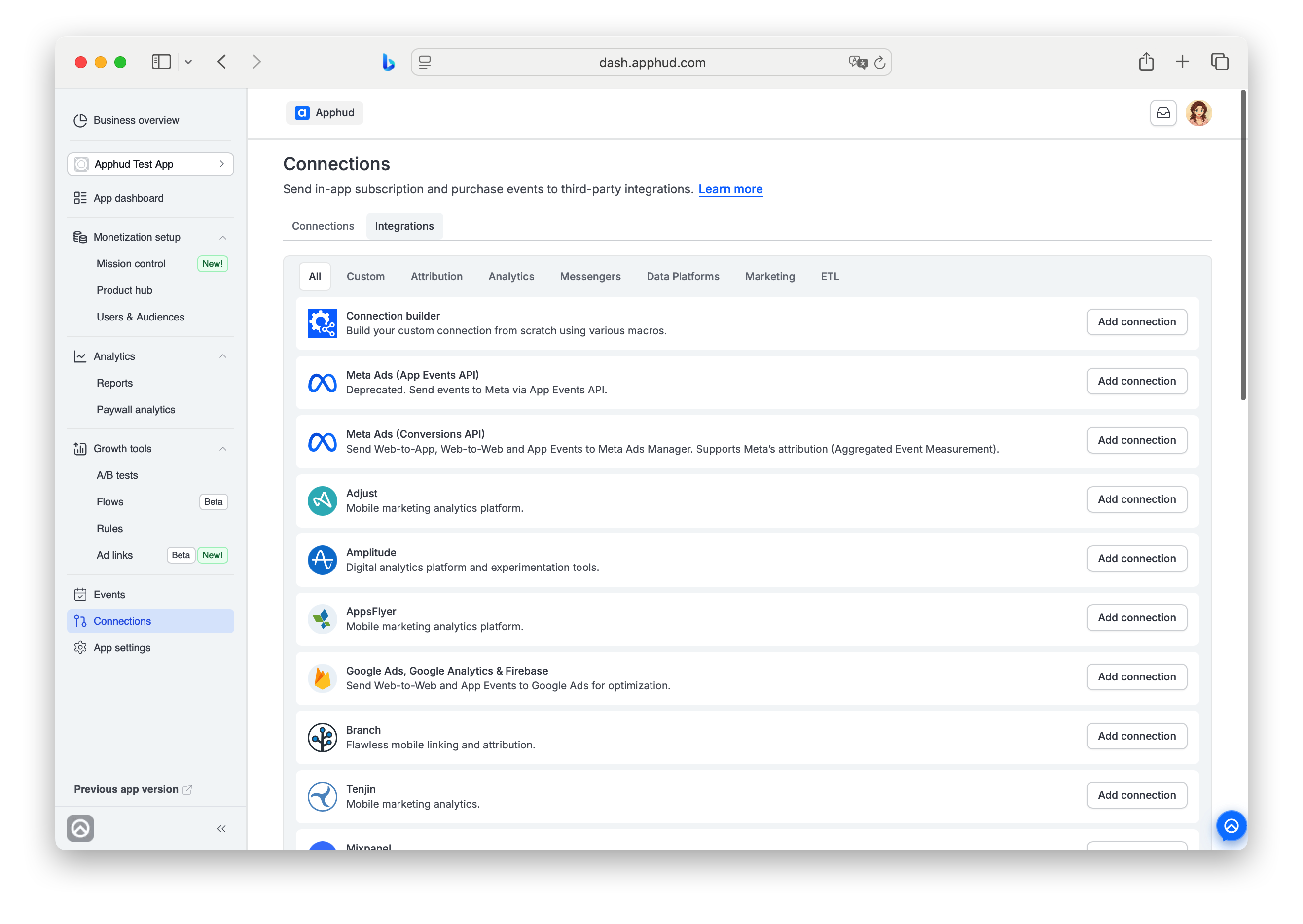
The Integrations tab groups destinations into categories:
- Product Analytics — Amplitude, Mixpanel, AppMetrica, PostHog.
- Attribution — Adjust, AppsFlyer, Branch, Apple Search Ads, and others.
- Data Platforms — Segment, Server-to-Server Webhooks.
- Marketing — OneSignal, Pushwoosh, and others.
- Messengers — Slack, Telegram.
- Daily Data Exports — Amazon S3, Google Cloud Storage.
- Server-to-Server Webhooks — push events to your own backend.
- Deeplinks — a shortcut to the integrations that offer the Deeplinks sources. It creates the same connection as the All or Attribution tab with a Deeplinks source selected; here the Source choice is limited to the two Deeplinks sources.
Delivery & reliability
Historical delivery status. Every event's delivery status per connection is tracked permanently — filter by Sent, Failed, Skipped, or Pending for any connection, no matter how old the event is.
Inspecting exact payloads. Every event's delivery to every connection is logged. Open Events, click a row, and view the connection's Request / Response details to see exactly what was sent and what the destination returned. For Facebook (including Conversions API), Apple App Store, and AppmetricaRevenue connections, the raw request isn't shown — the response is always shown. These logs are kept for a month, then purged automatically.
Authenticity. Every integration requires the credentials that destination itself issues — an API key, access token, or similar — before Apphud can send it anything. That's what proves a delivery genuinely came from your Apphud account. Server-to-Server Webhooks add one more layer: a Secret token sent in the X-Apphud-Token header on every request, so your endpoint can confirm it came from Apphud.
Retries. A delivery that fails is retried automatically — multiple times, with gaps in between — so a brief hiccup on the destination's side, a network blip, or a similar transient issue won't cause the event to be lost. This applies to every connection type, including Server-to-Server Webhooks.
Failing connections don't fail silently. If retries don't help and a connection keeps failing, Apphud automatically disables it rather than quietly dropping your events — you get a critical notification in your dashboard and an email the moment that happens, so you're never the last to know. See Automatic disabling above.
Destination-side rate limits. Some destinations enforce their own delivery rate limits — for example Telegram and Slack throttle to roughly one message per second per chat/channel. Apphud does not add extra throttling of its own beyond what a destination enforces.
FAQ
Do I need separate connections for iOS and Android?
Yes. Each connection has one Source. If your app runs on both platforms and you want to send events to the same destination, create two connections — one with Source = iOS and one with Source = Android.
Why don't I see the Filters tab?
Filters require the Expert plan or higher. Connections on lower plans send every matching event without filtering.
Can I run more than one connection of the same integration type?
Yes. Multiple connections per integration type are supported, each with its own Name, Source, and settings. Useful for parallel marketing tools or separate iOS / Android setups.
Why are some events off by default in the Connection Events tab?
Defaults are integration-specific. Some destinations need you to opt in event by event because each event requires a token (Adjust); others come with recommended events pre-enabled (AppsFlyer). Check the destination's page.
What's the difference between sales and proceeds in the Revenue configuration?
Sales is the total amount billed to the customer (including taxes and store commission). Proceeds is the estimated revenue you keep after taxes and store commission are deducted. Default is sales; turn on Send sales as proceeds to send proceeds instead.
Is my connection live as soon as I save it?
No. A saved connection is inactive until Enable integration is turned on. Disabled connections remain in the Connections tab with Enabled = false and are not deleted.
Where do I see configured connections vs available integration types?
The Connections tab lists every configured connection (active and inactive). The Integrations tab is the catalog of integration types you can add.
Are events from anonymous users sent?
Not by default. In a connection's Configuration tab, enable Send events from anonymous users (supported integrations only) to also include events from customers Apphud auto-created from a store event before your SDK identified them.
Updated 12 days ago