
Public MCP
This page describes how to connect to Apphud Public MCP server
Overview
Apphud exposes a public MCP server, so AI assistants can work with your Apphud data directly — read analytics, inspect customers and subscriptions, manage paywalls, placements, experiments, and more, without you copy-pasting anything into a chat.
The server is a remote HTTP MCP endpoint:
https://mcp.apphud.com/mcpThere is nothing to install and no API key to create. You sign in interactively with your existing Apphud account, and the client receives a scoped token on your behalf.
Feature availabilityPublic MCP is available on Expert + plans on the redesigned platform Apphud 2.0.
Before you start
- An Apphud account with access to at least one app.
- An MCP-compatible client: Cursor, Claude Code, Claude Desktop, or Claude on the web.
- A browser on the same machine as the client, to complete the sign-in step.
Connect
Apphud MCP is a remote HTTP server at https://mcp.apphud.com/mcp — there's nothing to install. Add it to your client below, then sign in.
Setup guide file
Suitable for Claude Desktop and Cursor. Simply copy and paste contents of this file into Claude chat.
Follow the agent's instructions.
# Apphud MCP — setup guide (Claude Code & Cursor)

Connects your AI client to the Apphud MCP server: ~200 `apphud_*` tools over apps,
paywalls, products, customers, events, charts and experiments. Transport:
streamable HTTP; auth: OAuth 2.0 + PKCE via `https://id.apphud.com`.

Pick the **Install** and **Authenticate** sections for your client. Everything
from **Scopes** onward applies to both.

## Install

### Claude Code

```bash
# run from the project directory; --callback-port pins the OAuth redirect
# so re-adds reuse a valid client registration
claude mcp add --transport http --scope local --callback-port 3118 apphud-mcp https://mcp.apphud.com/mcp
```

Scopes: `local` (this project, default) · `project` (`.mcp.json`, committed) ·
`user` (all projects). Tools appear in the **next** session — verify an
`apphud_*` tool exists before claiming the server works.

### Cursor

Add the remote server once. Use **project** config to share with the team, or
**global** config for every workspace.

**Project** — create or edit `.cursor/mcp.json` in the repo root:

```json
{
  "mcpServers": {
    "apphud-mcp": {
      "url": "https://mcp.apphud.com/mcp",
      "auth": {
        "scopes": ["mcp:read", "mcp:write", "mcp:admin"]
      }
    }
  }
}
```

**Global** — same block in `~/.cursor/mcp.json`.

Alternatively: **Cursor Settings → Customize → MCP** → add a remote server with
URL `https://mcp.apphud.com/mcp` (writes the same config). Reload the window or
toggle the server on if tools do not appear immediately.

OAuth redirect for Cursor (desktop): `http://localhost:8787/callback`. For web /
Cloud Agents: `https://www.cursor.com/agents/mcp/oauth/callback`. Apphud's IdP
must allow these; do **not** use Claude's `localhost:3118` callback in Cursor.

Tools show up after the server is enabled and authenticated — confirm an
`apphud_*` tool is listed before claiming the server works.

## Authenticate — rules for the agent

### Shared

1. **Never ask for or type the user's password, token, or redirect URL.**
2. **Ask which browser to open, and whether to use a private window** — a
   normal window can silently reuse a live Apphud session (wrong account); a
   private window is opened by the user themselves.
3. After login, run `apphud_me` (identity and granted scopes) and
   `apphud_list_companies` (expected company).

### Claude Code

The CLI may print "paste the redirect URL here" — ignore it: with the browser on
the same machine, the listener on `localhost:3118` finishes login by itself.

Plain `claude mcp login` fails in an agent shell (`stdin isn't a terminal`):

```bash
# sleep keeps stdin open ~5 min while the user finishes login in the browser
(sleep 280) | script -q /dev/null claude mcp login apphud-mcp --no-browser >/tmp/apphud-login.log 2>&1 &
sleep 5 && grep -o 'https://id\.apphud\.com[^ ]*' /tmp/apphud-login.log | head -1
open -a "Google Chrome" "<URL>"   # or the browser the user chose
```

Verify: `claude mcp get apphud-mcp` → `✔ Connected`.

### Cursor

1. **Prefer in-chat OAuth.** If the Apphud server is listed but unauthenticated
   (Customize shows **Connect** / **Needs authentication**, or only an `mcp_auth`
   tool is available), ask the user to approve and run **`mcp_auth`** for that
   server (empty arguments). Cursor opens the browser and completes PKCE; the
   callback is handled by Cursor (`localhost:8787` or the `cursor://` handler),
   not by pasting URLs into the terminal.
2. **Do not** use Claude's `claude mcp login` or `script`/`sleep` workaround in
   Cursor — that flow is Claude Code only.
3. **Manual fallback:** user clicks **Connect** on `apphud-mcp` under
   **Customize → MCP**, completes login in the browser, then starts a **new**
   agent turn so tools reload.
4. **Verify:** Output panel → **MCP Logs** (no auth errors); call `apphud_me` and
   `apphud_list_companies`. If auth still fails after Connect, remove the server
   from `mcp.json` / Customize, re-add with the install JSON above, and connect
   again (fresh OAuth client registration).

## Scopes

The auth URL always requests `mcp:read mcp:write mcp:admin`; the user can
approve a subset on the consent screen, and `apphud_me` reports the real grant.
A write call on a read-only grant is refused server-side:

```
Not permitted: apphud_update_paywall requires the mcp:write scope, but this
connection only granted mcp:read. This is a permission problem, not an
expired token — retrying will not help.
```

## Troubleshooting

- **`invalid_redirect_uri`** — stale or wrong OAuth client registration.
  - **Claude Code:** `claude mcp remove apphud-mcp -s local`, re-add with the
    install command; the `client_id=` in the printed auth URL should change.
  - **Cursor:** remove `apphud-mcp` from `mcp.json` / Customize, re-add, Connect
    again. Ensure the IdP allows Cursor redirect URIs (see **Install → Cursor**),
    not only `http://localhost:3118/callback`.
- **Wrong account** — a live session may be approved instantly, no login
  prompt: log out / disconnect MCP, re-auth in a private window, compare
  `apphud_me.sub`. Claude: `claude mcp logout apphud-mcp`. Cursor: disconnect
  the server in Customize and run Connect or `mcp_auth` again.
- **Pagination** — `meta.page.next_page` carries a cursor even on the last
  page; fetch it and treat an empty result page as the end.
- **Exports** — `apphud_export_*` email a CSV to the account owner; nothing
  returns to the session.

## Calling the API

Most tools need `company_id` and `app_id`:
`apphud_list_companies` → company uid, then `apphud_list_apps` → app uid.

| Goal | Tools |
|---|---|
| Paywalls | `apphud_list_paywalls`, `apphud_get_paywall` |
| Products / placements | `apphud_list_products`, `apphud_list_placements` |
| Customers + their events | `apphud_count_customers`, `apphud_list_customers`, `apphud_get_customer`, `apphud_customer_events` |
| Analytics | `apphud_search_metrics` → `apphud_chart_options` → `apphud_query_line_chart` / `apphud_query_column_chart` |
| Experiments | `apphud_list_experiments`, `apphud_experiment_analytics` |

ID traps: `apphud_customer_events` takes the customer's full UUID `id`, not the
short `uid`; experiment analytics take the experiment's short `uid`, not its UUID.

## Reference

Endpoint `https://mcp.apphud.com/mcp` · auth `https://id.apphud.com` · scopes
`mcp:read / mcp:write / mcp:admin`.

| Client | OAuth callback |
|---|---|
| Claude Code | `http://localhost:3118/callback` (use `--callback-port 3118` on add) |
| Cursor (desktop) | `http://localhost:8787/callback` |
| Cursor (web / agents) | `https://www.cursor.com/agents/mcp/oauth/callback` |

```bash
# Claude Code only
claude mcp logout apphud-mcp     # then re-auth to change granted scopes
claude mcp remove apphud-mcp -s local
```
Claude Code (CLI)
To connect MCP using CLI, add the server with a single command:
claude mcp add --transport http apphud https://mcp.apphud.com/mcpAdd --scope user to register it globally for your account, or --scope project to write it into the project's .mcp.json so your teammates pick it up from version control.
Then start Claude Code and run:
/mcpPick apphud from the list and choose to authenticate. Your browser opens for sign-in, and the CLI stores the token when you return.
Claude Desktop
To manually connect MCP open Settings → Connectors → Add custom connector, and paste the server URL:
https://mcp.apphud.com/mcpLeave the optional Client ID and Client Secret fields empty — the Apphud server registers the client automatically. Click Add, then Connect on the newly created Apphud connector to sign in.
Claude on the web
The web app uses the same connector flow. Go to claude.ai → Settings → Connectors → Add custom connector, paste https://mcp.apphud.com/mcp, and click Connect.
Custom connectors require a paid Claude plan (Pro, Max, Team, or Enterprise). After connecting, enable the Apphud connector in the chat composer's tools menu to let the model call it.
After connecting, confirm you are linked to the right account: ask the assistant to list your Apphud companies and check that you see the organizations you expect. The connector uses whichever Apphud session is signed in to your browser — if it is not the right one, sign out at dash.apphud.com, sign back in with the account you want, and reconnect.
Cursor
Open Cursor Settings → MCP & Integrations → New MCP Server, then add the Apphud entry to the config file that opens:
{
  "mcpServers": {
    "apphud": {
      "type": "http",
      "url": "https://mcp.apphud.com/mcp"
    }
  }
}
Use ~/.cursor/mcp.json to make Apphud available in every project, or .cursor/mcp.json inside a repository to scope it to that project.
Save the file and return to the MCP settings screen. The Apphud server appears with a Needs authentication state and a login button — click it to start the sign-in flow described below.
Once connected, the tool list populates and you can ask the agent things like "which paywall converts best in my iOS app this month?".
Signing in
Apphud MCP uses interactive OAuth 2.1 with PKCE. There are no long-lived secrets to paste anywhere, and the client never sees your password.
When you connect a client:
- Your browser opens the Apphud sign-in page. If you already have a dashboard session, this step is skipped.
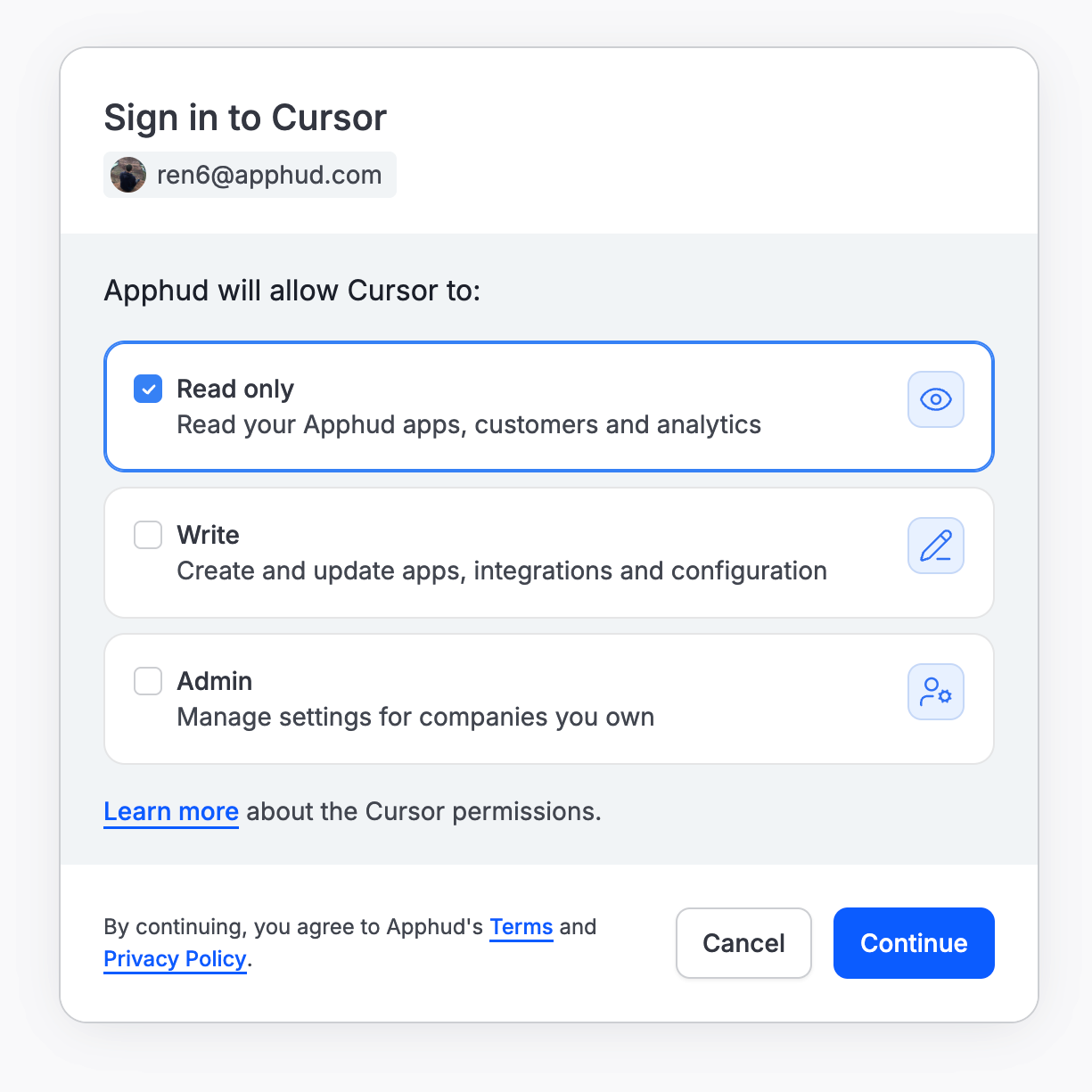
- A consent screen shows which client is asking for access and which permissions it requests.
- You approve, and the browser hands a short-lived authorization code back to the client.
- The client exchanges the code for an access token and refreshes it silently from then on. You will not be asked to sign in again unless the session is revoked or expires.
Everything the assistant does happens as you: it sees exactly the organizations, apps, and data your own account can see, and every action is attributed to your user. Granting MCP access to a client does not widen your permissions, and it does not give the AI vendor standing access to your Apphud data outside of that client.
Permission scopes
Access is limited by scope. The server supports three:
| Scope | What it allows |
|---|---|
mcp:read | Read-only access: analytics and charts, customers and events, paywalls, placements, experiments, settings, current profile. |
mcp:write | Everything in mcp:read, plus creating and modifying objects: paywalls, placements, experiments, segments, product groups, rules, screens, and more. |
mcp:admin | Everything above, plus sensitive account operations: organization settings, collaborators permissions and invitations. |
The consent screen lists the scopes a client is requesting before you approve, so you always know what you are granting. If a client only ever needs to answer questions about your data, mcp:read is enough — an assistant holding a read-only token cannot change or delete anything in your account, which makes it the safest default for day-to-day analytics work.
When a tool call requires a scope your token does not hold, the call fails with a permission error instead of silently doing less than you asked. Reconnect the client to request broader access.
Reviewing and revoking access
Each connected client shows up as a regular session on your account, so you can audit and cut off AI access the same way you would a browser you no longer use.
Open the account menu in the dashboard and go to Profile settings → Active sessions. The page lists your Current session first, then all other Active sessions with the device, IP address, country and city, creation time, and last activity.
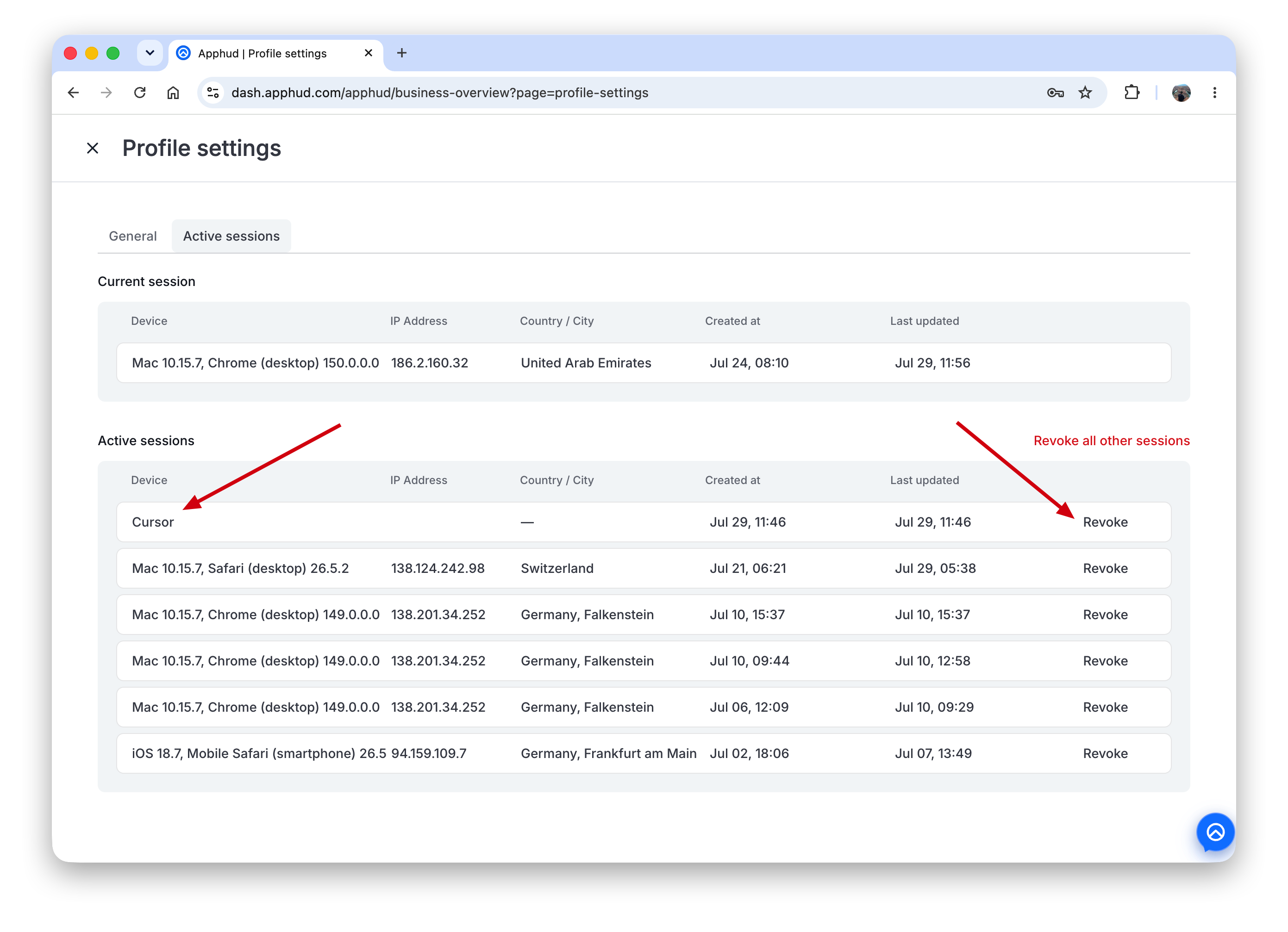
To end a session, click Revoke on its row and confirm. The client loses access immediately; the next tool call it attempts will fail, and it will need to sign in again to continue. Use Revoke all other sessions to sign out everything except the browser you are currently using.
Revoking is the right move whenever you stop using a client, hand a machine to someone else, or see a session you do not recognize.
Creating custom integrations via Apphud MCP
When a destination isn't in Apphud's native integration catalog, you can ask the assistant to build a custom connection — any HTTP endpoint that receives your subscription events. Apphud MCP ships with ready-made request-body templates for the most popular destinations, so the assistant doesn't have to write the payload from scratch:
- AppsFlyer — S2S in-app events
- Binom — and other tracker postbacks
- Meta (Facebook) Conversions API
- Google Analytics 4 / Firebase — Measurement Protocol
- Google Data Manager API
When you ask it to set one up, the assistant will ask you for:
- a name for the connection;
- the URL events are sent to;
- the request method (usually
POST; withGETthe body is sent as query parameters); - headers — including any auth token / API key (credentials are entered in a secure field, never pasted into the chat);
- which events to send.
Based on the destination you name, it fills in the matching default request body — a Liquid template like the ones below. New connections are created inactive: preview or test the payload first (apphud_preview_integration renders without sending, apphud_test_integration sends a test delivery), then enable it.
{% capture event_value %}{"af_content_id": {{event.receipt.product_id}}, "store_country": {USER.COUNTRY_BY_STORE}, "af_order_id": {{event.receipt.transaction_id}}, "af_revenue": {{event.receipt.proceeds}}, "af_currency": {{event.receipt.currency}}}{% endcapture %}
{
  "eventName": {{event.name}},
  "eventValue": {{event_value}},
  "af_events_api": "true",
  "idfa": {USER.IDFA},
  "idfv": {USER.IDFV},
  "customer_user_id": {USER.USER_ID},
  "ip": {USER.IP_ADDRESS},
  "custom_data": {},
  "eventTime": {{ event.created_at | date: "%Y-%m-%d %H:%M:%S.000" }},
  "eventCurrency": {{event.receipt.currency}},
  "bundleIdentifier": {{app.bundle_id}},
  "att": {% if user.idfa %}3{% else %}0{% endif %},
  "os": {USER.OS_VERSION},
  "appsflyer_id": {{user.attribution.appsflyer_id}}
}
{
"cnv_id": {{ user.click_event.properties.click_id }},
"payout": {{ event.receipt.proceeds_usd }},
"cnv_status": {{ event.name }}
}{
"data": [
{
"event_name": {{event.name}},
"event_time": {{event.created_at_ts}},
"event_id": {{event.receipt.transaction_id}},
"action_source": "app",
"user_data": {
"external_id": {USER.USER_ID},
"client_ip_address": {USER.IP_ADDRESS},
"client_user_agent": {{user.click_event.user_agent}},
"fbc": {{user.attribution.fbc}},
"fbp": {{user.attribution.fbp}},
"madid": {USER.IDFA}
},
"app_data": {
"advertiser_tracking": {% if user.idfa %}1{% else %}0{% endif %},
"application_tracking_enabled": {% if user.idfa %}1{% else %}0{% endif %},
"extinfo": {{user.attribution.fb_ext_info}}
},
"custom_data": {
"currency": {{event.receipt.currency}},
"value": {{event.receipt.proceeds}},
"content_ids": [{{event.receipt.product_id}}],
"content_type": "product"
}
}
]
}{
"app_instance_id": {{user.attribution.firebase_id}},
"user_id": {USER.USER_ID},
"timestamp_micros": {{event.created_at_ts}}000000,
"events": [
{
"name": {{event.original_name}},
"params": {
"currency": {{event.receipt.currency}},
"value": {{event.receipt.proceeds}},
"transaction_id": {{event.receipt.transaction_id}},
"product_id": {{event.receipt.product_id}},
"country": {USER.COUNTRY_BY_STORE}
}
}
]
}{
"destinations": [
{
"operatingAccount": { "product": "GOOGLE_ADS", "accountId": "<ADS_ACCOUNT_ID>" },
"productDestinationId": "<CONVERSION_ACTION_ID>"
}
],
"events": [
{
"transactionId": {{event.receipt.transaction_id}},
"eventTimestamp": {{event.created_at}},
"currency": {{event.receipt.currency}},
"conversionValue": {{event.receipt.proceeds}},
"eventSource": "APP",
"adIdentifiers": {
"gclid": {{user.attribution.gclid}}
},
"eventDeviceInfo": {
"ipAddress": {USER.IP_ADDRESS},
"userAgent": {{user.click_event.user_agent}}
},
"consent": {
"adUserData": "CONSENT_GRANTED",
"adPersonalization": "CONSENT_GRANTED"
}
}
]
}For the full field reference and Liquid rendering rules, see Connection Builder.
Troubleshooting
Sign-in never completes and the client keeps waiting. The browser must be able to reach the local callback address the client is listening on. Corporate proxies, VPNs that capture loopback traffic, and browsers configured to force localhost over a different address family are the usual culprits. Try completing the flow in a different browser on the same machine.
Tool calls fail with a permission error. Your token is missing the scope that tool needs — see Permission scopes. Reconnect the client and approve the broader scope.
The client reports the server as unauthorized. The session was probably revoked, from Active sessions or by an organization administrator. Reconnect to sign in again.
Tools do not appear after connecting. Restart the client so it re-runs tool discovery against the server.
Updated about 2 months ago