
Create Deferred Deeplink
Create and configure a deferred deeplink in Apphud for iOS, Android, and ad campaigns.
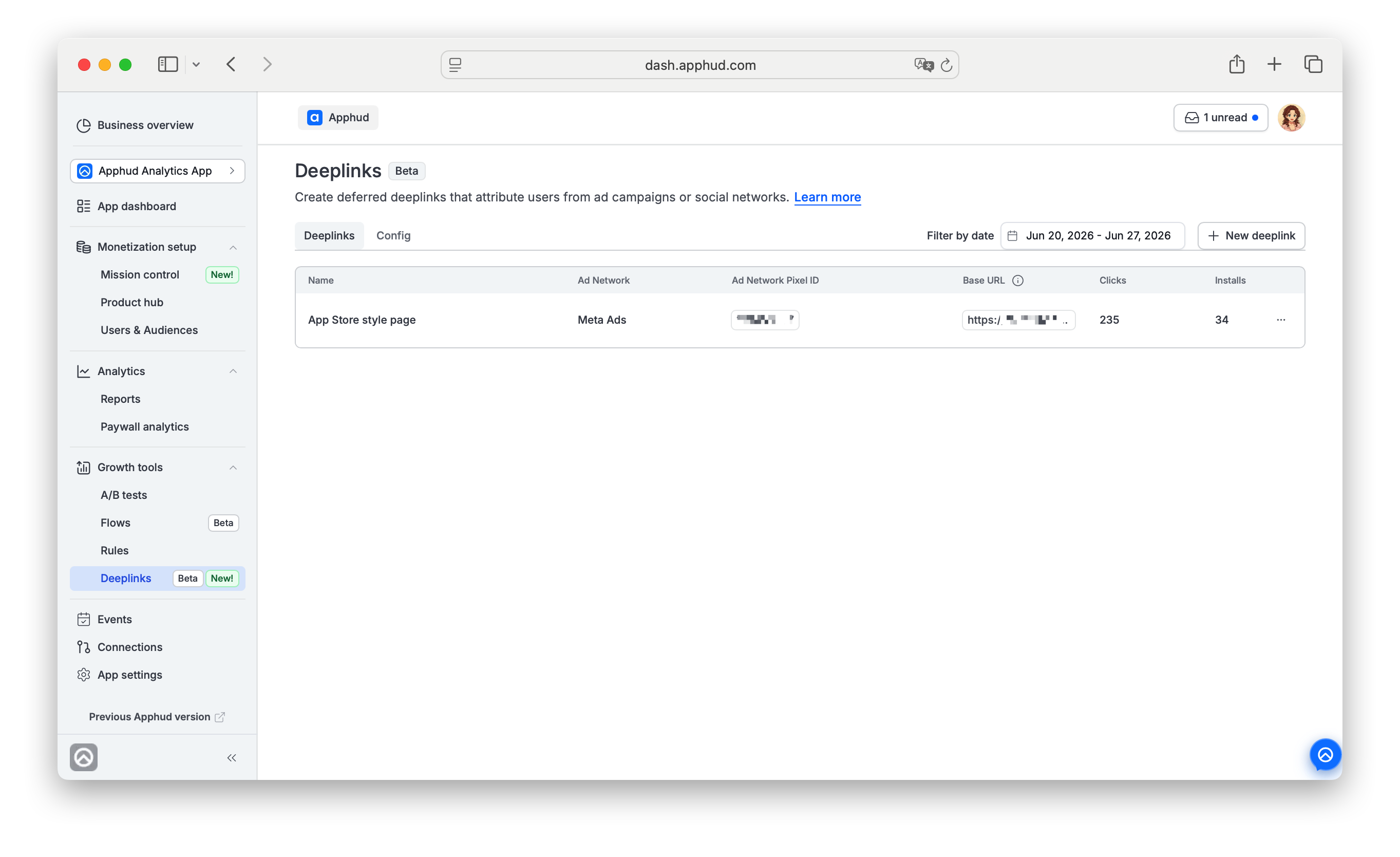
In Apphud, the Deeplinks page has two tabs:
- Deeplinks: create and manage deeplinks, generate ad/debug links, and export click data.
- Config: set up global deeplink behavior for iOS, Android, and social preview metadata.
Before you start
Prepare the values you need for your app:
- URI scheme in
scheme://format (for example,myapp://). - Subdomain for your Apphud links (for example,
brandinbrand.aphd.cc). - Apple Team ID (for iOS Universal Links).
- SHA-256 certificate fingerprint (for Android App Links).
- App support for incoming deeplink paths on iOS and/or Android.
Configure the Config tab
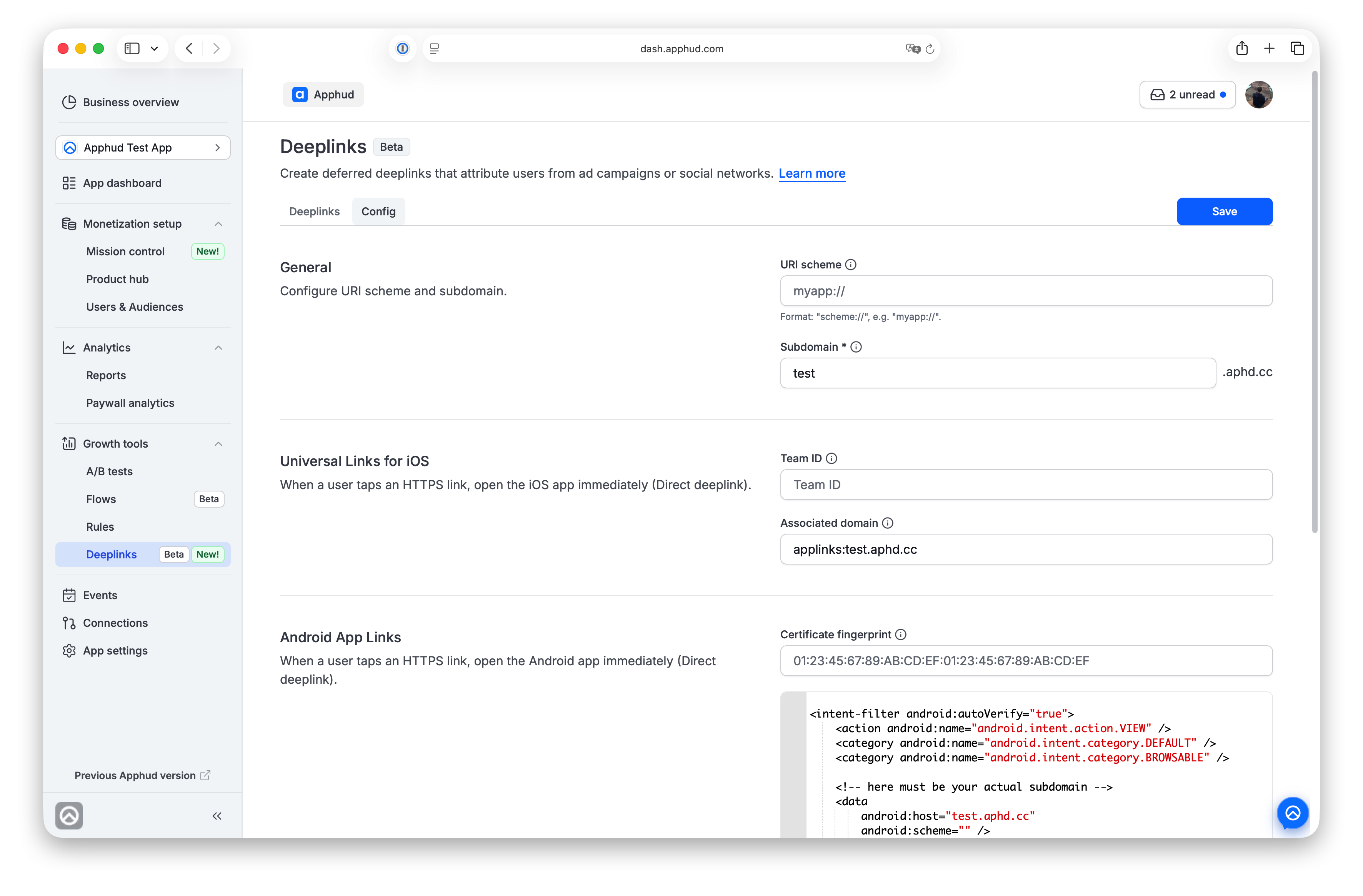
Open Deeplinks -> Config, then complete each section.
1) General
- URI scheme: fallback app scheme used when the app is installed.
- Subdomain: appears in generated link URLs and is tied to your app.
2) Universal Links for iOS
- Team ID: your Apple Developer Team ID.
- Associated domain: generated automatically as
applinks:<subdomain>.aphd.cc. - Add the associated domain value to your app entitlements in Xcode.
3) Android App Links
- Certificate fingerprint: SHA-256 fingerprint of your Android signing certificate.
- Intent filter: Apphud shows a ready-to-copy intent-filter snippet that includes your subdomain and scheme.
- Add the snippet to your Android app manifest.
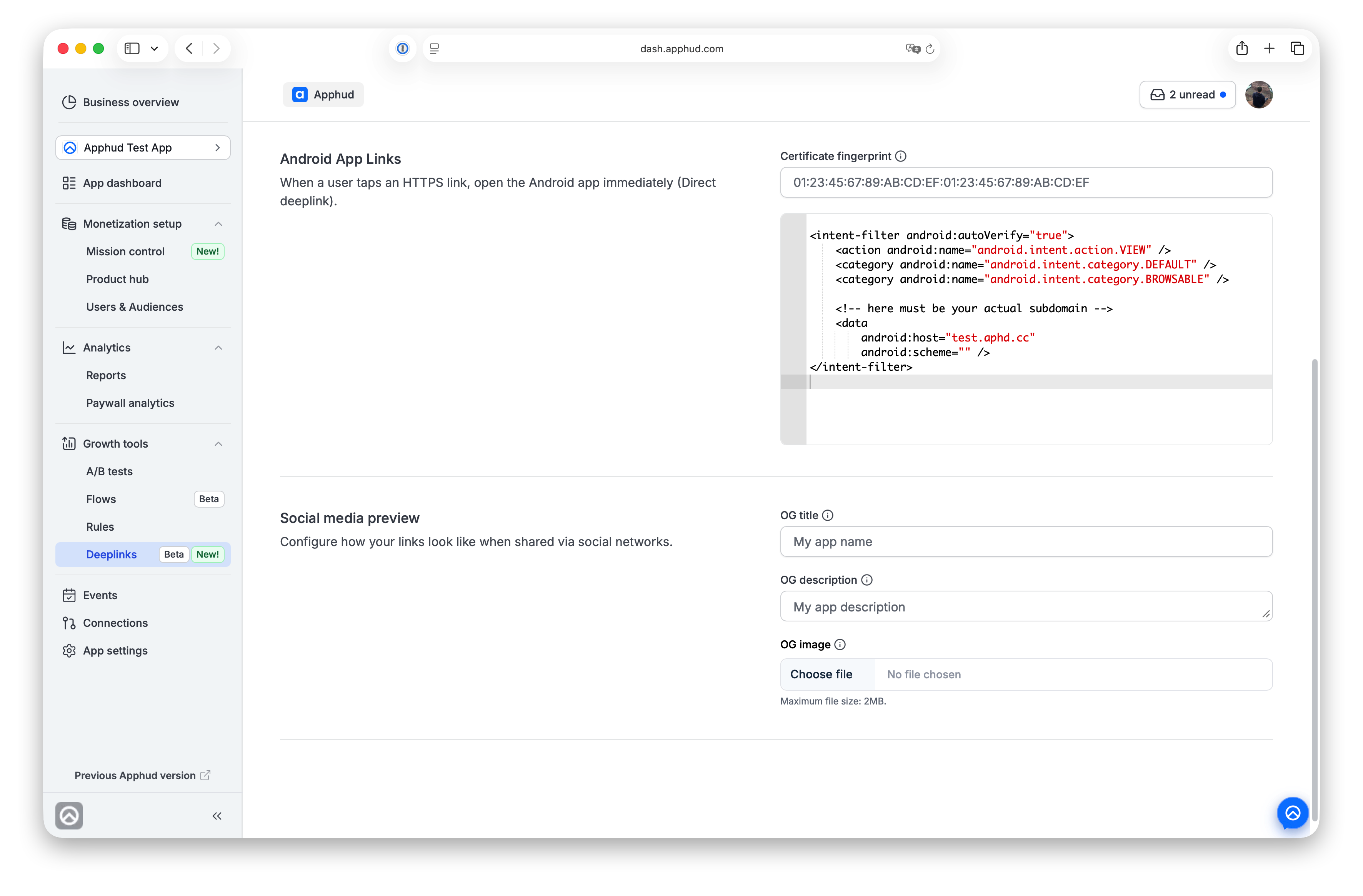
4) Social media preview (optional)
Control how links look when shared:
- OG title
- OG description
- OG image (PNG/JPG, up to 2 MB)
Use the preview block in the UI to verify title/description/image before publishing.
Match Accuracy
Match accuracy controls how strictly Apphud attributes an install to a deferred deeplink click when a deterministic device match is unavailable. It sets both the click lookback window and how confidently device signals must match.
What is an app install?An app install is when the app was downloaded onto the device (for example, the app folder creation date reported by the OS/SDK). It is not the same as the user creation date in Apphud, which is when the app was first launched and the SDK created the user.
| Mode | Lookback window | When to use |
|---|---|---|
| Accurate | 3 minutes | You want fewer false positives and can accept missing some installs. |
| Optimal (default) | 5 minutes | Balanced match rate and precision for most campaigns. |
| Aggressive | 10 minutes | You believe the match rate is lower than it should be and want Apphud to attribute more installs (wider window, looser matching). |
Start with Optimal. Switch to Accurate if you see incorrect attributions. Switch to Aggressive if too many real installs are left unmatched. Fingerprint-based matching uses a separate fixed window and is not affected by this setting.
Create a deeplink in the Deeplinks tab
- Click New deeplink.
- Choose a template.
- Fill in required fields.
- Save.
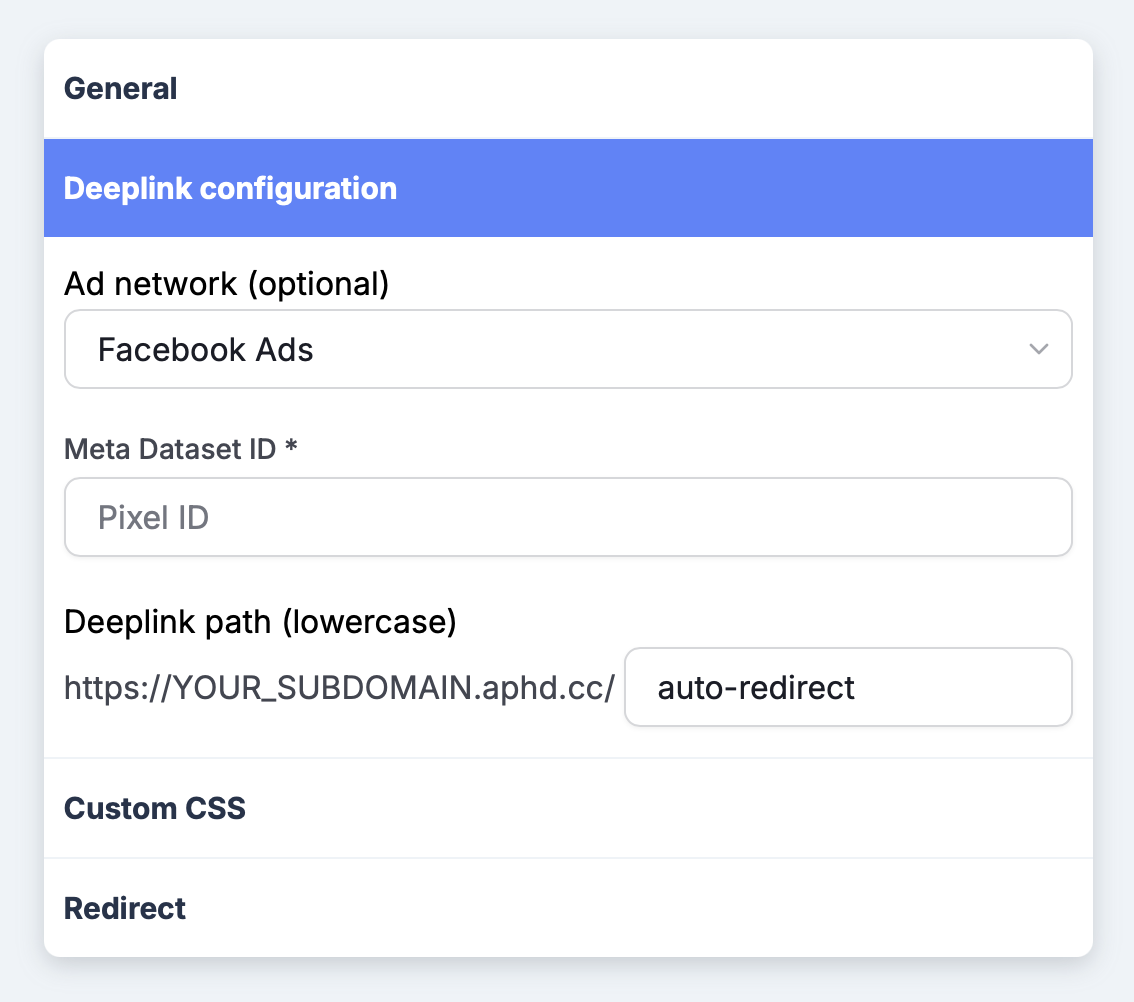
Common required fields:
| Field | Description |
|---|---|
| Ad network | Network used by your campaign (Meta Ads, TikTok Ads, or Google Ads). |
| Ad Network Pixel ID | Network identifier used for attribution. |
| Redirect | Destination to open if app deeplink routing is not used. |
| Deeplink path | In-app path your app handles after open/install. |
Generate and copy links
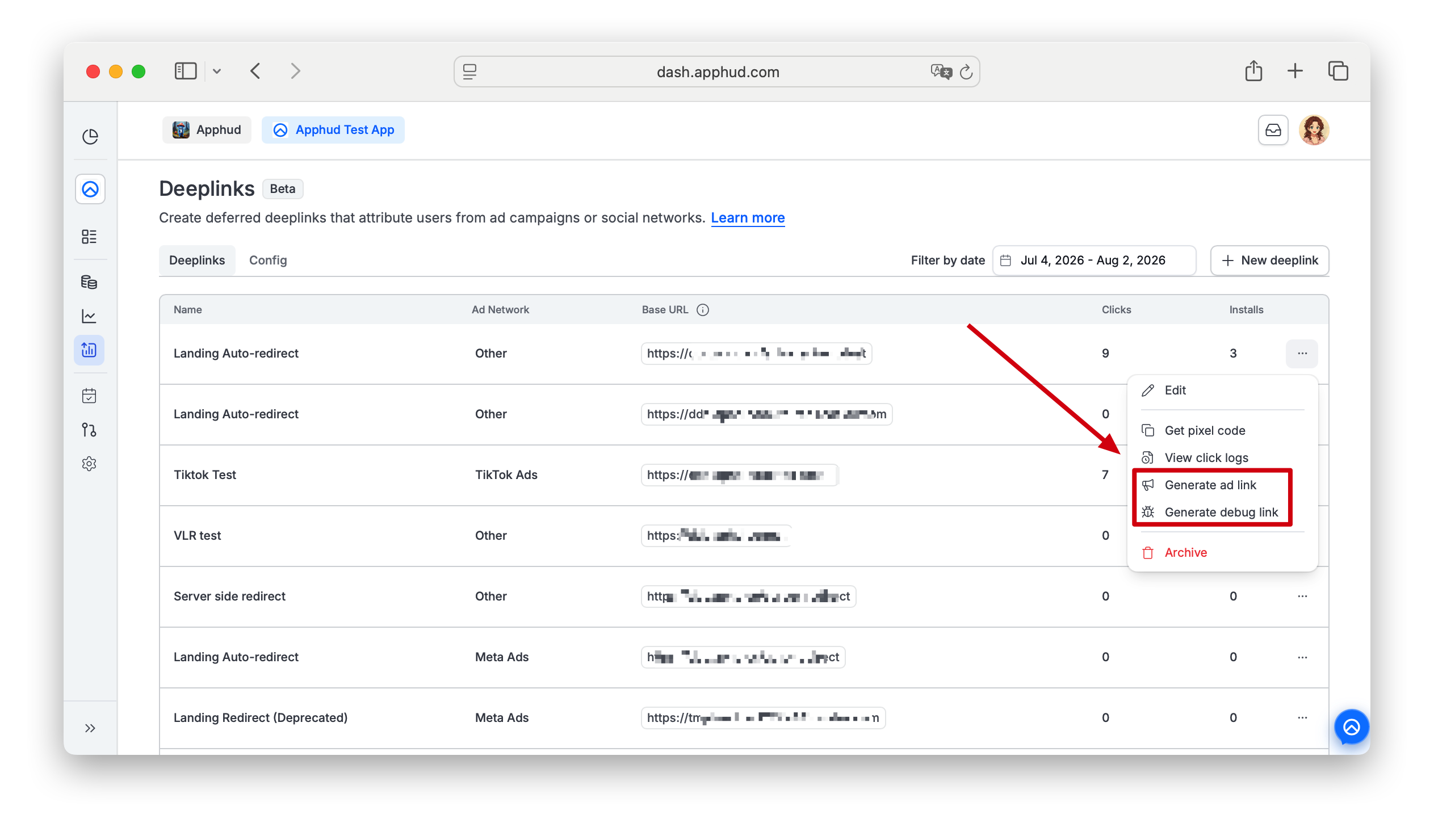
From the row action menu (...) for a deeplink:
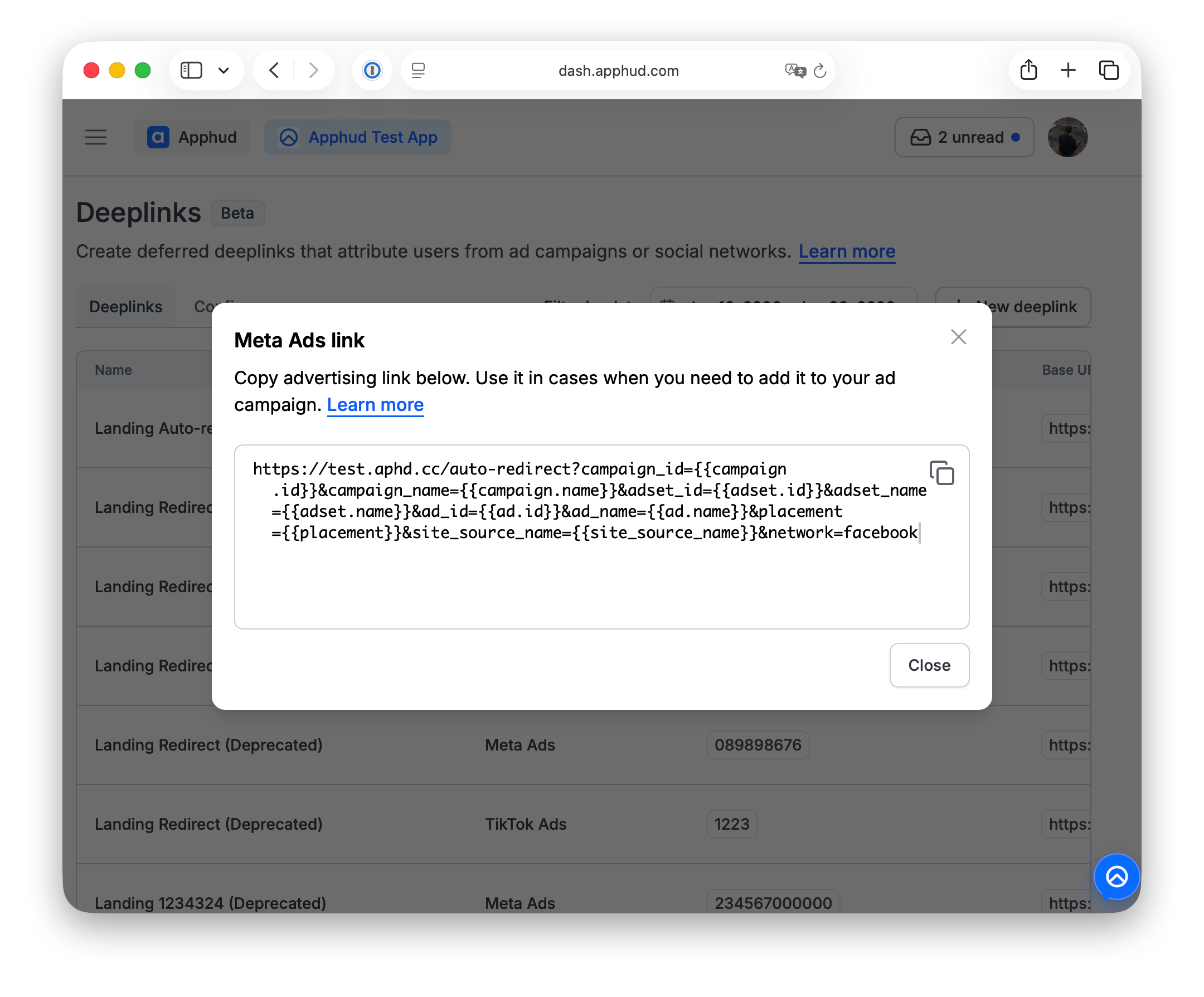
- Generate ad link: opens a modal with a ready-to-copy advertising URL.
- Meta/TikTok links include campaign/ad placeholders.
- Google Ads link uses
network=google(configure standard UTM parameters in Google Ads).
- Generate debug link: copies a testing URL to the clipboard with debug parameters.
Additional actions in the deeplink row menu
Besides Generate and copy links the following actions are available:
- Get pixel code: opens a copyable script for your own-hosted webpage.
- View click logs: opens a per-deeplink log of captured click events for the selected date range; export it from there via Actions → Copy to clipboard / Export CSV (up to 10,000 rows). See Analyze Deferred Deeplink.
- Edit: opens the deeplink in the builder.
- Archive: hides/deactivates a deeplink.
Validate before launch
Test each deeplink on every platform you support:
- Open the generated link on iOS and Android test devices.
- Confirm the app opens as expected.
- Confirm your app receives the expected deeplink path.
- Confirm campaign tracking parameters are present in ad/debug links.
- Confirm fallback redirect behavior.
If opening fails, re-check your URI scheme, subdomain, iOS associated domain setup, Android certificate fingerprint + intent filter, and app deeplink handling.
Updated 25 days ago