
User Page
User detail page — properties, attribution, subscription timeline with integration delivery, receipt, and the Grant permission action.
The User Page opens when you click a User ID anywhere in Apphud — typically from the Users & Audiences table or from a row in Events.
It's the single drill-down view for everything Apphud knows about one user: lifetime spend, first-seen / first-open / last-seen timestamps, attribution data per provider, device profiles, custom user properties, every subscription with its full event timeline + receipt, and the Grant permission action.
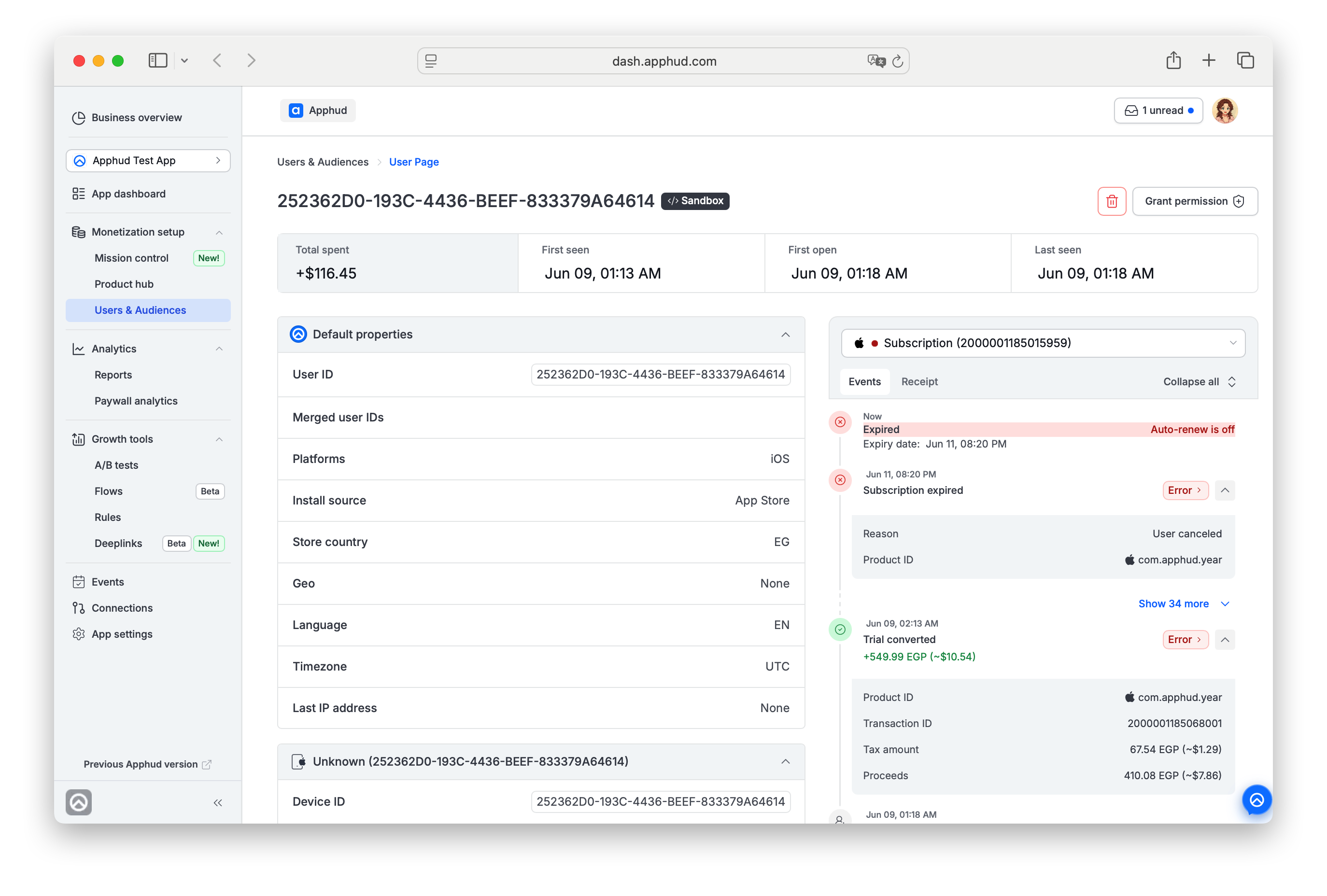
Sandbox users and deleting usersSandbox users are marked with a Sandbox label next to the User ID in the page header.
Users can be deleted with the red trash icon in the top-right next to Grant permission (useful for cleaning up test data). Sandbox users can be deleted by anyone who can edit the app. Production users can be deleted only by organization Admins and Owners, and only if they have no production subscriptions — no subscriptions at all, or sandbox ones only. To delete a production user with real purchases, contact Support. To clean up many sandbox users at once, see Delete all sandbox users in Users & Audiences.
How to open
- From Audiences — click any User ID in the table.
- From Events — click the User ID column in any event row.
The page opens in a new tab, so your filter state on the source page is preserved.
Page layout
The page has two columns:
- Left column — user identity, properties, attribution, and device sections (accordions).
- Right column — subscription panel with Events timeline and Receipt for the selected subscription.
Header stats
Four cards at the top:
| Card | What it shows |
|---|---|
| Total spent | Lifetime spend by the user, in USD |
| First seen | When Apphud first saw the user (install, first launch, or first purchase — whichever came earliest) |
| First open | When the user first launched the app with the Apphud SDK and the user was registered in Apphud |
| Last seen | Most recent activity Apphud detected |
Left column — sections
Sections are accordions. By default every section is expanded. Click a section header to collapse / expand.
Only sections that have data are shown — if Apphud has nothing to display for a category, the section doesn't appear at all.
Default properties
User ID, Merged user IDs, Platforms, Install source, Store country, Geo, Language, Timezone, Last IP address, and other built-in properties.
- Click User ID or Device ID to copy it to clipboard.
- Language comes from the device locale reported by the SDK.
- Geo is derived from the user's IP address. Users on VPNs will show the VPN exit-node's country, not their actual location.
- Merged user IDs — when Apphud detects that two
User IDs belong to the same person, they're merged. The canonical ID is in the page header; the others appear here. See user merging for more info.
Custom properties
Lists every custom property set on this user via the SDK, with current value (e.g., total_collage_saves: 7). Shown only if at least one custom property exists. See User Properties for how to set them.
Attribution sections
One section per integrated attribution provider — Apphud Attribution, AppsFlyer raw data, Branch raw data, Adjust raw data, etc.
Conditional rendering applies. The Apphud Attribution and MMP Attribution sections are independent — each appears only if it has its own data:
- No attribution at all → no attribution section appears.
- Apphud-side data only → only the Apphud Attribution section appears.
- MMP-side data only → only the MMP Attribution section appears.
- Both present → both sections appear.
A user can show as organic on the Apphud side and still have MMP data (e.g., a Facebook install via AppsFlyer), so the MMP section is driven solely by MMP data — not by the Apphud side's organic/paid status.
If you expect to see attribution and don't, the most likely cause is the integration isn't configured yet — see Integrations Overview.
Device sections
Apphud tracks each device the user has used with your app.
Single device. If the user has only one device, the section header shows <Device family> (<Device ID>) — for example, iPhone (D08F22E6-9E5A-…-F6BB443D47FC). Fields:
| Field | Description |
|---|---|
| Device ID | Apphud-assigned device identifier |
| IDFA | Identifier for Advertisers (iOS, when ATT consent is granted) |
| IDFV | Identifier for Vendor (iOS, available without ATT) |
| Platform | iOS / Android / Web |
| Device family | Manufacturer grouping (iPhone, iPad, Samsung, etc.) |
| Device model | Specific model (e.g., iPhone 8 Plus, iPad16,1) |
| OS version | OS version installed on this device (e.g., 16.7.15) |
| Current app version | Currently installed app version on this device |
| Start app version | First app version Apphud saw on this device — i.e., the version installed when the user first launched the app with the Apphud SDK |
| Apphud SDK version | SDK version reporting from this device |
| Push token | Push notification token, if registered |
Multiple devices. If the user has used your app on more than one device, the section header is Multiple devices. At the top is a Select device dropdown listing every device with its family and Device ID. The dropdown defaults to the most recently used device. Switch in the dropdown to inspect another device — the field list below updates accordingly.
A/B tests
If the user has participated in A/B tests, a separate A/B tests (N) section appears — where N is the count of tests the user was assigned to.
Each row shows:
- The test name as a link (clicking opens the test in Experiments).
- The test status in parentheses (
running,completed, etc.). - A short description / variation name on the right (A, B, C, etc.)
Useful for support cases ("which variation did this user see?") and for understanding the user's monetization context.
Right column — subscription panel
The right column shows the user's subscription, its event timeline, and its receipt.
Subscription selector
At the top of the right panel, a dropdown lets you select which subscription to view. If the user has multiple subscriptions — for example, one in a Premium Permission Group and another in a Pro group — pick the one you want to inspect. The Events timeline and Receipt below update to match.
Each entry is one subscription as the store defines it. On the App Store, buying another product from the same subscription group continues the same entry and the product changes. On Google Play, a new purchase token creates a new entry. Every purchase, renewal and product change of an entry is in its Events tab.
For users with a single subscription, the dropdown still appears with that one subscription.
For users with no subscriptions (never purchased, or only triggered events), the right panel shows only the Events tab — no Subscription selector, no Receipt tab. The timeline starts with User created and adds any events that have been triggered for the user.
Events / Receipt tabs
Two tabs at the top of the panel:
- Events — timeline of subscription lifecycle events.
- Receipt — the raw JSON receipt from the store (
response,pending_renewal_info,latest_receipt_info, etc. for App Store; equivalent for Google Play).
Expired subscriptionsExpired subscriptions appear in the dropdown with a red ✕ icon next to their identifier. In the timeline, the latest expired-state event shows the same red icon, with Auto-renew is off in the row — easy to spot at a glance vs. an active subscription (green dot).
Event timeline
Each row in the timeline shows:
- Icon and timestamp on the left (e.g., "Now", "Jun 07, 03:55", "May 21, 11:50").
- Event name (Regular, Subscription renewed, Trial active, Trial started, User created, etc.).
- Revenue badge for billable events (e.g.,
+1090.00 HUF (~$3.53)). - Status badge on the right —
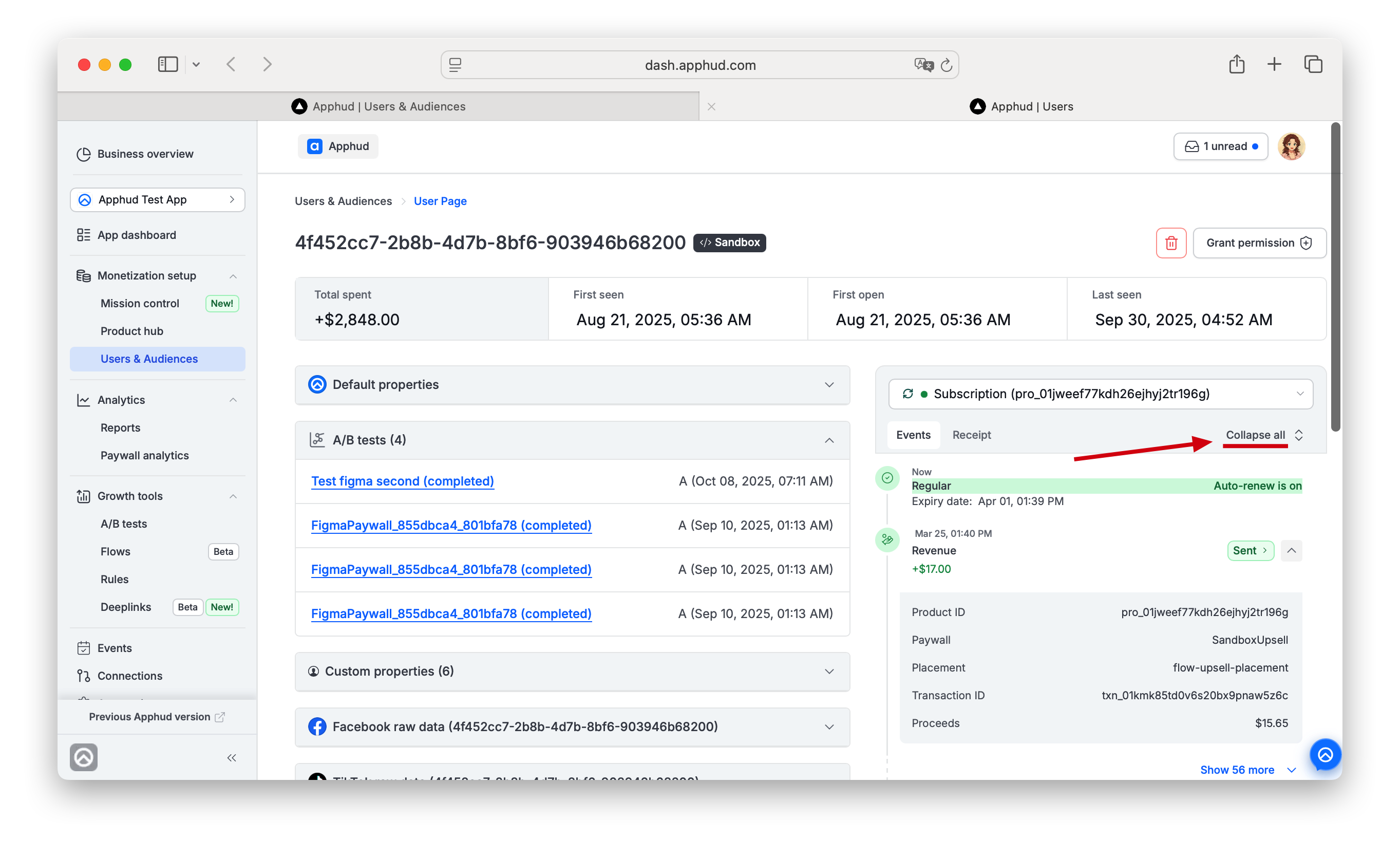
Sent,Skipped, or others (see Integration delivery status). - Expand arrow ▼ — click to reveal event details (Product ID, Paywall, Placement, Transaction ID, Tax amount, Proceeds, etc.).
Use the Expand all / Collapse all toggle at the top of the timeline to expand or collapse every event at once.
Long histories — Show N more
When a user has a long lifecycle, the timeline shows the most recent events plus the very first User created event at the bottom. Between them appears a Show N more button (N depends on the specific user's history). Click to expand the full chain.
For deep analysis with full filtering and column controls, switch to the Events page and filter by User ID — you'll see every event with all parameters and integration delivery details in a sortable table.
Revenue display and currency
Billable events show revenue in the store's currency with the USD equivalent in parentheses — e.g., +1090.00 HUF (~$3.53). The USD value is the converted amount at the time the event was created.
For how Apphud converts currencies, see About Analytics → About Currencies.
Integration delivery status
The status badge next to each event reflects delivery to your configured integrations:
- Sent — Apphud delivered the event successfully to every configured connection.
- Skipped — the event was not delivered. Each connection in the popup shows the reason in parentheses — typical reasons:
(event disabled)— the connection's events selector doesn't include this event type.(environment mismatch)— the connection is configured to send Production events only, but this event is from a Sandbox user (or vice versa).(filter)— the connection has user-level filters that exclude this user (e.g., "don't send events from users in the US").
- Other statuses follow the same pattern as Events page.
Click the status badge to open a popup showing the per-connection delivery log for that event — every connection (Telegram, AppsFlyer, your custom integrations) appears with its Sent / Skipped (reason) / Error status and the timestamp. Click View details on any row to open the per-event integration log for that connection — useful for troubleshooting errors.
Event retention
Event history retention follows the same rules as the Events page — see Events for the current retention policy.
Grant permission
The Grant permission + button in the top-right of the page opens a dialog to give the user access to a Permission Group for a fixed duration — useful for win-back, support escalations, VIP users, or QA of premium features in production builds.
See Promotionals for the full Grant permission flow, duration options, and how the user's SDK picks it up.
FAQ
What's the difference between "Current app version" and "Start app version" in the Device section?
- Current app version — the version of your app currently installed on that device.
- Start app version — the first version Apphud ever saw on that device. If the user installed your app for the first time on v5.0.0 and has since updated to v6.2.0, Start app version stays
5.0.0while Current app version is6.2.0.
Use Start app version to segment users by what version they were acquired on (useful for evaluating release cohorts). Use Current app version to know what's actually running today.
The user has multiple devices — which one does the Device section show by default?
The most recently used device. Use the Select device dropdown at the top of the Multiple devices section to switch to another one.
Where does "First seen" come from if I integrated the SDK after my app launched?
For existing users on a pre-SDK version of your app, the original install date isn't recoverable. In that case Apphud uses First Purchase Date as a proxy for First Seen. See About Analytics → User's First Seen Date for the full fallback chain.
A user shows Geo as a different country than their Store country. Why?
- Store country comes from their App Store / Google Play account region — set when they created the account.
- Geo is derived from their IP at the time Apphud last saw them — affected by physical location and VPNs.
It's normal for these to disagree (traveler, expat, VPN user). For accurate marketing segmentation use Store country.
Why don't I see any AppsFlyer / Branch / Adjust data?
Most likely either the integration isn't configured (see Integrations Overview) or the user installed before you added that integration. Attribution can't be reconstructed retroactively.
I see a "Facebook raw data" section but no Facebook attribution — did the user come from Facebook?
No. A provider's raw data section (for example Facebook raw data — anon_id, extinfo) means Apphud has that provider's device signals so it can send the user's events to that provider (e.g. Meta via the Conversions API). It is not an attribution signal. A user is attributed to Facebook only when a Click ID (fbc / fbclid) is present — which populates the Facebook attribution (Campaign / Ad set / Ad) fields. So it's normal to see Facebook raw data on a user attributed to Apple Search Ads or organic. See Meta Ads (Conversions API) → FAQ for the full explanation.
Why is one event "Sent" and another "Skipped"?
Sent means delivered to all configured connections for that event type. Skipped means delivery was suppressed for at least one connection. Click the status badge to see the per-connection breakdown — each Skipped row shows the reason in parentheses:
(event disabled)— the connection isn't configured to send this event type.(environment mismatch)— the connection sends Production-only or Sandbox-only, and this event belongs to the opposite environment.(filter)— a user-level filter on the connection excludes this user (e.g., country, plan, custom property rule).
A user of my app asks me to delete their data. Do I need to delete them in Apphud?
Usually not. By default Apphud stores technical and purchase data that doesn't identify a person on its own: device and OS details, locale, time zone, IP address, identifiers such as IDFV, and Apphud's own anonymous user ID. See Data We Collect for the full list.
You only need to delete the user in Apphud if you passed data that identifies the person, for example:
- Personal details in user properties —
$email,$phone,$name, or a custom property that holds them. - An app user ID that can be tied to the person — for example, an ID you can match to their email or other contact information through your own server or another system.
In that case:
- If the user has no production subscriptions, an organization Admin or Owner can delete them with the red trash icon in the page header.
- If the user has production purchases, contact Support. Contact Support too if your compliance rules (for example, SOC) require deleting the data from every connected system.
Can I edit user properties from this page?
No — the page is read-only for properties. To set or update user properties, use the SDK (see User Properties). To remove a property from the active set, disable it in Settings → Custom User Properties.
Can I see all events for this user, not just the subscription timeline?
Switch to the Events page and filter by User ID — you'll get every event Apphud has for this user, with full attributes, sort, and column controls. The User Page timeline is optimized for subscription lifecycle review; the Events page is the full log.
Updated 12 days ago