
App settings
Per-app configuration in Apphud — name, icon, timezone, localization, API keys, store credentials, and customizations. One page for everything app-scoped.
App settings is the per-app configuration hub. Each Apphud app has its own settings — separate from your organization-level settings (Organization settings, Plan and billing, Team and permissions) and your personal account (Profile settings).
Find App settings in the app's left sidebar under App settings.
The page is organized as a grid of cards in three groups: Project, Mobile platforms, and Web.
Use the App switcher in the sidebar menu to choose which app you're configuring — see Organizations → Switch apps.
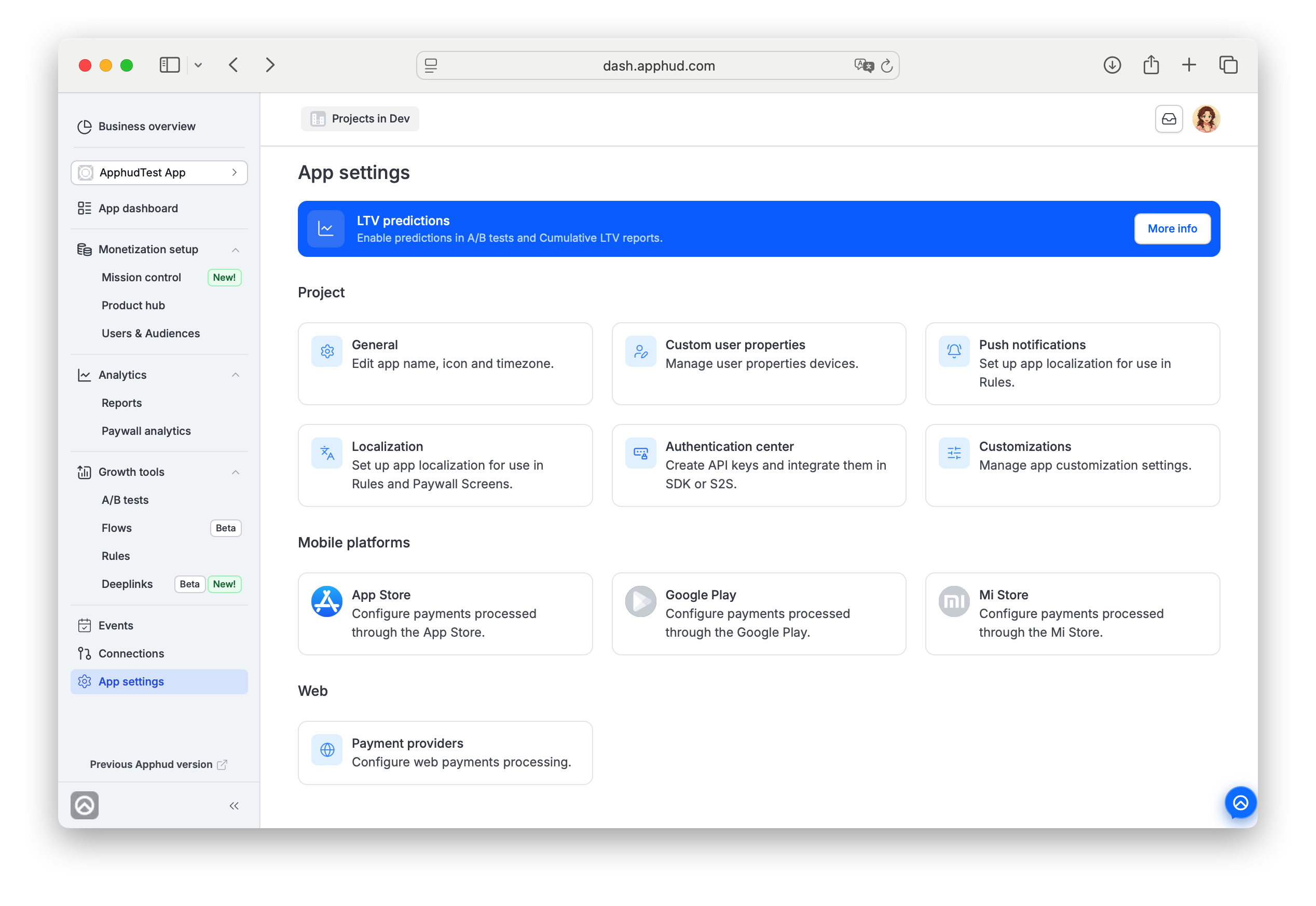
LTV predictions
A banner at the top of the App settings page lets you enable LTV predictions for this app. For how to enable them, the plan requirement and what happens next, see Predictions → Enable predictions.
Page layout
Three groups of cards, in this fixed order:
Project cards
- General — app name, icon, timezone, Danger zone (app transfer or deletion requests).
- Custom user properties — manage which user properties are active for this app (see User properties for the full feature).
- Push notifications — set up app-side push notification handling (see Push notifications).
- Localization — add languages for app-localized content (Rules push translations, Paywall Screen localized content).
- Authentication center — create and manage API keys (SDK and S2S) for this app.
- Customizations — Trial Active / Subscription Active timing delays.
Mobile platforms cards
Each card connects the app to one mobile store.
-
App Store — configure App Store payment processing for this app. See App Store credentials.
-
Google Play — configure Google Play payment processing. See Google Play credentials.
-
Mi Store — configure Xiaomi Mi Store payment processing. See Mi Store credentials.
Card icon color is a visual cue for setup state:
- Gray icon — not configured.
- Brand color icon (App Store blue, Google Play colorful triangle, Mi Store orange) — configured.
Web card
- Payment providers — configure web payment processors (Stripe, Paddle) for Flows-based subscriptions. See Stripe / Paddle.
General
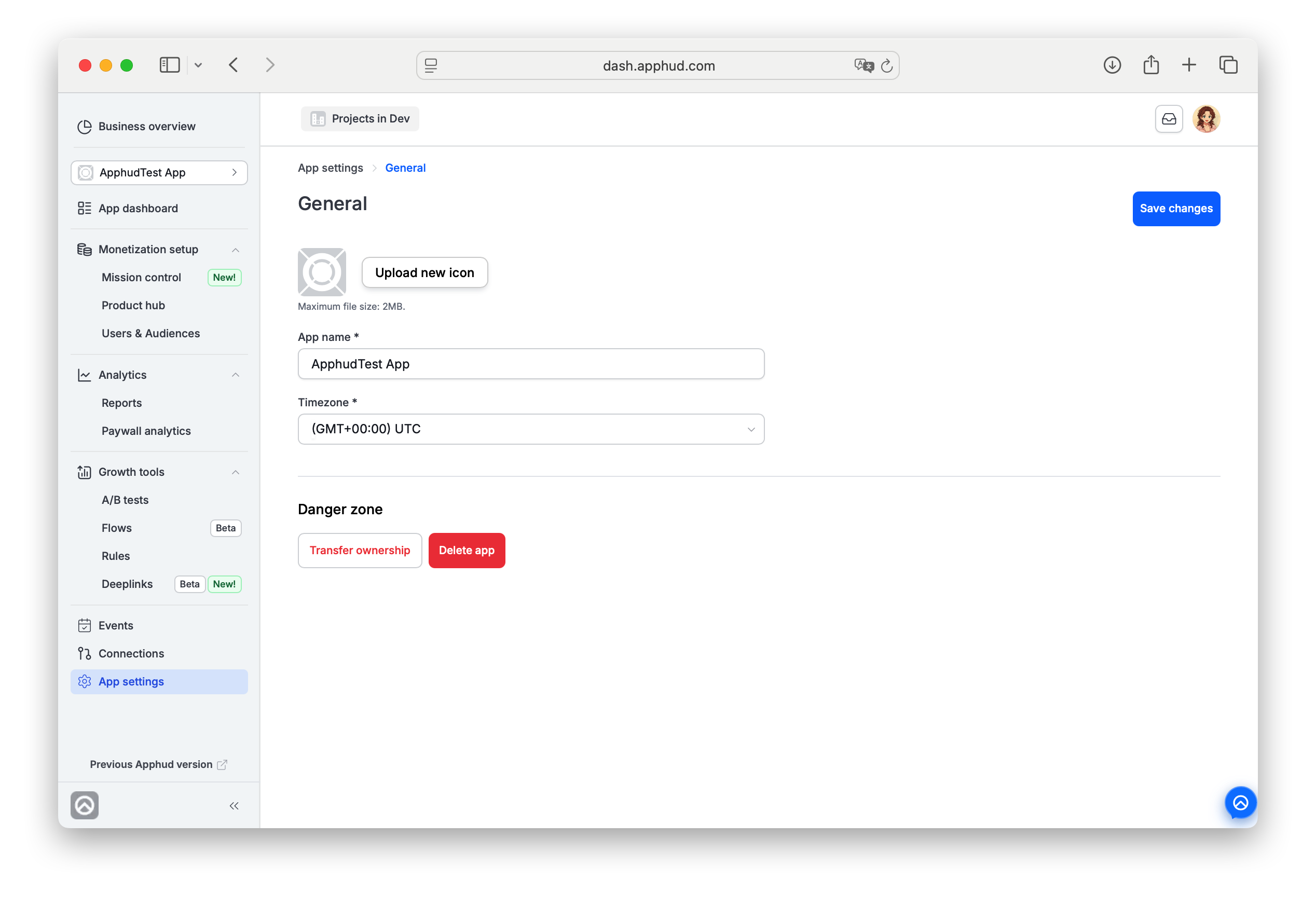
App settings → General holds the app's basic identity and contains the Danger zone for destructive actions.
Fields:
- Upload new icon — replace the app icon. Max 2 MB.
- App name * — display name across the dashboard.
- Timezone * — affects how date-based periods are calculated in the app's analytics. Default
(GMT+00:00) UTC.
Danger zone
Two destructive actions at the bottom of General:
- Transfer ownership (red outlined button) — transfer the app to a different organization. Opens the App transfer modal — full flow at Transfer ownership.
- Delete app (red filled button) — deletes the app and all its associated data. Only the app's Owner can do this.
- Apps with no meaningful recent revenue can be deleted immediately, self-service, right from this button.
- Apps with recent revenue can't be self-deleted — this protects apps with paying customers from accidental deletion. The dashboard blocks the action and directs you to contact Apphud Support to delete it for you.
Delete is irreversibleOnce an app is deleted, all its data — events, users, subscriptions, paywalls, integrations, analytics history — is removed permanently. Back up anything you need before deleting.
Click Save changes (top-right) to persist edits to name / icon / timezone.
Localization
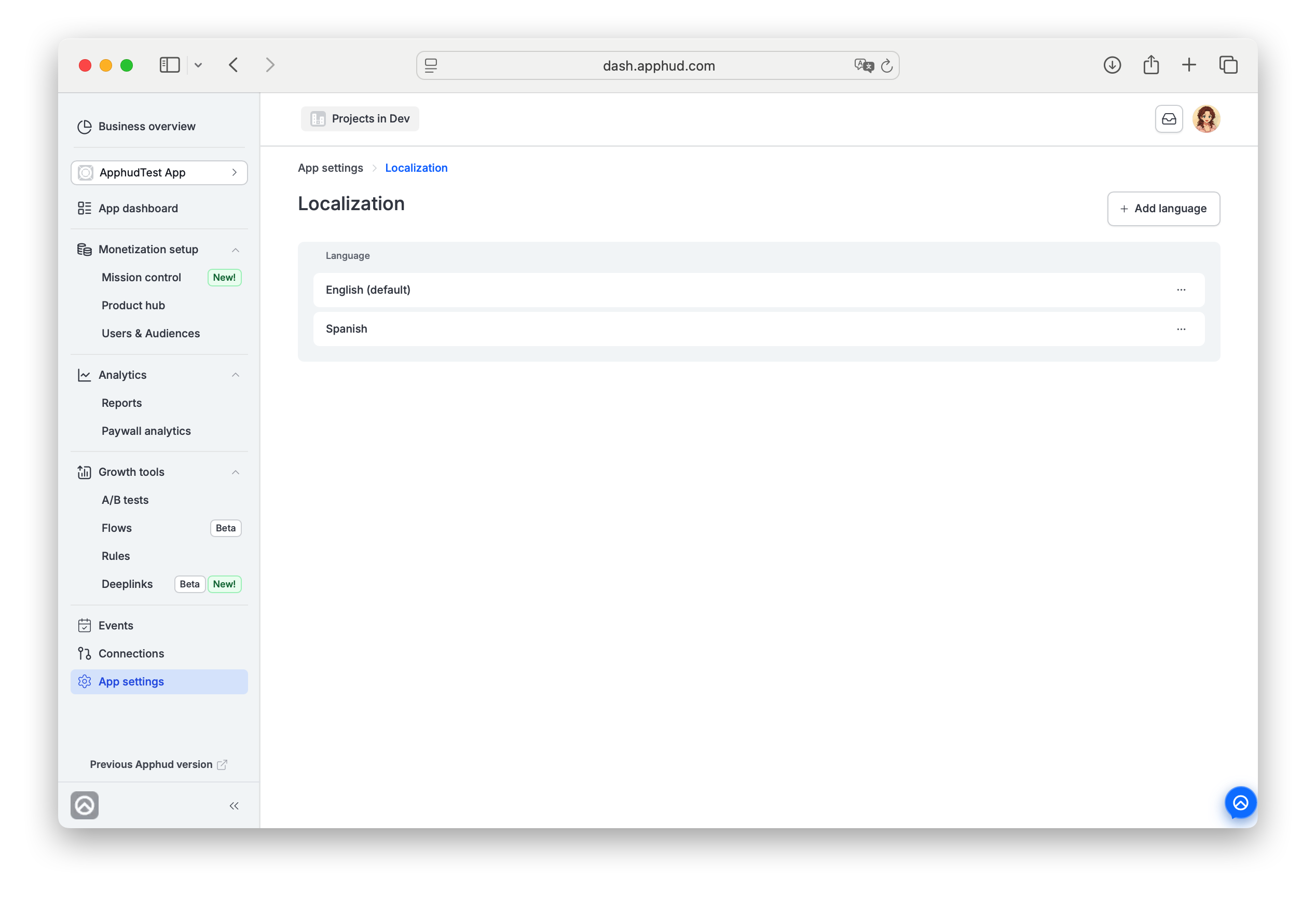
App settings → Localization is where you add the languages that Rules push notifications and Paywall Screens can target.
- Default language: is the one you've chosen during the app creation.
- Click + Add language (top-right) to add another language.
- Each language row has a ⋯ action menu — Make default / Delete.
Languages added here populate the locale selectors on:
- Rules → Push notification panel (one Title/Text pair per locale).
- Paywall Screens — localized content per Figma project per language.
If a user's device language matches a configured locale, they see content in that locale; if not, they fall back to the default locale.
Customizations
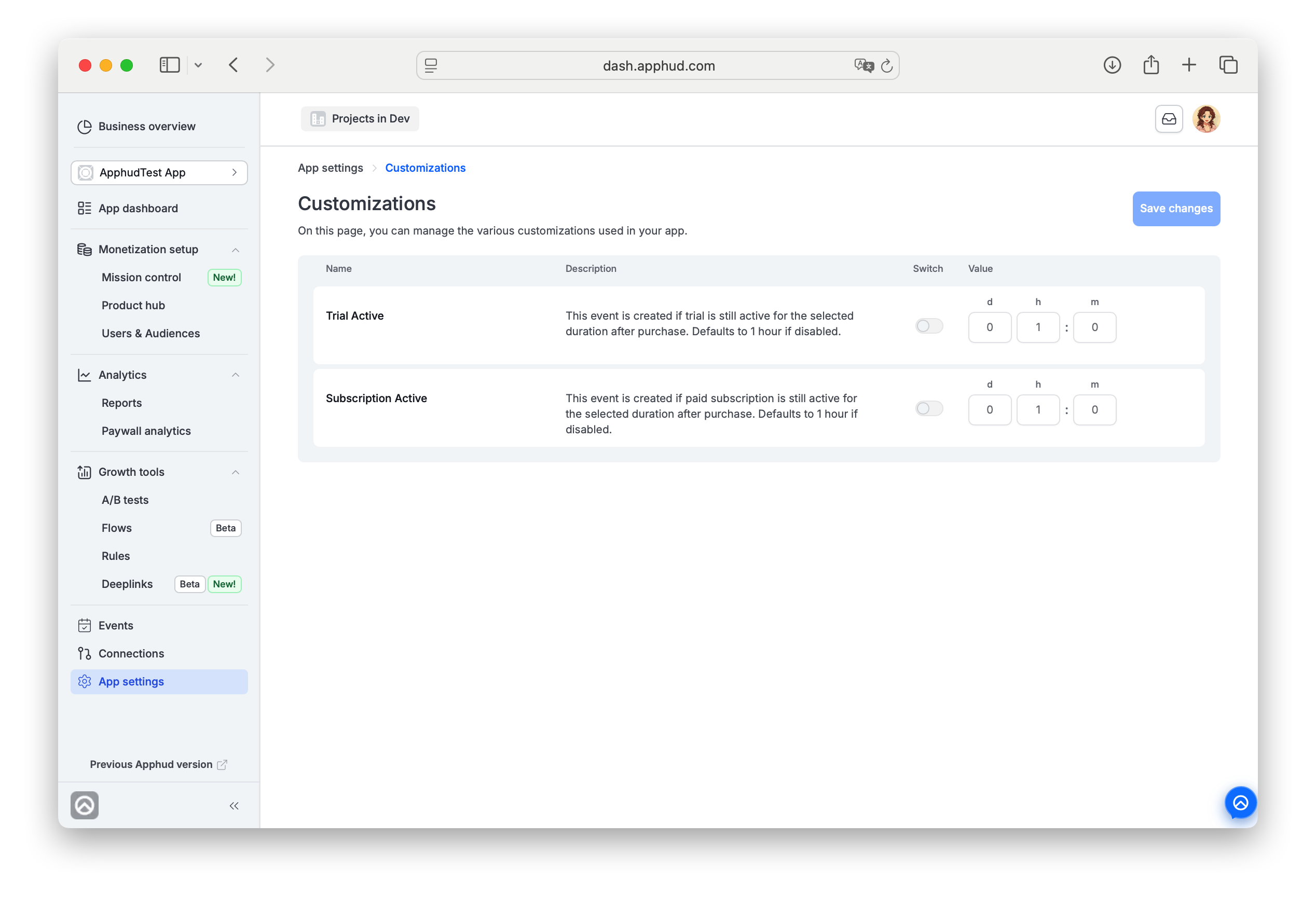
App settings → Customizations controls per-app delays on Trial Active and Subscription Active state recognition.
Two toggle-controlled settings, same UX:
- Trial Active delay — when ON, sets a custom delay (day / hour / minute inputs) before Apphud marks a started trial as "active". When OFF, defaults to the system value (1 hour).
- Subscription Active delay — same pattern for paid subscriptions.
Use these when your app needs to verify purchases before reflecting them in analytics (for example, to suppress fraudulent or accidental purchases that get refunded immediately).
Effect on eventsTrial Active / Subscription Active events are gated by these delays — they fire only after the configured delay has passed since the underlying purchase. Downstream automations (Rules triggered on these events, integrations sending Trial Active to MMPs, etc.) wait too.
Authentication center
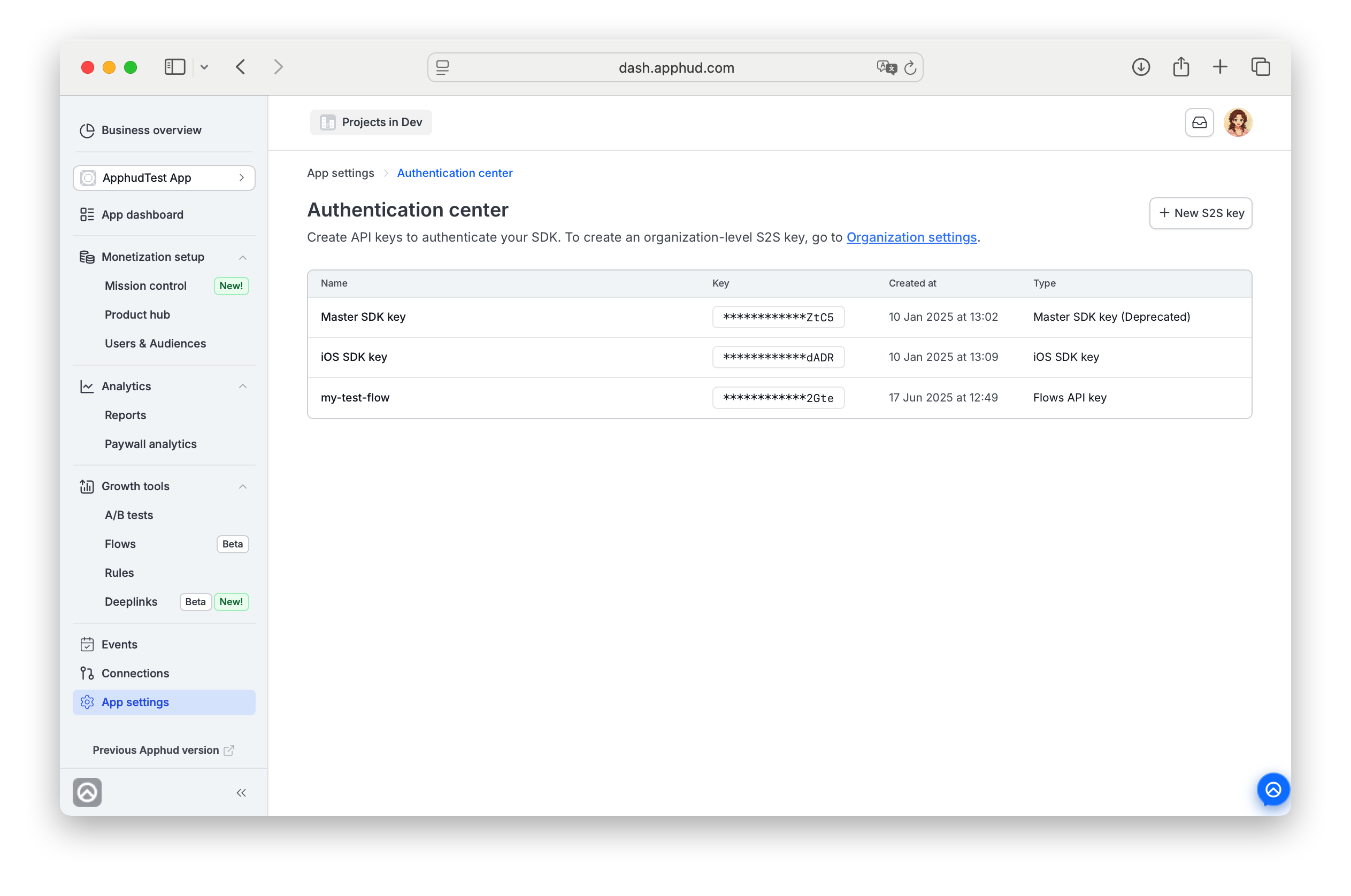
App settings → Authentication center is where you create the app-level API keys your SDK and other Apphud integrations use. For organization-level S2S keys, see Organization settings → S2S API Keys.
The page shows a table of all keys for the app with columns: Name / Key (masked after creation) / Created at / Type.
Key types you'll see:
- iOS SDK key — used by the iOS SDK to initialize.
- Android SDK key — used by the Android SDK.
- Xiaomi SDK key — used when integrating Mi Store.
- Master SDK key — legacy combined SDK key, deprecated in favor of platform-specific keys.
- Flows API key — used by Flows web-to-web checkout for this app.
- Analytics API Key — app-scoped Analytics API key for pulling chart data programmatically. Can also be used for server-to-server calls, such as the Customers API.
Create a key
Click + New S2S key (top-right). Give the key a name and save. The key value is displayed once on creation with Analytics API Key type. Once you close the creation modal, only the masked tail is shown afterward.
Revoke a key
Click the trash icon on a key row to delete it. The key stops working immediately for any integration using it; you'll need to issue a new one and update your integration to use the new value.
Copy a key
Click on a masked key value to copy it to clipboard.
Important noteMaster SDK key option is available only for apps registered in Apphud before the 1st of July 2026. It is deprecated and not recommended for use. Currently each store is assigned with an individual key for SDK.
Custom user properties
App settings → Custom user properties controls which user properties are active in the audience builder, analytics segments, and integrations for this app.
See User properties for how to send properties via the SDK and how the active list affects filters and segments.
Push notifications
The Push notifications card opens a page that's gated by the Mobile platforms being configured first. Once at least one mobile platform is connected, this page hosts the app-side push setup (APNs certificates, FCM keys). See Push notifications for the full setup.
Mobile platforms — when to configure each
Set up only the platforms your app actually ships to:
- App Store — required for iOS apps with App Store IAP. See App Store credentials.
- Google Play — required for Android apps with Google Play Billing. See Google Play credentials.
- Mi Store — required for Android apps distributed via Xiaomi's Mi Store. See Mi Store credentials.
Important NoteAt least one Store should be configured before you'll be able to set up products, paywalls, and other monetization objects in Apphud.
Web — Payment providers
For Flows / web-to-web subscriptions, the Payment providers card links to Stripe and Paddle setup. Configure only if your app uses Flows for web checkout.
FAQ
Why are some Mobile platform cards gray?
Gray = not yet configured. Brand-color icon = the credentials are set up and validated. Use this as a quick visual to spot which stores need attention without opening each card.
Do I need to configure every Mobile platform?
No — only the ones your app actually distributes to. iOS-only app: just App Store. Cross-platform (iOS + Android via Google Play): App Store + Google Play. Add Mi Store if you ship via Xiaomi.
What's the difference between App settings → Push notifications and Rules → Push notification?
- App settings → Push notifications — the app-side setup (APNs / FCM credentials, certificates). One-time setup per app.
- Rules → Push notification — the content of a specific push (title, body, locales) when a rule fires. Per-rule configuration.
Can I copy app settings from one app to another?
Not in bulk. Some specific integrations (e.g., Apple Search Ads multi-app sharing) let you propagate credentials across apps. For most settings, configure each app individually.
My Trial Active / Subscription Active rules fire later than I expect — is the delay why?
Yes — see Customizations above. The delay value (default 1 hour) gates when these events fire after the underlying purchase.
Do I need to replace the Master SDK key with an iOS SDK key?
Not immediately. The Master SDK key is deprecated and only exists for apps registered before July 1, 2026, but it keeps working. We recommend switching to the platform-specific iOS or Android SDK key when you can: copy it from App settings → Authentication center and pass it to Apphud.start.
Can I get an SDK key before my app is set up in App Store Connect, for example to test with local StoreKit?
An SDK key is created when you configure a store in App settings. To start earlier, fill in the store card with temporary values, copy the SDK key from Authentication center, and create your products and paywalls. Replace the temporary values with the real ones before you release.
Updated about 1 month ago