
Mi Store credentials
Connect your Mi Store app to Apphud — paste the package name, App ID, App secret, and copy the notifications URL into the Xiaomi developer console.
The Mi Store integration lets Apphud receive purchase data from apps distributed via Xiaomi's Mi Store. Configure it on App settings → Mobile platforms → Mi Store for each app that uses Mi Store as a payment processor.
Before you start
- You need a Mi Developer account with API access for your app.
- You need the Xiaomi SDK integrated into your app — see SDK installation.
- Have the app's Mi Store package name, App ID, and App secret on hand from your Mi Developer console.
Configuration
-
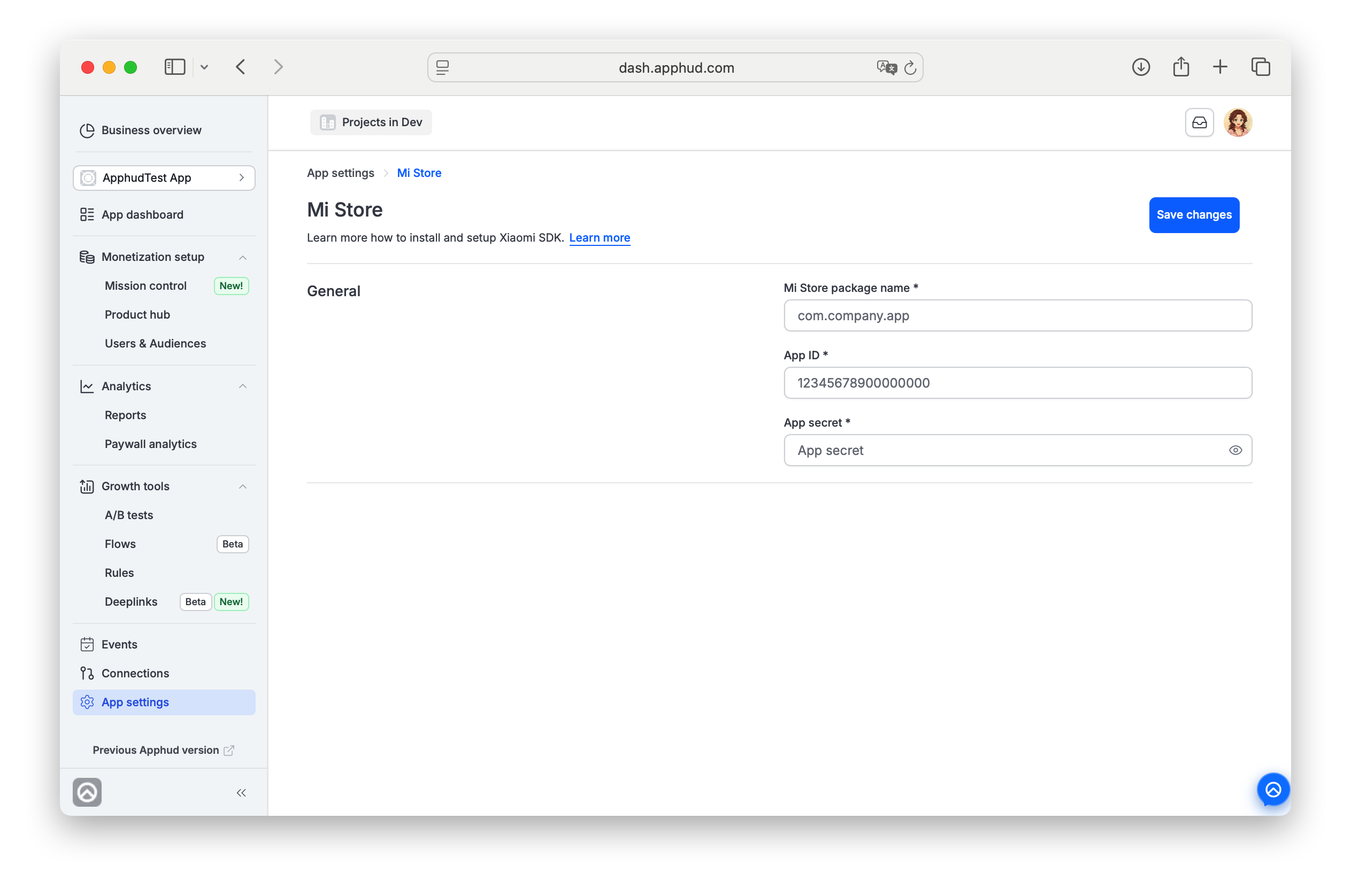
Open App settings → Mi Store.
-
Fill in the General section:
- Mi Store package name * — for example,
com.apphud.demo.mi. - App ID * — numeric ID from your Mi Developer console (for example,
2882303761522212082). - App secret * — paste the secret. The field is masked; click the eye icon to toggle visibility while pasting.
- Mi Store package name * — for example,
-
Click Save changes (top-right).
After save, Apphud is ready to process Mi Store purchases for this app. Next, configure store-side notifications so Apphud receives renewal and refund events in real time — see Notifications below.
Notifications
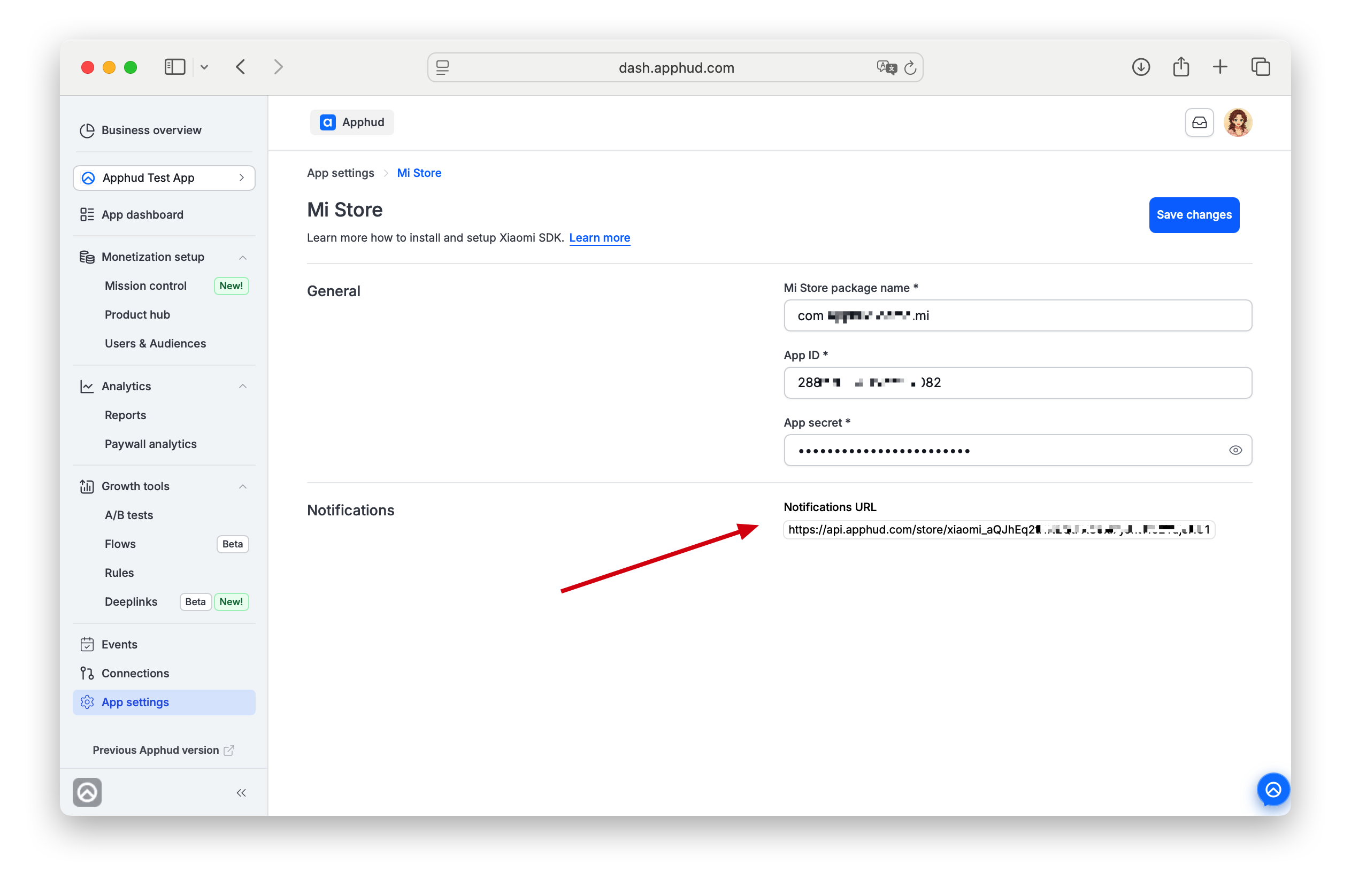
The Notifications section contains a read-only Notifications URL that Apphud auto-generates for your app. Example:
https://api.apphud.com/store/xiaomi_aQJhEq2tHN2QtFXC9xi7yJnt1TJ2YdjcHU1...Copy this URL into your Xiaomi Developer Console as the server-to-server notifications endpoint. Mi Store will forward subscription and purchase events to it; Apphud uses those events to keep your subscriber state in sync.
The Notifications URL is unique per appDon't share this URL with other apps — each app has its own unique URL bound to its credentials. Sharing it would cause cross-app event collisions.
FAQ
Where do I find the App ID, package name, and App secret?
In your Xiaomi developer console — the App ID and App secret are issued when you register the app for Mi Store payment processing; the package name matches the Android package name you used to publish the app.
What happens if I leave the credentials blank?
Apphud can't process Mi Store purchases for the app — so it won't let you save unfinished settings with empty credentials. Till the configuration is properly done purchases won't appear in analytics, subscriptions won't update state, integrations relying on Apphud events won't see Mi Store activity for users on that store.
Can I share Mi Store credentials between apps?
No. Each Apphud app holds its own Mi Store credentials and its own unique Notifications URL. Sharing credentials or the URL would route events incorrectly.
How do I know notifications are working?
After you paste the URL into Xiaomi's console, trigger a test purchase or wait for a real event. Apphud's Events page will show the incoming Mi Store events with delivery status. If nothing arrives after a few minutes, double-check the URL was pasted correctly and that the credentials in App settings → Mi Store match what Xiaomi has on file.
Updated about 1 month ago