
Organizations
Organizations group apps, teammates, and a subscription in Apphud. Every action in the dashboard happens inside an organization you belong to.
An organization is a billing entity in Apphud. It owns apps, has one Owner, hosts teammates, runs on a subscription plan, and is the boundary for every metric, dashboard, and integration you see. You can belong to multiple organizations — for example, your company's main org plus a side-project — and switch between them in one click.
Everything in Apphud belongs to an organization: a user either joins one via invite or creates their own.
Capabilities at a glance
- Group multiple apps under one subscription, one team, and one billing.
- Belong to multiple organizations as a user — different roles in each, different plans.
- Switch organizations in one click from the profile menu.
- Pool teammate seats at the organization level (not per-app).
- Manage subscription, payment method, and invoices at the organization level.
- Transfer organization ownership to another member without disrupting apps or billing.
When to use multiple organizations
- You manage apps for different companies / clients and want each separated by billing and team.
- You run a personal side project alongside work and want a clean separation of plan, integrations, and team.
- Your company has distinct business units that don't share the same teammates or budget.
For everything else, one organization with multiple apps is usually the right setup — it pools seats, simplifies billing, and lets analytics roll up across apps in Business Overview.
Key concepts
Organization
A container for apps, teammates, subscription plan, and integrations. Has exactly one Owner at any time, plus any number of Administrators and Users (see Team and permissions).
Apps
Every app in Apphud lives inside exactly one organization. App-level settings (credentials, paywalls, rules, analytics) belong to that org. To move an app between organizations, use Transfer ownership of an app.
Members and seats
Teammates are added at the organization level, then granted per-app access. Seats are pooled across the org — adding the same person to 5 apps still occupies one seat. See Team and permissions for role types, access tiers, and seat counting.
Plan and subscription
Each organization has its own subscription plan — Free by default, upgradable to paid tiers. Plan controls feature availability, MTR limits, seat caps, and add-ons. See Plan and billing for the full breakdown.
Create an organization
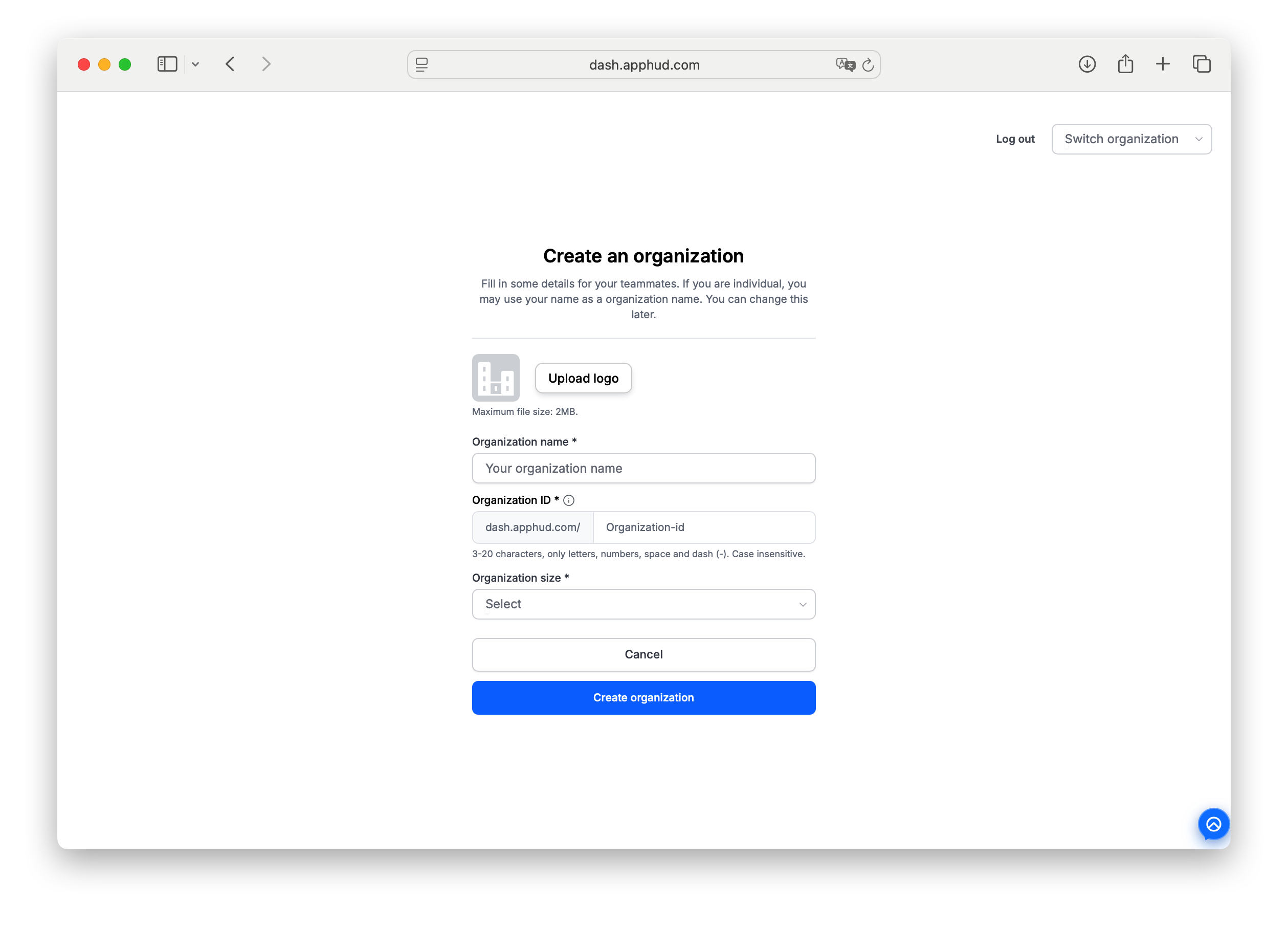
You can create a new organization at signup, when you click + New organization in the Switch organization modal, or after accepting an invite to a different one.
To create:
- Open the profile menu (avatar, top-right) → Switch organization → + New organization in the modal. Or, on first sign-in, the Join or create an organization screen offers + New organization directly.
- Fill in the form:
- Upload logo (optional, max 2 MB). Used in the org switcher chip and on invoices.
- Organization name * — what teammates see in the switcher.
- Organization ID * — becomes part of your dashboard URL (
dash.apphud.com/<id>). 3–20 characters, letters / numbers / space / dash. Case-insensitive. - Organization size * — pick a size range (e.g., 2–10 employees). Used by Apphud for plan recommendations and capacity.
- Click Create organization.
After creation, Apphud asks you to Add payment method. This is optional — click Skip for now to start on the Free plan without a card. You can add a payment method later from Plan and billing.
The next screen prompts + Add new app. Skip if you'd rather invite teammates or configure org settings first.
Switch organizations
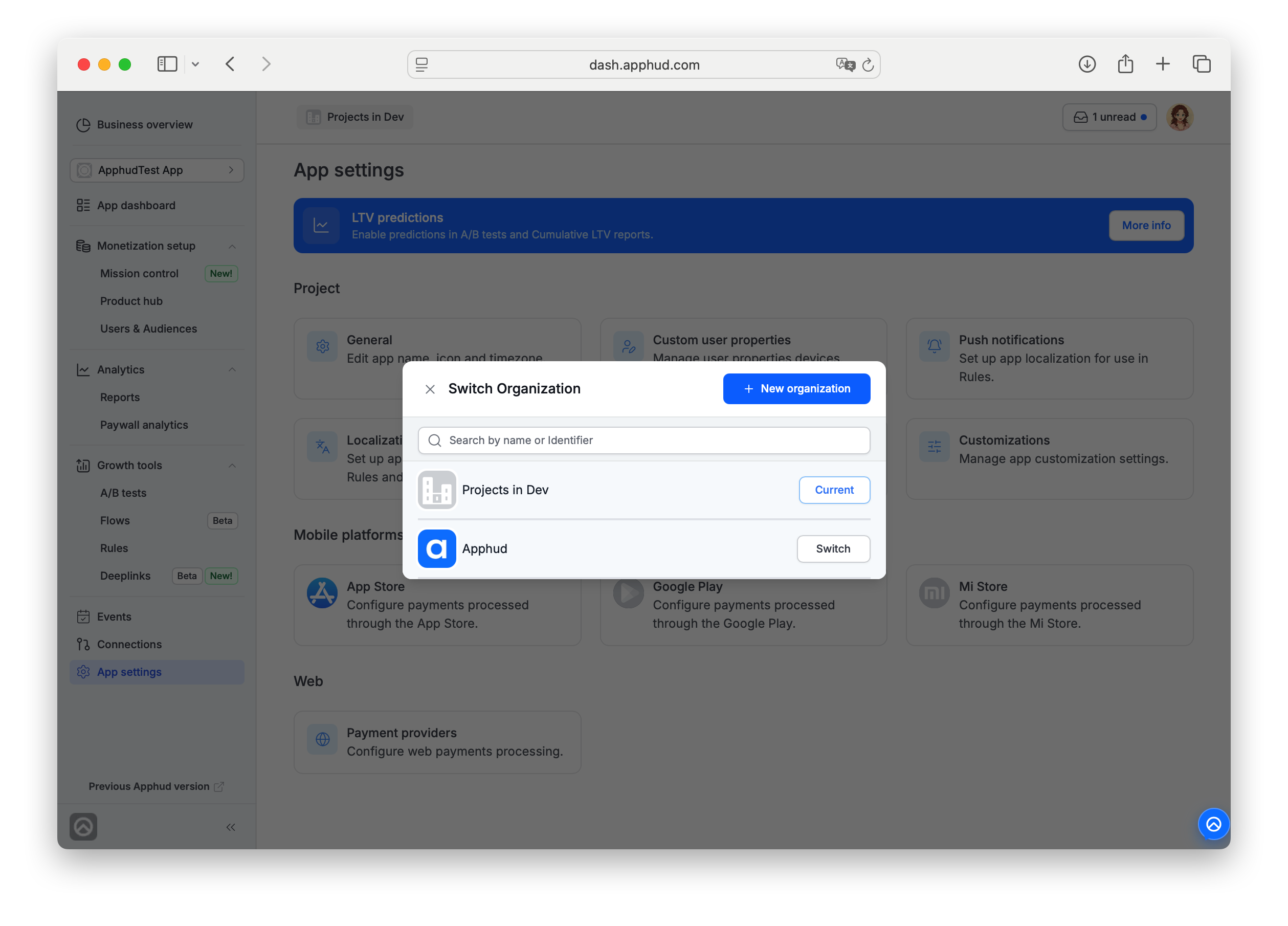
Open the profile menu → Switch organization. The modal shows:
- Search by organization name or ID.
- All organizations you belong to, with the one opened at the moment marked as Current.
- Switch button next to each.
- + New organization at the top to create another one.
When you switch, the entire cabinet (apps, integrations, analytics, settings, billing portal) loads in the context of the selected org. Personal info — profile name, email, etc. — stays the same across all orgs.
Switch apps
Within an organization, the App switcher above the sidebar shows the currently selected app (or No app selected if none). Click it to open a dropdown with:
- Search — filter the app list.
- + New app — opens the Create app wizard (top of the list).
- Every app in the current organization, each with its icon.
The App switcher is org-scoped — only apps in the active organization appear. To work with an app in a different organization, switch organizations first (above), then pick the app.
Organization settings
Open the profile menu → Organization settings. Owner and Administrator roles can view and edit; User role has no access.
Three tabs:
General
- Logo — click Upload logo to set or replace (max 2 MB), or Remove Photo to revert to the default placeholder. The logo appears on the org switcher chip and on invoices.
- Organization name — display name across the dashboard and invoices.
- Organization ID — URL slug, 3–20 characters, letters / numbers / space / dash, case-insensitive. Changing it changes your dashboard URL (
dash.apphud.com/<id>); existing bookmarks and shared links may break.
S2S API Keys
Organization-level server-to-server API keys — shared across all your apps. Use these for integrations that authenticate at the organization level rather than per app, such as the Analytics API.
- + New S2S key to create a key. Each key has a name, the key value itself (masked after creation), creation timestamp, and a type (e.g., Analytics API Key).
- 🗑️ icon next to a row to revoke the key. Revoked keys stop working immediately for any integration using them.
App-level keys — SDK keys, Flows API keys, per-app integration keys — live in App settings → Authentication center instead.
Analytics cache
Clear cached analytics data for the organization. Per the in-product description: "Remove cached analytics data for this organization. This does not affect billing or live analytics ingestion."
- Single action: Clear cache. Use when stale cached data is showing in reports — for example, after a known historical data backfill or refund correction. Live ingestion continues normally.
Default plan and billing
New organizations start on the Free plan with no payment method required. You can use the Free plan indefinitely — within its limits — and upgrade only when you need paid features or more capacity.
- Subscription, payment method, MTR consumption, invoices — all live in Plan and billing.
- Plan features — see the public pricing page for the up-to-date plan matrix.
Organization lifecycle
- Transfer organization ownership — Owner-only and instant: no notification, no acceptance required from the recipient, no expiration. Open Team and permissions, open the ⋯ menu next to the target member, choose Transfer ownership. The target must already be an Administrator in the org — promote them first if they aren't (the action errors out otherwise). After the swap, the previous Owner is automatically demoted to Administrator (not removed); apps, billing, and integrations stay in the organization. Full flow: Transfer ownership.
- Delete an organization — not self-serve. Contact Apphud Support to request a hard delete of the organization and all its associated apps, integrations, members, and historical data. See the FAQ below for what to prepare before the request.
For app-level lifecycle actions — transferring a single app to a different organization, deleting an app — see App settings → General → Danger zone.
FAQ
Can I belong to multiple organizations?
Yes — both as a member and as an Owner. Each membership is independent: different role per org, different plan per org, different teammates. Switch between them anytime from the profile menu.
Do I need a payment method to use Apphud?
No. The Free plan is available without a card. The payment method is required only when you upgrade to a paid plan or enable a paid add-on.
When I switch organizations, what changes?
Everything inside the org: apps list, analytics, integrations, rules, A/B tests, team, billing. Everything personal stays: your name, email, password, profile settings.
Can I rename an organization later?
Yes — Owner / Administrator can change the Organization name any time from Organization settings. The Organization ID (URL slug) is also editable, but changing it changes the dashboard URL — existing bookmarks and team-shared links may break.
How are seats counted across multiple apps?
Seats are pooled at the organization level. The same teammate added to 5 apps within the org occupies one seat. See Team and permissions for the full counting rules.
How do I delete an organization?
Organization deletion isn't self-serve. To delete an organization — along with all its associated apps, integrations, members, and historical data — contact Apphud Support and request a hard delete. The support team coordinates the deletion with engineering.
Before requesting deletion:
- Back up anything you need — exported data, invoices, integration settings. Deletion is irreversible.
- Cancel any active paid subscriptions or add-ons on the Plan and billing page to avoid further charges between the request and the actual deletion.
- If you're the Owner of multiple organizations, double-check which org you want deleted — the support request needs to identify it unambiguously (organization name + Organization ID).
Can a user move from one organization to another?
There's no direct "move" — the receiving org Owner invites the user, and the user accepts. Once they're in the new org, the previous org Owner can remove them from the original. The user's history (events, audit logs) stays in each org where they had access.
Updated 23 days ago