
Rules
Automate engagement, retention, and revenue recovery with Rules. Pick a template, set a trigger, and Apphud delivers a push and/or in-app action to the right users at the right time.
Rules automate what would otherwise be manual operator work — sending a discount push to users who churned, asking for cancellation feedback, reminding subscribers to update a failed payment, and so on. Each rule combines a trigger (when to fire) with an optional push (what to send) and an optional in-app action (a paywall or built-in screen the user sees on next app open).
Android SupportRules are available on iOS, Android (SDK 3.4.0+), Flutter (SDK 3.3.0+), and React Native (SDK 4.3.0+).
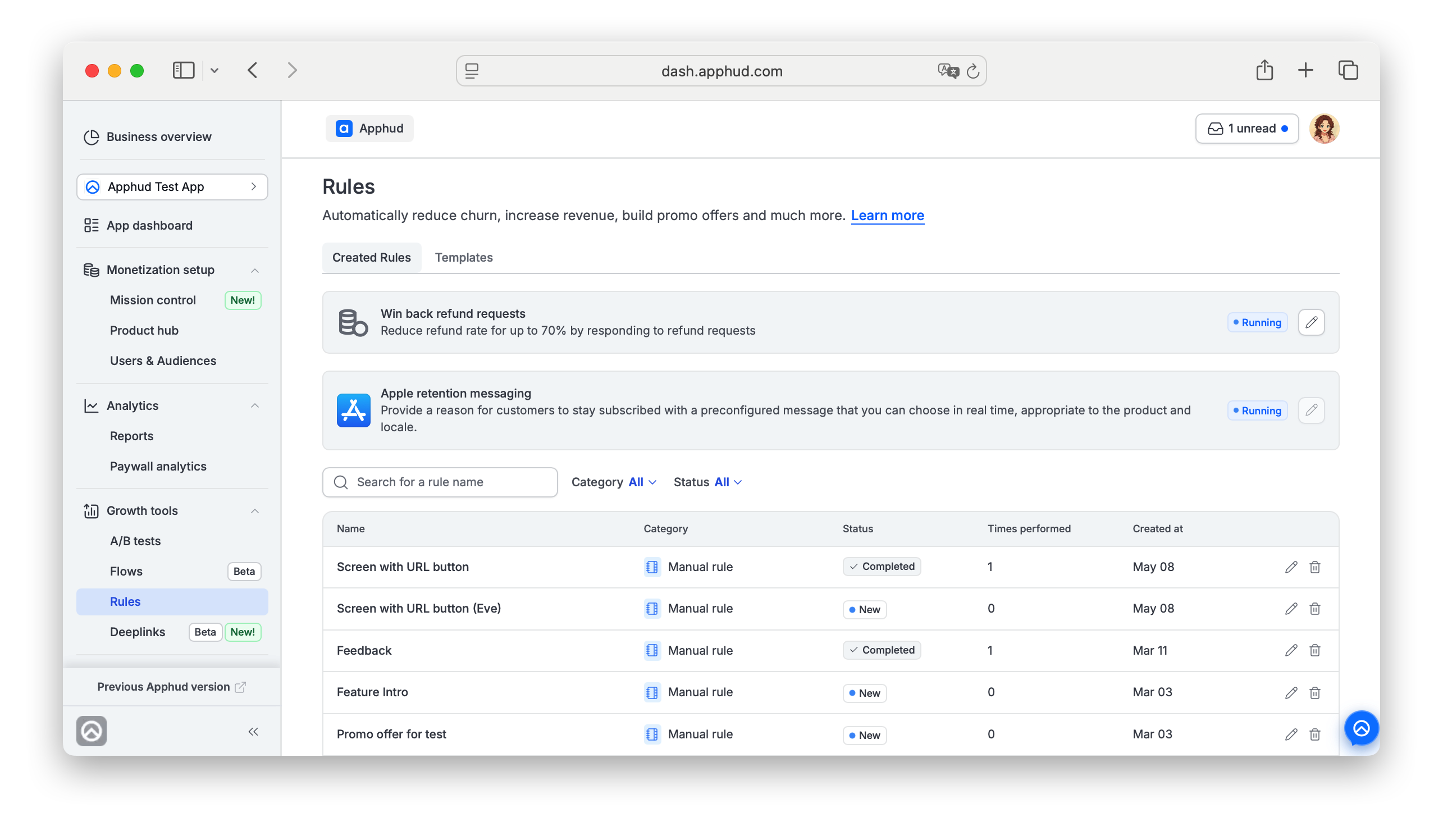
Find Rules in the left sidebar under Growth tools → Rules.
The page is organized in two layers:
- Top of the page — two pinned featured cards for high-value Apple flows: Win back refund requests (auto-respond to App Store refund requests) and Apple retention messaging (configured cancel-flow messages, coming in H2 2026). These have their own dedicated configuration and aren't built from templates.
- Below — Created Rules and Templates tabs — where you build and manage your own rules from the template library. The rest of this page covers how those custom rules work.
How Rules work
Every rule is one of four types, determined by what fires it:
| Type | Fires when | Activation action |
|---|---|---|
| Event-triggered | A matching event is recorded for a user (e.g., subscription_canceled, billing_issue, paywall_checkout_initiated). | Enable |
| Manual | You press the Trigger now button on the rule detail page. | Trigger now |
| Scheduled (one time) | A specific date and time arrives. | Enable (rule sits as upcoming until the scheduled moment) |
| Scheduled (repeating) | Selected days of the week + a daily time. Fires at most once per day. | Enable (rule sits as upcoming until the next matching day) |
Each rule has up to three things attached:
- Push notification (Title + Text + optional Custom data payload) — sent to the user's device.
- In-app action (a paywall, a built-in screen, or nothing) — shown on next app open.
- Audience filter — limit the rule to a subset of users.
Rules list
The list page has two tabs:
- Created Rules — your existing rules in a single sortable, filterable table.
- Templates — the library to create new rules from.
Above the tabs, two featured system rule types are pinned. They aren't created from templates and have their own configuration:
- Win back refund requests — auto-respond to Apple refund requests with consumption data, saving up to 70% of monthly refund losses. Paid add-on.
- Apple retention messaging — preconfigured messages shown to subscribers about to cancel. Coming in H2 2026.
Created Rules table
| Column | Notes |
|---|---|
| Name | Rule name. The row opens the rule's detail page; the ✏️ icon is a quick-edit shortcut. |
| Category | Manual rule · Event triggered · Scheduled (one time) · Scheduled (repeating). |
| Status | Current lifecycle status — see Rule lifecycle. |
| Times performed | How many times the rule has fired. |
| Created at | Creation timestamp. Table is sorted by Created at, newest first. |
Filter and search controls above the table:
- Search — substring match on rule name.
- Category filter — All / Manual rule / Event triggered / Scheduled (one time) / Scheduled (repeating).
- Status filter — All / New / Running / Upcoming / Draft / Completed / Disabled. Archived rules are hidden from this list.
Per-row actions:
- ✏️ — opens the rule's detail page in edit mode.
- 🗑️ — opens an "Are you sure you want to archive this rule?" confirmation. The rule is archived (hidden from this list, configuration preserved) — same outcome as Actions → Archive on the rule detail page.
Archive is not reversible from the UIOnce a rule is archived, there's currently no way to unarchive it back through the dashboard. The rule's configuration and run history are preserved, but it's no longer accessible from the Created Rules list. Archive deliberately — if you might want to use the rule again, Disable it instead.
Create a rule
- Open the Templates tab.
- Pick a template (see Templates below for the full list and what each one does).
- Click Add rule on the template card.
- The rule opens as a Draft on the detail page. Fill in Configuration, Push notification, In-app action.
- Click Save and then Enable (or Trigger now for Manual).
Templates
Pick a template from the Templates tab to pre-fill a new rule with a trigger, a default English push, and an in-app action shape. You can still rename the rule, change triggers, edit the push, and swap audience after creation.
For the full template catalogue across all three categories (Manual / Event-triggered / Scheduled), default pushes, and detailed guides for the most-used templates (Win back lost subscribers, Get cancellation insights, Reduce involuntary churn, Get customers insights), see Rule templates.
Rule detail page
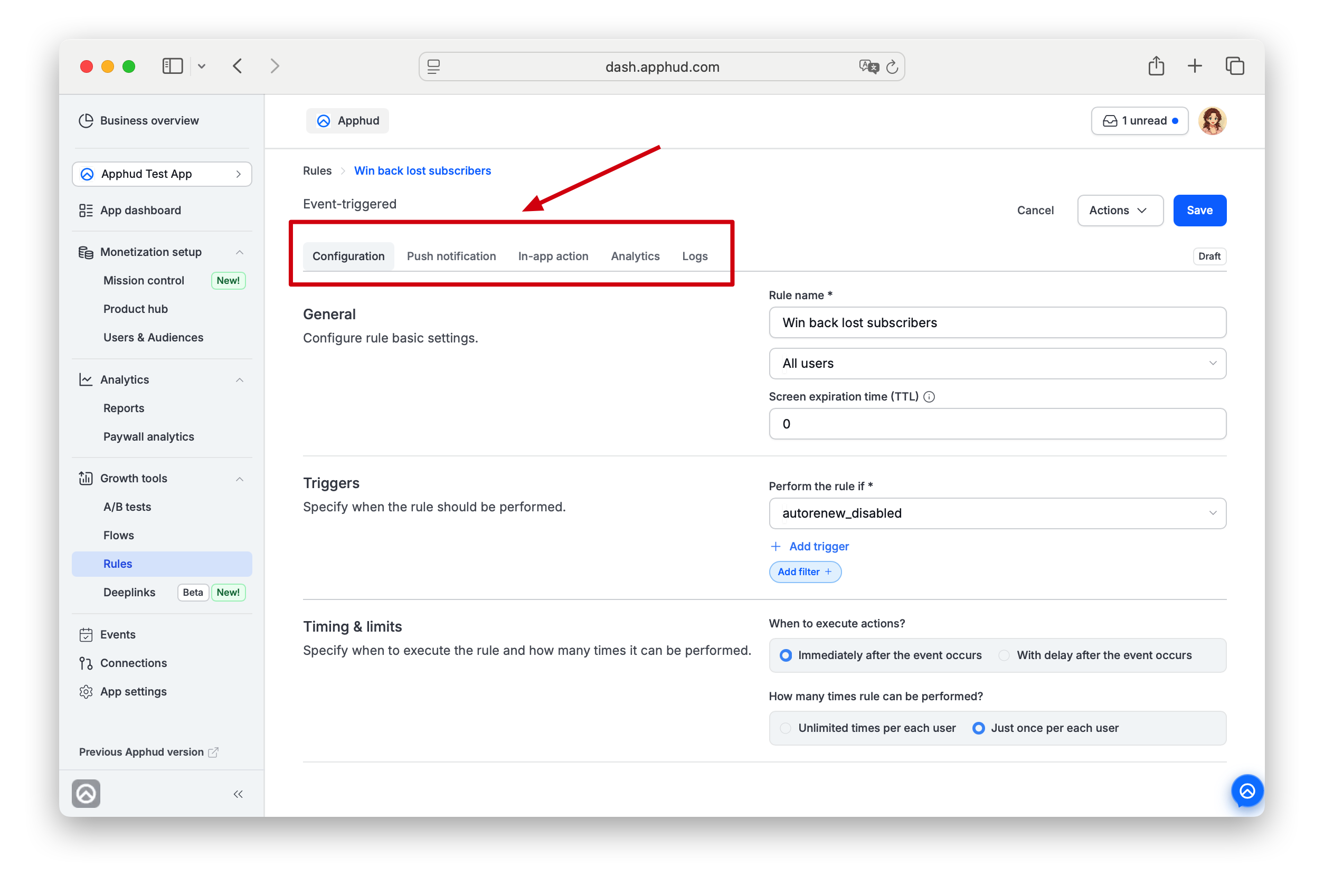
A rule detail page has five tabs:
| Tab | What you configure |
|---|---|
| Configuration | Rule name, audience, triggers (or schedule), timing & limits. |
| Push notification | Push type, custom data, per-locale Title and Text. |
| In-app action | Whether the rule shows a paywall, a built-in screen, or nothing. |
| Analytics | KPI counters for the rule, screen performance, and feedback. |
| Logs | Data regarding activations for manual and scheduled rules (Execution logs section) and the latest 100 trigger-logs (App logs section). |
Top-right buttons: Cancel · Actions dropdown · Save (or Trigger now on Manual rules).
The Actions dropdown contents depend on the rule's status:
- Disable — turn off a rule that's currently Enabled. Won't fire while disabled.
- Test — fire the rule once for a specific user. See Test a rule.
- Archive — soft-delete the rule (available for non-Draft rules).
Configuration tab
General section
- Rule name * — required.
- Audience — dropdown listing default audiences + custom audiences from the Audiences page. You can't create an audience from inside a rule — define it in Audiences first, then pick it here.
- Screen expiration time (TTL) — number in hours. Default
0= no expiration. Recommended24. Controls how long the pending in-app screen intent stays valid: if the user doesn't open the app within the TTL, the screen won't appear on later launches.
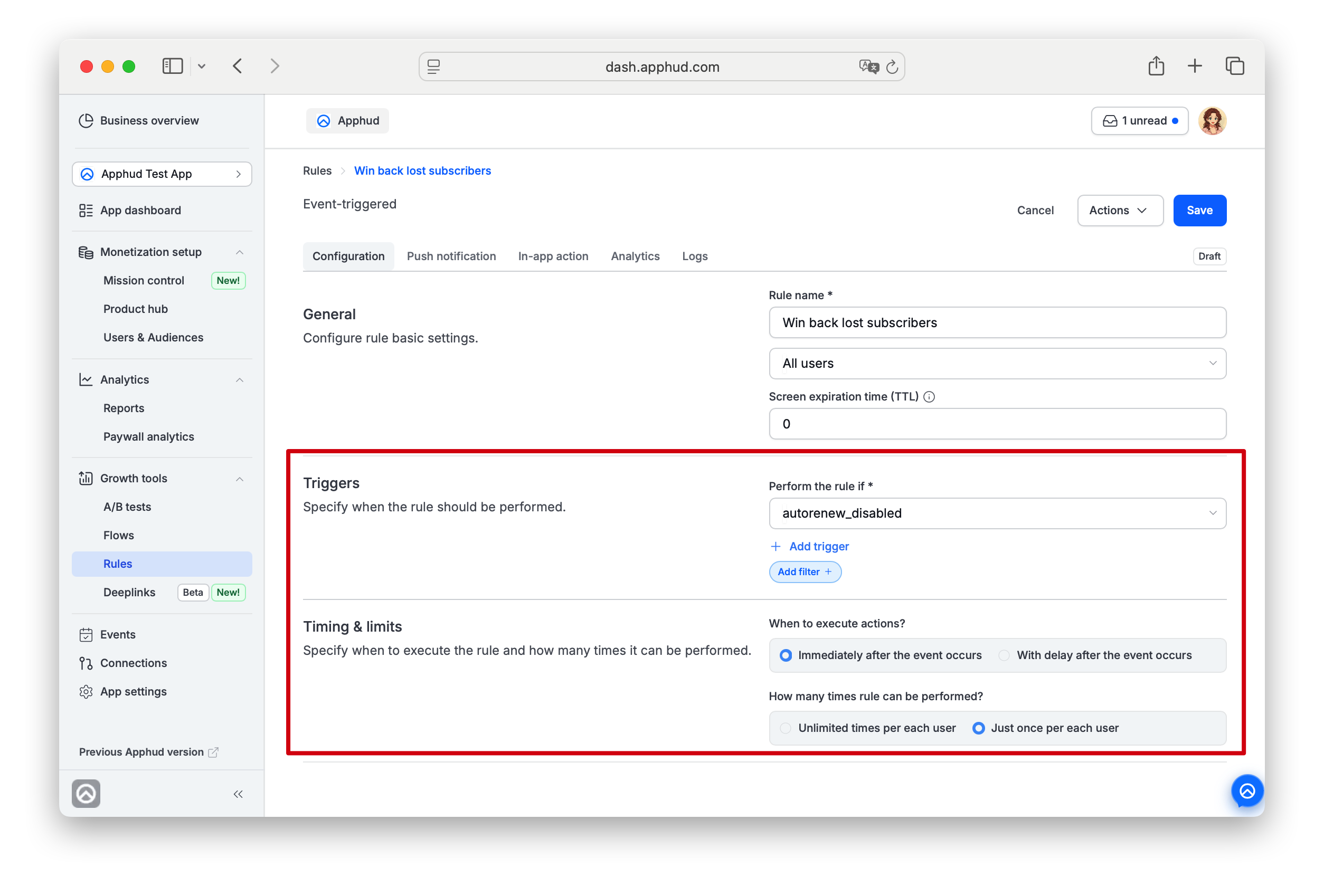
Triggers section (event-triggered rules)
- Perform the rule if — pick one or more events. Each dropdown lists every event from Event Types.
- + Add trigger — OR-logic: the rule fires if any of the configured events occurs.
- + Add filter — adds Permission Group or Product filter on top of the trigger.
Timing & limits section (event-triggered rules)
- When to execute actions?
- Immediately after the event occurs (default).
- With delay after the event occurs — reveals Set delay in seconds *. Default
60. Maximum 21 600 seconds (6 hours).
- How many times rule can be performed?
- Unlimited times per each user - if you'd like an offering to be shown every time, e.g. when a user cancels a paywall checkout
- Just once per each user - if you'd like an offering to be shown only once (e.g. One-time special offers triggering FOMO)
Manual and Scheduled rules don't have a Triggers and Timing sectionsManual rules fire only when you press Trigger now. Scheduled rules fire on date/time. The Triggers section is replaced with a Schedule section for scheduled rules.
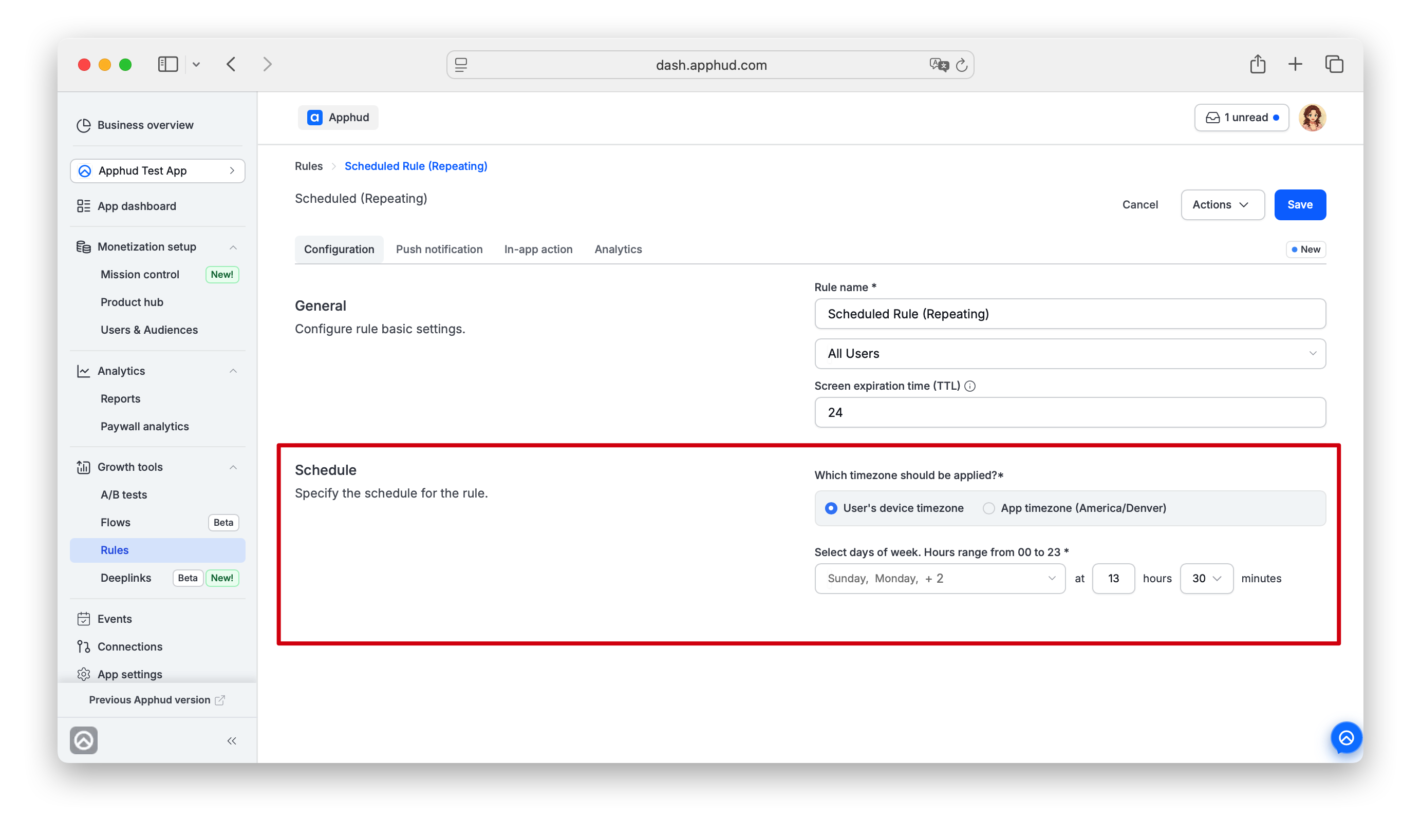
Schedule section (scheduled rules)
- Which timezone should be applied? * — radio:
- User's device timezone — fires when local time on the user's device matches Set time.
- App timezone (
<tz>) — fires at the configured app timezone for everyone. The label shows whatever's currently set on App settings → General, e.g.App timezone (America/Denver). The app-level default isEtc/UTCuntil you change it.
- Scheduled one time: Select date * + Set time * (
at HH hours MM minutes, hours range 00–23). - Scheduled repeating: Select days of week * (multi-select from Sunday–Saturday with Reset to clear) + Set time *.
Pick the timezone that fits the use caseUser's device timezone is right for engagement timing — a "morning reminder" rule lands at each user's local morning. App timezone is right for operational events — a flash sale that starts at the same absolute moment for everyone.
Push notification tab
Push notification type
- No push / Regular (default) / Silent.
Scheduled rules must send a pushFor Scheduled (one time) and Scheduled (repeating) rules, No push is disabled — the rule must send either a Regular or Silent push. Configure the message before saving.
Custom data
Optional key/value pairs merged into the push payload. The + Add key-value button appears once you fill in the first Value.
Push message
One collapsible panel per locale defined in Localization. Each panel has Title and Text fields:
- Default locale — Title and Text are required.
- Other locales — Title and Text are optional. If left empty, users on that device language receive the default-locale push instead.
Translate to all button allows to automatically translate to all locales defined for the app.
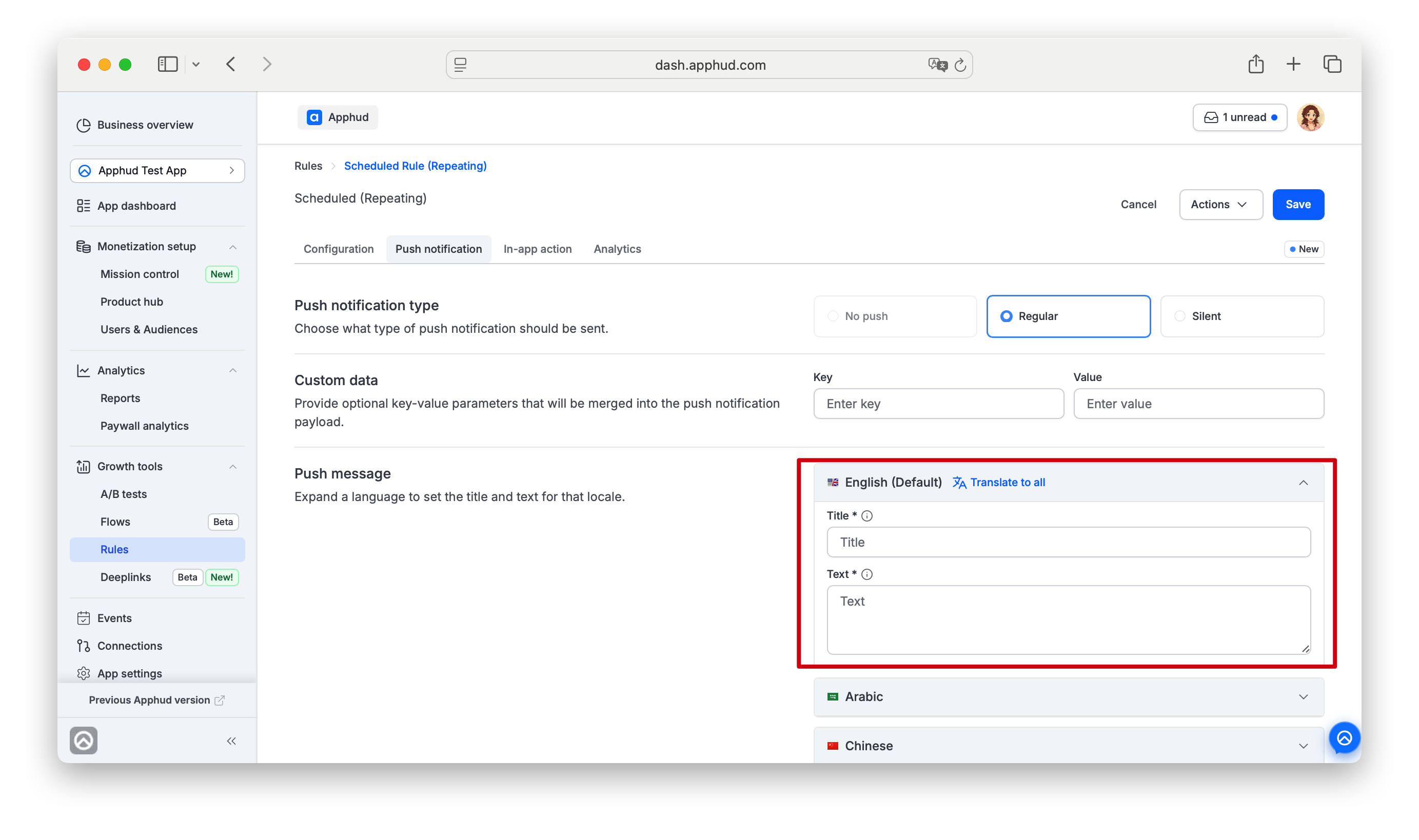
"Translate to all" uses AI — review the resultTranslate to all uses AI to translate the default language's Title and Text into every other configured language. Apphud asks you to confirm first, because it overwrites anything you've already entered for those languages.
After it runs, review every language yourself — AI translation can miss tone, length limits, or product-specific terms, so the final push copy is your responsibility.
In-app action tab
The Presentation model radio determines what the rule shows in the app when it fires:
- None — push only, no in-app surface.
- Paywall model — opens a paywall you select from the Current paywall dropdown. The paywall's own Screen renders if attached; otherwise the rule only fires the SDK callback.
- Built-in Screen — shows an in-app screen when the rule fires. Attach one under Select from existing screens, or create a new Promo Offer Screen from a template (see below). Some templates already ship with their own built-in screen.
Some templates (e.g. Cancellation survey, Billing issue notification, etc.) lock the built-in screen — you can't switch their Presentation model. Other templates (Manual rule, Win back lost subscribers, etc.) let you pick.
Built-in Screen
When a template lets you choose Built-in Screen, you can attach an existing screen or create a new Promo Offer Screen from a ready-made template:
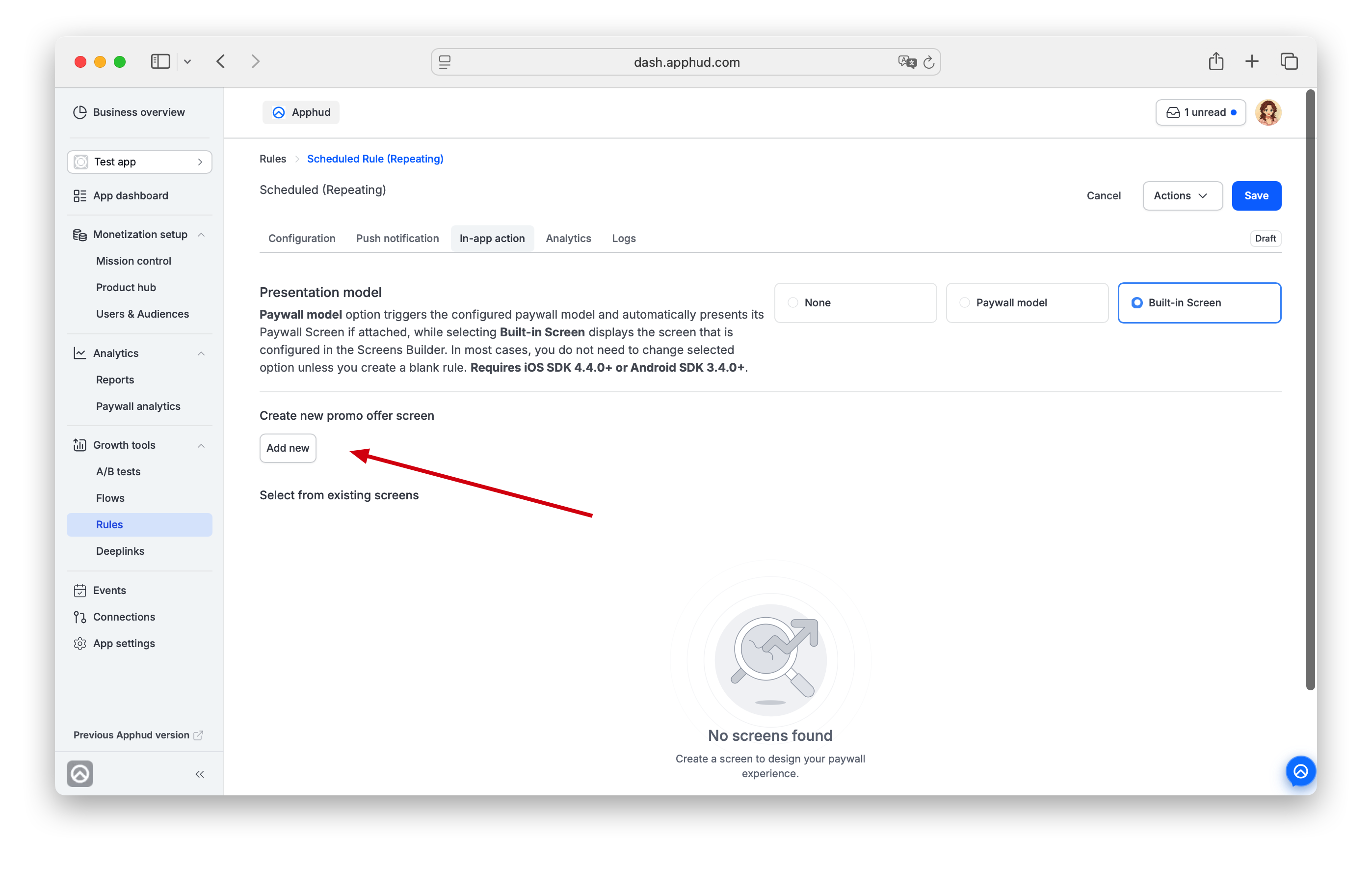
- Under Create new promo offer screen, click Add new.
- Pick a design from the template library (a free-trial extension, a one-time gift, a personal discount, and more) and customize it.
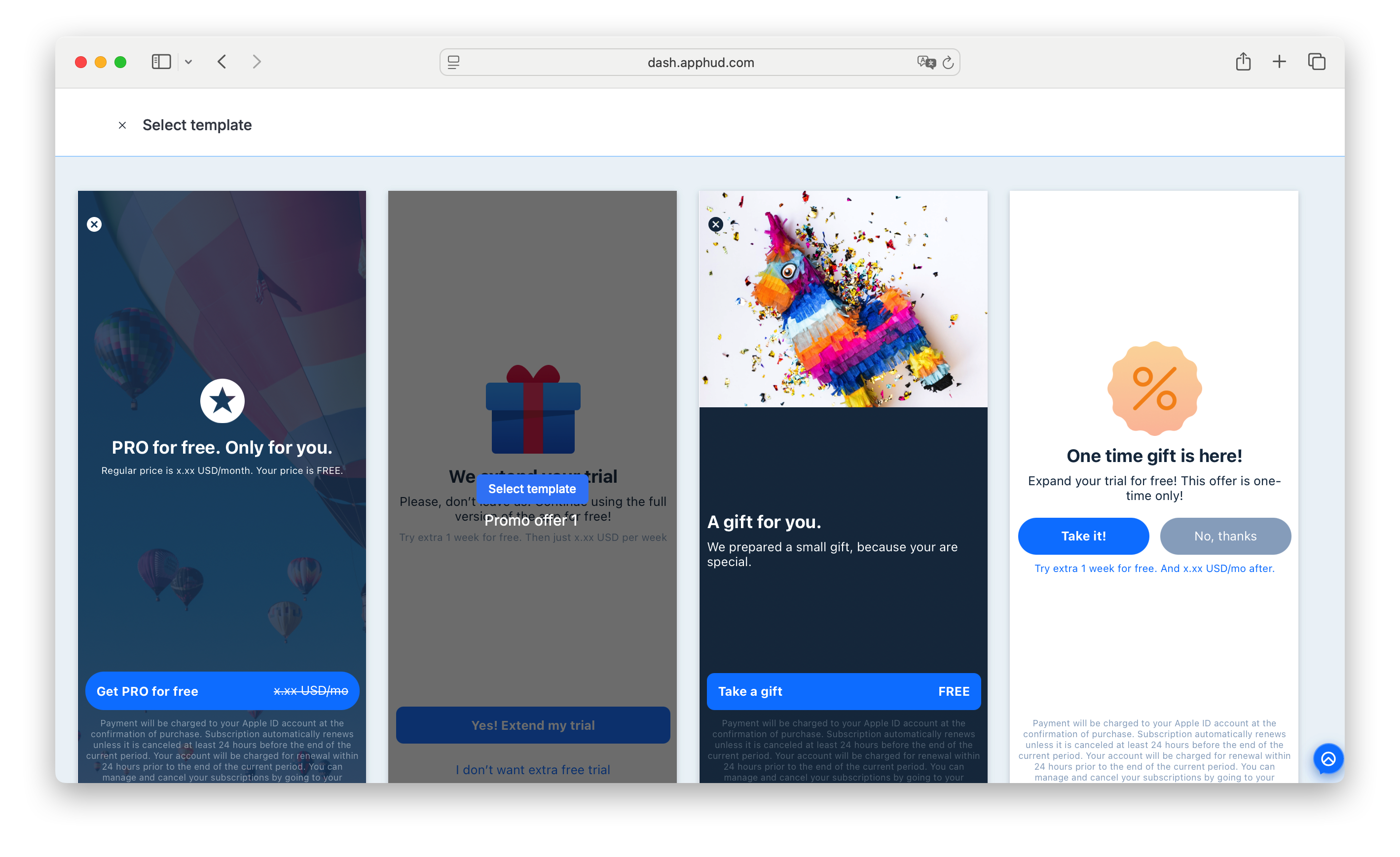
The screen you create becomes this rule's built-in screen, and you can reuse it later under Select from existing screens.
Handle the screen yourself
To present your own screen — built and shown entirely by your app's own code, instead of one rendered by the Apphud SDK (a Built-in Screen or a paywall's Screen) — set the Rule's Presentation model to None. With None selected, Apphud only sends the push (with your Custom data payload) and does not attempt to render any screen itself.
As an extra safeguard, you can also implement ApphudUIDelegate and return false from apphudShouldPerformRule — this disables Apphud's own screen presentation in code as well, just in case:
extension YourClass: ApphudUIDelegate {
    func apphudShouldPerformRule(rule: ApphudRule) -> Bool {
        return false
    }
}
Then, in your app, call Apphud.handlePushNotification(...) for incoming pushes — this is also what tracks the Push opened event, see Push Notifications → Handle Incoming Push Payload. Read your custom key/values from the payload there. For example, a Rule with Custom data {"screen": "promo"} lets your app check that key and present its own promo screen.
Analytics tab
Four KPI cards for the rule:
-
Rule performed — how many times the rule ran.
- Event-triggered: count of trigger fires for matching events.
- Manual / scheduled: count of executions.
-
Push sent — pushes Apphud dispatched for this rule.
- Doesn't increment if the rule has no push action, the user has no push token, or push was skipped.
-
Push opened — pushes opened by users.
- Depends on the Apphud SDK reporting
$push_opened. Only counts opens on app versions with that SDK behavior.
- Depends on the Apphud SDK reporting
-
Push errored — pushes that failed to deliver (invalid/expired token, APNs/FCM rejection).
For revenue impact, drill down on standard charts (MRR, conversions, etc.) using the Rule filter or segment in Reports.
Built-in Screen statistics
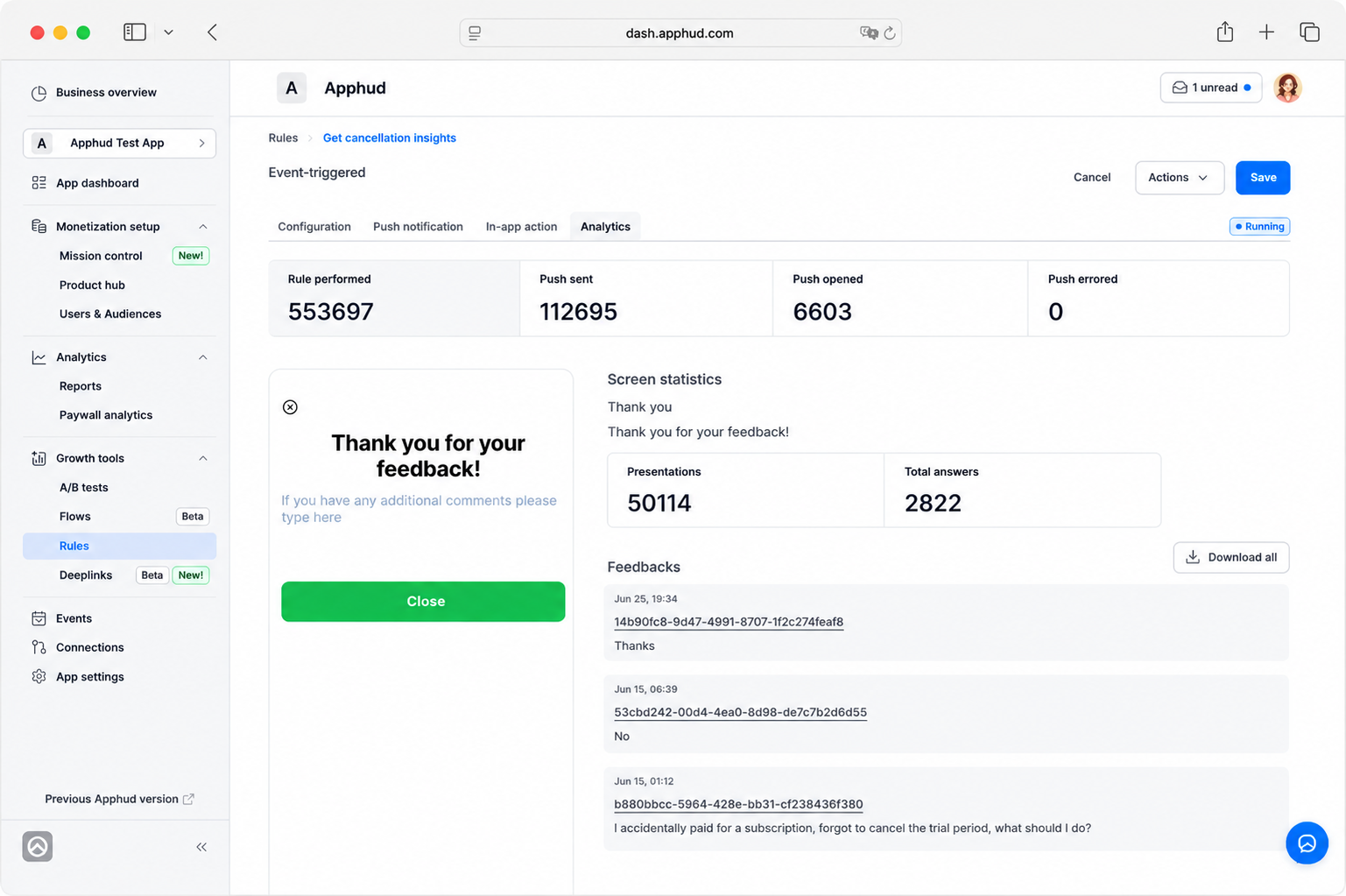
For rules whose in-app action shows a screen with user input, e.g. Cancellation survey, — the Analytics tab also surfaces two additional sections below the KPI row.
One block per screen attached to the rule. Each block shows:
- The screen preview and its name / description.
- Presentations — how many times the screen was shown to a user.
- Total answers — how many user responses the screen collected.
Feedbacks
A chronological feed of individual user responses, each row showing the timestamp, the user ID, and the answer text. Click Download all in the top-right to export the full list (latest responses first).
The user ID in each row is a link to the User page — open it for context on who submitted the response.
Logs Tab
The Logs tab records what happened when a rule ran. It has two sub-tabs, each limited to the latest 100 entries:
- Execution Logs — one row per rule run. Shown for Manual and Scheduled rules.
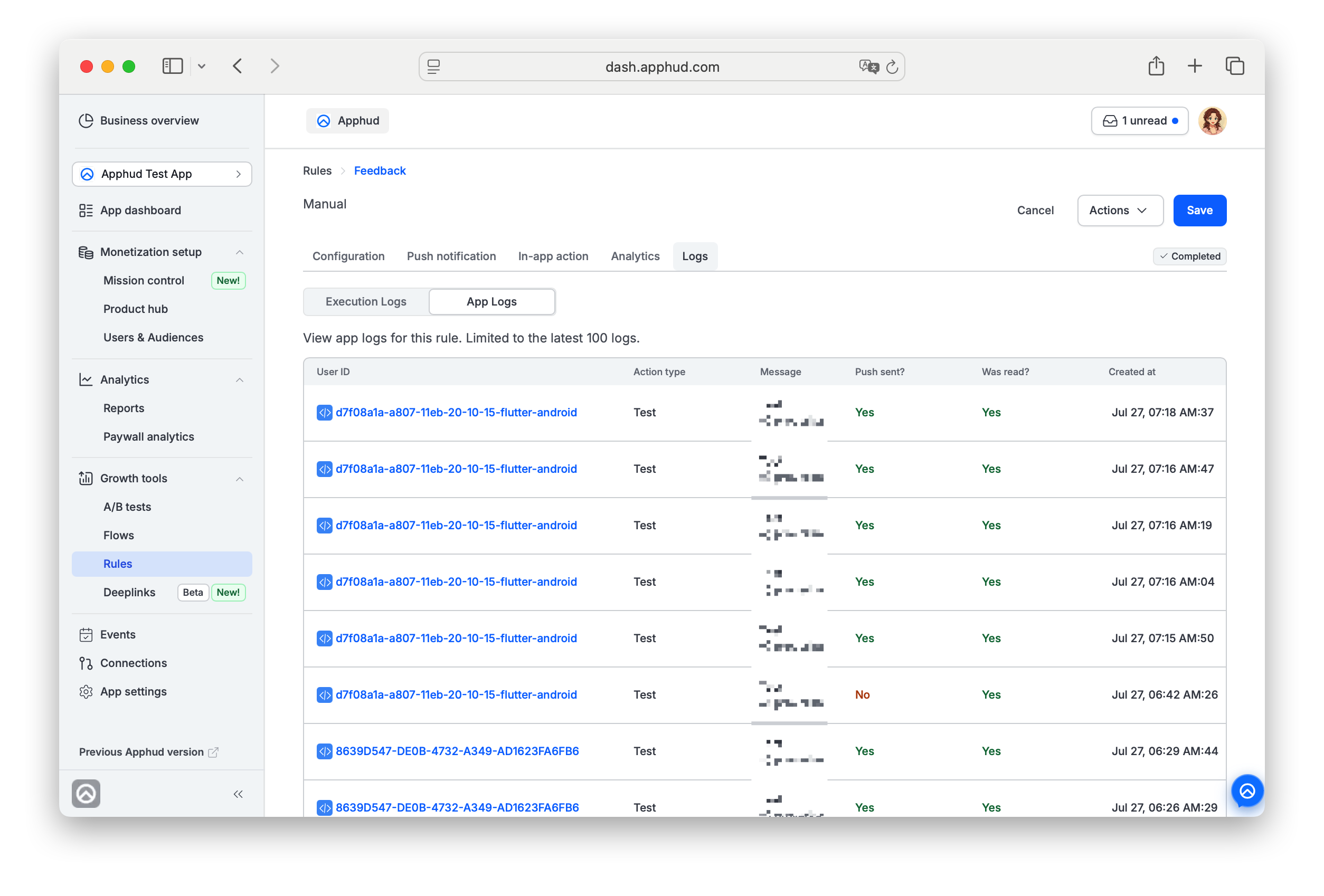
- App Logs — one row per individual user the rule acted on. Shown for every rule type; for Event-triggered rules it's the only sub-tab.
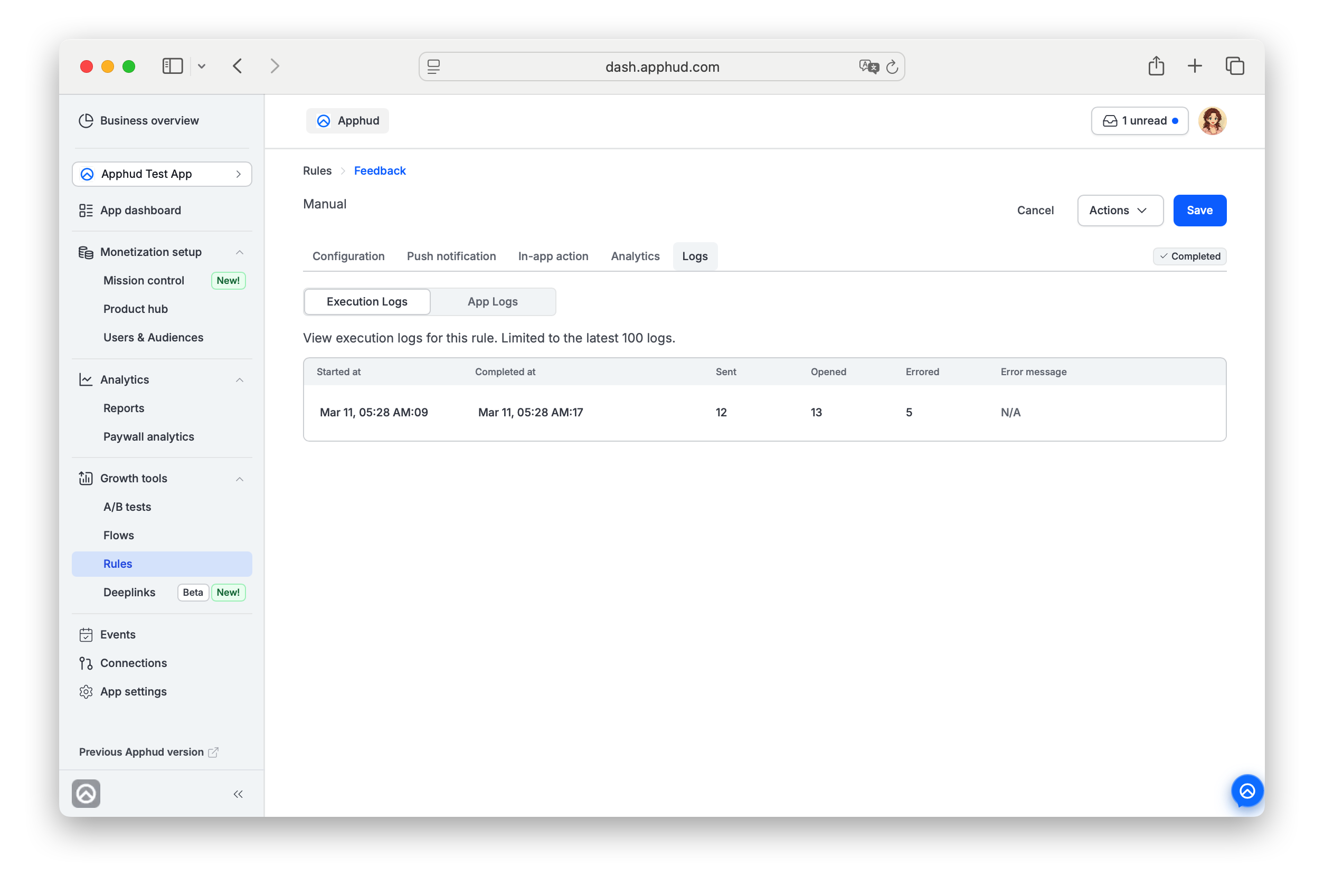
Execution Logs
A high-level summary of each run.
| Column | Description |
|---|---|
| Started at | When the run began. |
| Completed at | When the run finished. |
| Sent | Number of notifications sent in the run. |
| Opened | Number of notifications opened. |
| Errored | Number of notifications that failed to send. |
| Error message | Details of a run-level failure, or N/A when there were none. |
App Logs
One row per user the rule acted on — use it to check exactly what a specific user received.
| Column | Description |
|---|---|
| User ID | The user the notification was sent to. Click it to open their User page; deleted users are shown without a link. |
| Action type | Whether the entry came from a Test send (Actions → Test) or a Live run — a real firing of the rule (event-triggered, scheduled, or manual Trigger now). |
| Message | The notification's title and text, or N/A if none. |
| Push sent? | Whether a push was actually sent to that user — Yes / No (or N/A when there's no message). |
| Was read? | Whether the user opened / read the notification — Yes / No. |
| Created at | When the entry was logged. |
Rule lifecycle
A rule has two independent fields. Together they describe what the rule is doing.
Status (lifecycle stage)
| Status | Meaning |
|---|---|
| draft | Unsaved or incomplete. Cannot fire. |
| new | Manual rule saved and ready to be fired with Trigger now. |
| running | Event-triggered rule actively listening to incoming events. |
| upcoming | Scheduled rule waiting for its scheduled time. |
| completed | Scheduled one-time rule that has fired. (Scheduled repeating never reaches Completed.) |
State (operational toggle)
| State | Meaning |
|---|---|
| enabled | Default. The rule operates at its current status. |
| disabled | Manually turned off. Won't fire even if its status would otherwise trigger. |
| archived | Hidden from the main list. Available for non-Draft rules. |
| deleted | Soft-deleted. |
Status vs stateA Running rule is "currently listening", a Completed rule "fired its single scheduled run". Either can be Disabled (operator-paused) or Archived (out of the way). Disabling a rule doesn't complete it — only firing or completion does that.
Activation actions per type
| Rule type | Button | What happens |
|---|---|---|
| Manual | Trigger now | Fires immediately, once. Creates a run log and sends the configured push. Doesn't change status. |
| Event-triggered | Enable | Status moves to running. Rule listens to incoming events. |
| Scheduled (one time) | Enable | Status moves to upcoming. Rule fires once at perform_at. |
| Scheduled (repeating) | Enable | Status moves to upcoming. Rule fires on each matching day at the configured time (max once per day). |
Validation errors on Enable
- Event-triggered: the rule must have at least one trigger AND at least one action (push or screen). Otherwise Apphud shows "Rule should have at least one trigger and one action".
- Scheduled one-time: the selected date and time must be in the future. Otherwise Apphud shows "Rule perform time must be in future".
Scheduled rule behavior detail
- Scheduled one-time: after the rule fires, status moves to completed. If you then edit
perform_at(date or time), the rule re-arms and returns to upcoming. - Scheduled repeating: stays upcoming forever. Fires at most once per day, even if the day-of-week + time conditions would otherwise allow re-firing.
Test a rule
The Test action in the Actions dropdown fires the rule once for a specific user, bypassing the rule's audience and timing logic.
- Save the rule first — Test is unavailable on Drafts.
- Open Actions → Test.
- Enter the User ID in the modal.
- Click Test.
What the user sees:
- If their device has a push token: the push is dispatched.
- The in-app action (paywall or built-in screen) is presented on the next app launch. If the user is currently in the app, they won't see the screen until they reopen.
Disable, archive, or edit a rule
Manage a rule from the Actions dropdown at the top-right of the rule detail page — open the rule from the Rules list first.
- Disable / Enable — Actions → Disable stops a Running rule from firing while keeping its configuration; re-enable any time.
- Archive — Actions → Archive (or the archive action on the rule's row in the Rules list) hides the rule from the main list. Available for non-Draft rules; not reversible from the UI.
- Edit — open any tab and change it; for Running rules, changes apply on the next trigger event. Click Save.
The Test action also lives here — see Test a rule.
FAQ
What's the difference between Disable and Archive?
- Disable keeps the rule in the main list but prevents it from firing. The configuration is preserved. Re-enable any time.
- Archive hides the rule from the main list and cannot be undone through the UI — use it only when you're sure you won't need the rule again. Configuration and history are preserved but no longer accessible from the dashboard.
My rule has a Push sent count but Push opened stays at 0. Is that broken?
A push can be successfully sent through APNs, delivered, and shown to the user, while Apphud still records Opened as 0 — this happens whenever the app doesn't call Apphud.handlePushNotification(apsInfo: userInfo). This method processes the Apphud payload and sends the $push_opened event; it doesn't send or deliver the push itself.
Call it in both cases:
- when the user taps the notification (app in background, or launched from it);
- when the notification arrives while the app is already in the foreground (handled via
willPresent).
Without it, the user can still see a normal system notification — Apphud just won't know the Rule push was opened. Also check:
-
UNUserNotificationCenterDelegateis configured correctly. -
The push is actually being opened by the user — not just delivered to the notification tray.
See Push Notifications → Handle Incoming Push Payload for the full setup. Also update the SDK if you're on an older version — older SDKs don't send this event at all.
The delay maxes out at 24 hours. How do I run a rule a day later?
For windows longer than 24 hours, use a Scheduled rule combined with a custom audience that includes users in the right state. Example: a custom user property signed_up_n_days_ago your app sets when the user matches the cohort you want to target.
Can I send a push without showing anything in-app?
Yes. On the In-app action tab, choose None as the Presentation model. The rule will dispatch the push and won't open any screen in the app.
Can I run a rule on a custom event from my app?
Yes. Any event Apphud receives — including SDK-pushed custom events (email_submitted, flow_started, etc.) and store-side events (refund_requested, subscription_expired) — is selectable in the Trigger dropdown. See Event Types for the full catalog.
How do I test Rule push notifications, or troubleshoot pushes that don't arrive?
Push delivery itself is configured outside of Rules — APNs credentials, Team ID, device-token submission, payload handling. See Push Notifications → Testing and Push Notifications → Troubleshooting for the full checklist. The push token must be visible on the User page in Apphud before a Rule can dispatch to that user.
My Rule is Performed but Push Sent is 0. Why?
A Rule can be Performed without sending a push if the matching users have no push token registered in Apphud. Performed counts trigger fires; Push Sent counts dispatches — they're different events.
Check the following:
- The user has a non-empty Push Token field on their User page in Apphud.
- The app passes the APNs device token to Apphud:
Apphud.submitPushNotificationsToken(token: deviceToken, callback: nil)didRegisterForRemoteNotificationsWithDeviceTokenis called and doesn't passnilor an empty string.- The user has allowed push notifications on the device.
Test the Rule with a sandbox user who has a valid push token before enabling for all users. For full push integration setup, see Push Notifications.
Can a Rule work without push notifications?
Yes. A Rule fires whenever its trigger conditions match — push delivery is a separate step. In the typical flow, the push notification is how the user is brought back to the app so the Rule's in-app screen can be presented; if push isn't configured (or the user has no token), the Rule is still Performed but no push is dispatched. The in-app action presents on next app launch.
What's the difference between Unlimited times and Just once per user?
Both control how often a single user can re-trigger the Rule:
- Unlimited times per each user — the Rule fires every time the user matches the trigger condition. Example: with
autorenew_disabled, a user who disables auto-renew today, re-enables it next week, and disables it again will trigger the Rule twice. - Just once per each user — the Rule fires only on the first match for that user. Subsequent matches are ignored.
Pick Just once for one-time interventions (welcome push, first-cancellation survey). Pick Unlimited for ongoing prompts (recurring billing-issue nudges, repeat win-back).
My Rule is firing and pushes are opened, but I'm not seeing more purchases. What's wrong?
If your Rule analytics show healthy Rule Performed / Push Sent / Push Opened counters and the in-app screen is rendering, the technical setup is working. Low conversion is usually a product / offer problem, not an integration one.
Things to try:
- A different product or promotional offer on the in-app screen.
- A lower price point or stronger discount.
- A different screen layout or copy.
- A custom background image or other visual changes.
- Manual A/B-style testing — run two variants of the Rule with different offers, compare results.
What should I include when contacting support about a Rule?
To help us debug your Rule quickly, please send:
- The Rule URL (open the Rule's detail page and copy the URL).
- A User URL or User ID used for testing (sandbox or production — specify which).
- Clarification if the user has Push Token field on their User page.
- Confirmation that push notifications are enabled on the device.
- Confirmation that the app calls
Apphud.submitPushNotificationsToken(token: deviceToken, callback: nil). - Confirmation that the app calls
Apphud.handlePushNotification(apsInfo: userInfo)for incoming pushes. - Whether the test was on a real device (Xcode or TestFlight build) or the iOS Simulator.
Updated about 1 month ago