
Team and permissions
Invite team members, assign organization roles (Owner / Administrator / User), configure per-app permissions, and use role templates for fast setup.
The Team and permissions page is where you invite colleagues into your Apphud organization, set their organization role, and (for Users) configure exactly which apps they can access and what they can do inside each app.
Apphud uses two independent layers of permissions:
| Layer | What it controls | Who it applies to |
|---|---|---|
| Organization role | Account-level capabilities — whether user has acces to billing, team management, app creation, etc. | Every member is assigned with one of three roles - Owner (just one per organization), Admin, or User |
| App permissions | What the member can see and do inside a specific app — analytics, experiments, rules, integrations, data export, etc. | Members with the User organization role only |
Who can manage the team?Only Owner and Administrator can invite, edit, or remove team members.
Members with the User role don't see the Team and permissions page at all.
The Team page
Open it from your profile avatar (top-right) → Team and permissions. Two tabs:
- Team — your active members (the table below).
- Sent invitations — invites you've sent that are still pending; Resend or Revoke them.
Above the table: search by name or email, filter by role, the + New member button, and a seat counter under the title — e.g. 9 out of 10 members added — based on your plan's limit (the Owner counts).
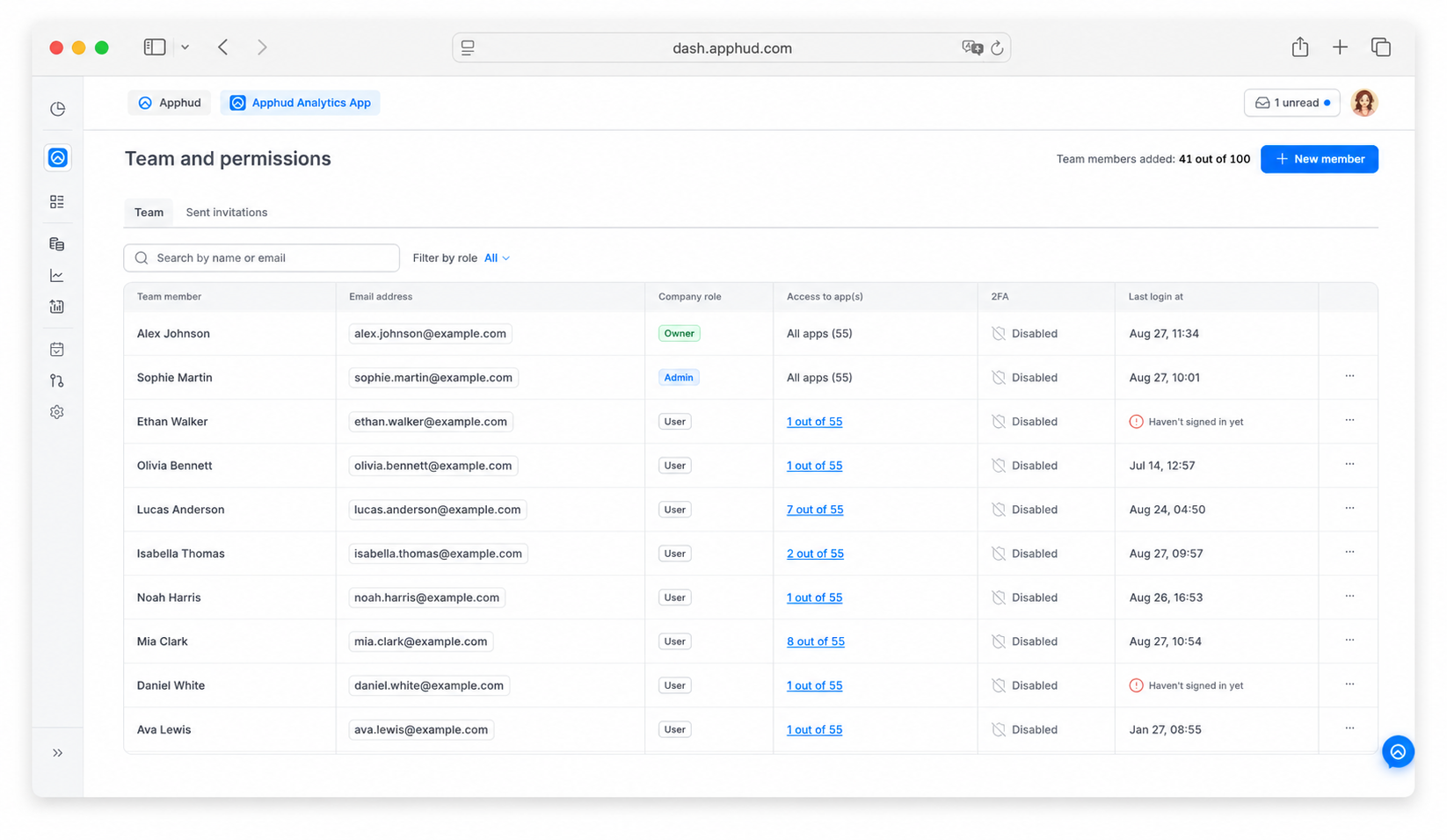
What each column shows
- Team member — name and avatar.
- Email address — the member's login email.
- Company role — Owner, Administrator, or User (see Organization roles below).
- Access to app(s) — how many apps the member can work in:
- All apps (N) for Owner and Administrator — automatic full access to every current and future app.
- X out of N for a User — the apps they have any access to. Open the member to see the exact per-app, per-category matrix.
- 2FA — whether the member has two-factor authentication enabled on their account. An icon appears in this column when 2FA is on. Each member sets this up on their own account — you can't enable it for someone else.
- Last login at — when the member last signed in; shows "Haven't signed in yet" for someone who was invited but hasn't logged in.
Each row's ⋯ menu has Edit team member and Remove team member.
Organization roles
Apphud has three organization-level roles. Each controls account-wide capabilities that apply across all apps.
Owner
The Owner has the highest level of access. Every organization has exactly one Owner.
- Full account-level access.
- Only role that can transfer organization ownership to another member, transfer apps to another organization, or remove apps.
- Cannot be removed by anyone else — the role only changes via Organization settings → Transfer ownership.
Administrator (Admin)
Admins have access to most account-level features except ownership transfer and app removal.
- Access to all account-level features: Organization settings, Plans and billing, and Team and permissions.
- Automatic full access to every app in the organization — existing and any new ones added later. App permissions are not configurable for Admins.
- Can create new apps, invite new members (User or Admin), edit other members' rights, and remove members with User or Admin role.
- Cannot transfer the organization, cannot transfer or remove apps, cannot remove the Owner.
User
The most restrictive role. Users only see what they've been granted access to.
- No access to organization settings, billing, user management, or app transfer/removal.
- No Organization settings or Team and permissions items in the top profile menu.
- Per-app permissions are explicit and required — until you grant access to at least one app, the user has nothing to work with.
- In the app picker, Users see only apps where they have any access (Full or Limited).
Capability matrix
| Capability | Owner | Administrator | User |
|---|---|---|---|
| Transfer organization ownership | ✓ | — | — |
| Transfer apps to another organization | ✓ | — | — |
| Remove apps (and all associated data) | ✓ | — | — |
| View Organization settings page | ✓ | ✓ | — |
| Edit Organization settings (name, business address) | ✓ | ✓ | — |
| Edit billing — plan, credit card, billing address | ✓ | ✓ | — |
| Create new apps | ✓ | ✓ | — |
| View Team and permissions page | ✓ | ✓ | — |
| Add new members | ✓ | ✓ | — |
| Edit other members' rights | ✓ | ✓ (except Owner) | — |
| Remove members with User role | ✓ | ✓ | — |
| Remove members with Administrator role | ✓ | ✓ | — |
| Remove the Owner | — | — | — |
| Revoke / resend invitations | ✓ | ✓ | — |
| Automatic full access to every app | ✓ | ✓ | — (configured per app) |
User permissions by app
When you invite or edit someone with the User role, you assign per-app permissions.
Opening an existing member record via click on Access to app(s) column shows their full access matrix — one row per app, one column per permission category — so you see and change everything at a glance (no need to pick an app first).
Use Search by app name to jump to an app, or check With rights applied to show only the apps where the member has at least one permission enabled — the header still shows the member's role and an X out of N badge (apps they have any access to).
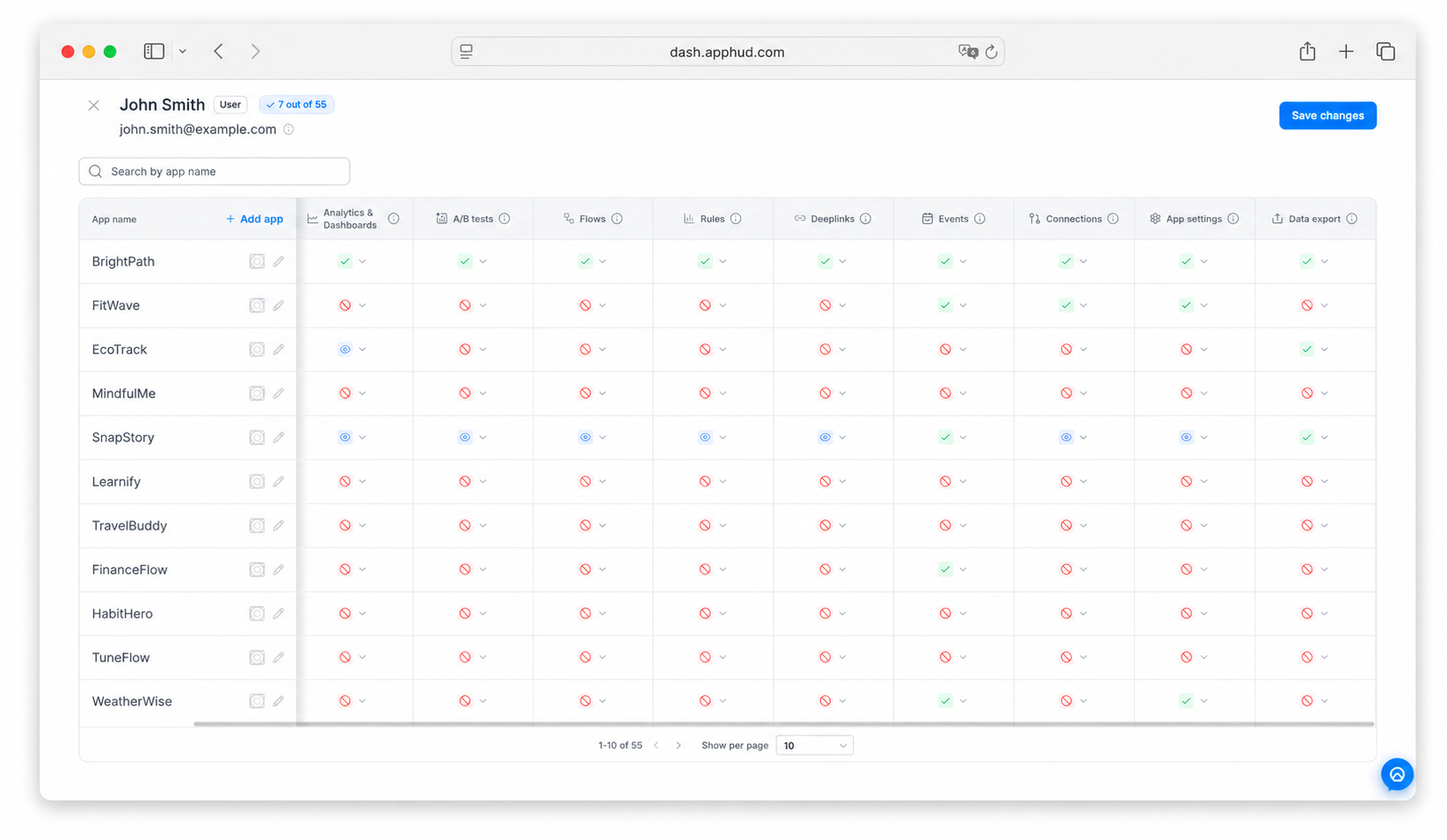
Permissions are organized into ten categories; each category is set per app to one of:
- Full access — view, edit, create, and delete in this category.
- Read only — view all data and configuration; create / edit / delete actions are hidden.
- No access — the category is hidden from the left menu entirely; direct links return a permission error.
Not every category supports Read only (noted per category below).
Edit a cell inline (one app × one category), or click the pencil on an app row to open the setup dialog and apply a role template or category levels across several apps at once.
Some categories are plan-gatedA/B tests, Flows, Rules, Deeplinks, and Connections appear only if your plan includes that feature. The other five — Monetization setup, Analytics & Dashboards, Events, App settings, and Data export — always show.
Monetization setup
Covers: Mission control (Targetings, Placements, Paywalls, Screens), Product hub (Permission Groups, Products), Audiences, User Properties, and the individual User Page.
Access levels:
- Full access — full control over monetization configuration: create/edit targetings, paywalls, products, audiences; open any user.
- Read only — see all the above but cannot create or edit anything.
- No access — entire section hidden from the menu.
Analytics & Dashboards
Covers: Dashboard, Reports (every chart), Paywall analytics.
Access levels:
- Full access — view and configure all reports and dashboards.
- New Users and Active Users only — a limited level showing only the New Users and Active Users reports; all others hidden. Applied via the UA manager template; it isn't offered as a manual option otherwise.
- Read only — view all reports and dashboards; can't change their configuration.
- No access — Analytics, Dashboard, and Paywall analytics hidden from the menu.
Exporting the data behind a report — the Export CSV / Copy / Share actions on a chart's table — additionally requires Data export = Full access. See Data export below.
A/B tests
Covers: A/B tests — create, configure, launch, stop, and analyze experiments.
Access levels:
- Full access — create / edit / stop experiments and view results.
- Read only — view configured experiments and their results; cannot create, edit, or stop.
- No access — A/B tests hidden from the menu.
Flows
Covers: Flows — web funnels for Web-to-App campaigns.
Access levels:
- Full access — build, edit, and publish flows.
- Read only — view flows and their configuration; no edits.
- No access — Flows hidden from the menu.
Rules
Covers: Rules — automation triggers and actions (e.g., Win-back, Customer Insights).
Access levels:
- Full access — create / edit / pause / delete rules.
- Read only — view rules and their run history; no edits.
- No access — Rules hidden from the menu.
Deeplinks
Covers: Deeplinks — deferred deep linking and real-time attribution.
Access levels:
- Full access — create and edit deep links and attribution settings.
- Read only — view deep links and their logs; no edits.
- No access — Deeplinks hidden from the menu.
Visible only if your plan includes Deeplinks.
Events
Covers: the Events page — filtering, inspecting individual events, reviewing integration delivery status.
Access levels:
- Full access — view the Events page and all event details.
- No access — Events hidden from the menu.
No Read-only level for EventsEvents is inherently a viewing surface (you can't edit events from this UI), so it has only Full access / No access.
To restrict what can be done with the event data (export to CSV), use Data export below.
Connections
Covers: Integrations — third-party connections (AppsFlyer, Branch, Amplitude, etc.), daily exports (S3 / GCS), server-to-server webhooks, Customers API.
Access levels:
- Full access — add / edit / remove connections, manage credentials, configure event selectors.
- Read only — view configured integrations and their delivery logs; no edits.
- No access — Connections hidden from the menu.
App settings
Covers: app keys, App Store credentials, Google Play credentials, Server notifications, Push setup, Customizations, and other app-level configuration.
Access levels:
- Full access — edit all app settings, rotate credentials, change customization values.
- Read only — view settings (credential values may be masked); no edits.
- No access — App settings hidden from the menu.
Data export
Covers: the Export CSV / Copy to clipboard / Share actions on data tables — the Events and Users (Audiences) pages, Reports chart tables, and Deeplink logs.
Access levels:
- Full access — the Export CSV / Copy / Share actions are enabled.
- No access — those actions are disabled (greyed out with a tooltip); the page and table still open, but you can't export, copy, or share the data.
What Data export gatesThis category controls the Export CSV / Copy to clipboard / Share actions on data tables — Events, Users (Audiences), Reports chart tables, and Deeplink logs. With No access these actions are disabled (greyed out), though the table itself still opens. Reaching a table also needs access to its page (e.g. Reports needs Analytics & Dashboards), so exporting effectively requires both. Owner and Administrator always have full export rights everywhere.
Role templates
When you assign per-app permissions, once you've chosen an app(s), you can pick a role template to fill in all ten categories at once. Templates are presets — after applying one you can still tweak individual categories before saving.
The Edit permissions dialog shows seven tags at the top:
- Full access — every category set to Full access. The User-tier equivalent of an "app admin".
- Developer - engineers integrating the SDK and configuring products/paywalls; with full access to settings they have no access to analytics and growth tools. See the matrix below
- Marketing manager - full Analytics, Events, and Data export for performance reporting; read-only Monetization setup and Connections. No A/B tests, Rules, or App settings. See the matrix below
- Support manager - handles user-level tickets. Read-only Monetization setup (including User Pages) and full Events access; nothing else. See the matrix below
- UA manager - user-acquisition. Sees only the New Users and Active Users reports in Analytics, plus full Data export. No other access. See the matrix below
- Read only — every category set to Read only where supported. Events and Data export (which have no Read-only level) are set to Full access.
- No access — every category set to No access. Use to fully revoke access to an app without removing the member from the organization.
Preset matrix
Full access and No access set every category to that one level, so they're not shown here.
| Category | Developer | UA manager | Marketing manager | Support manager | Read only |
|---|---|---|---|---|---|
| Monetization setup | Full access | No access | Read only | Read only | Read only |
| Analytics & Dashboards | No access | New Users and Active Users only | Full access | No access | Read only |
| A/B tests | No access | No access | No access | No access | Read only |
| Flows | No access | No access | No access | No access | Read only |
| Rules | No access | No access | No access | No access | Read only |
| Deeplinks | No access | No access | No access | No access | Read only |
| Events | Full access | No access | Full access | Full access | Full access |
| Connections | Full access | No access | Read only | No access | Read only |
| App settings | Full access | No access | No access | No access | Read only |
| Data export | No access | Full access | Full access | No access | Full access |
Invite a team member
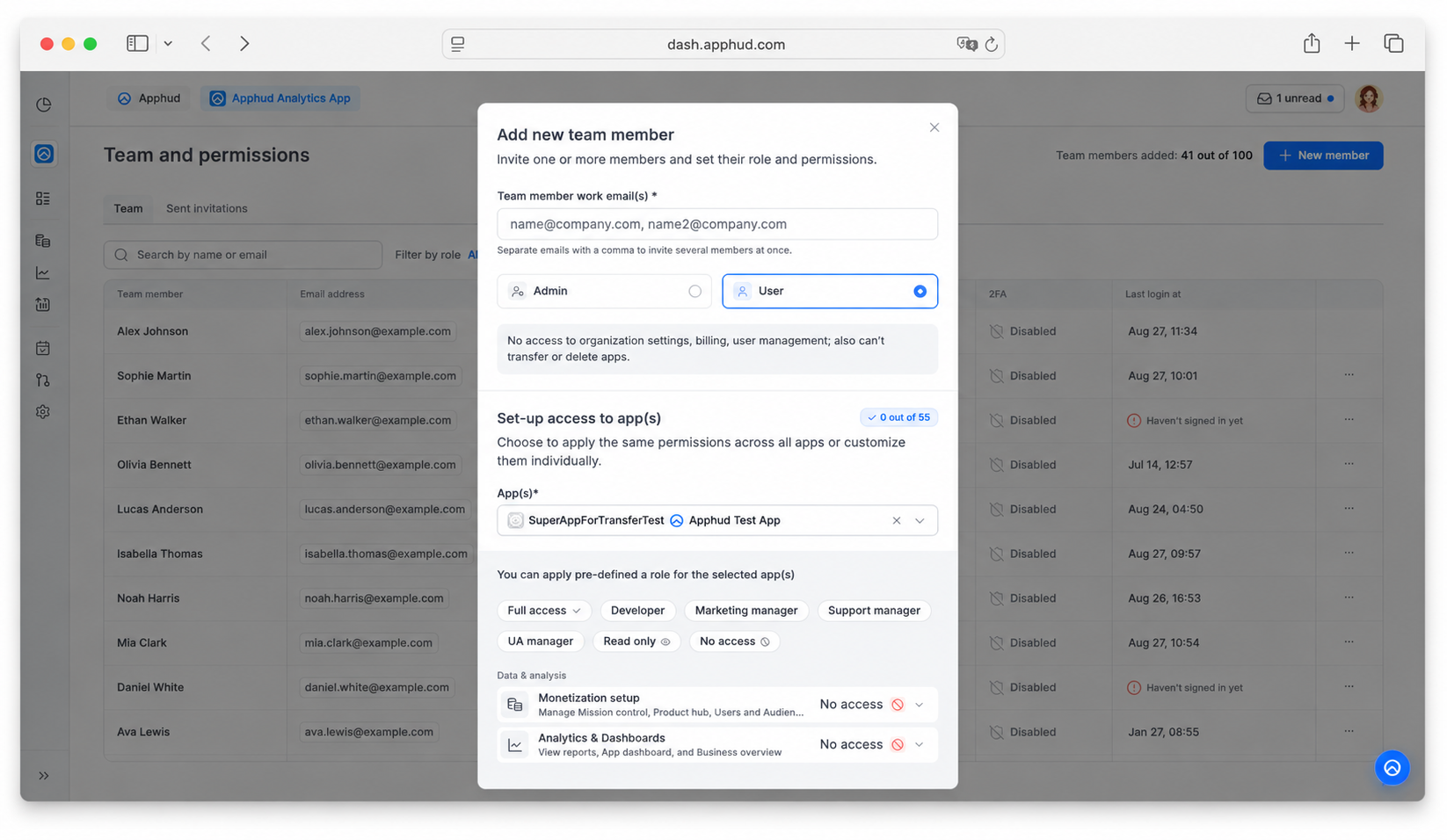
- Open Team and permissions → + New member.
- Enter one or more work emails, separated by commas — everyone in the list is invited with the same role and app(s) access.
- Pick the Team role — Admin or User.
- If you picked User:
- Open the App(s) dropdown and select one or more apps.
- For each selected apps group, choose a role template tab or set each category manually → Save.
- Click Add member.
Already-invited emailsIf the list includes an address that has already been invited, the invite is blocked with "Emails contain already invited addresses." Remove the duplicate and try again.
The invitee receives a "You've been invited to join the organization" email. Clicking the link opens Apphud — if they don't have an Apphud account yet, registration happens immediately after they accept.
Select an app firstThe permissions area in the Add / Edit member dialog stays empty until you pick at least one app in the App(s) dropdown.
Invite during app registration
The new-app wizard has a final Team permissions step (after the App Store and Google Play steps) where you set access to the new app.
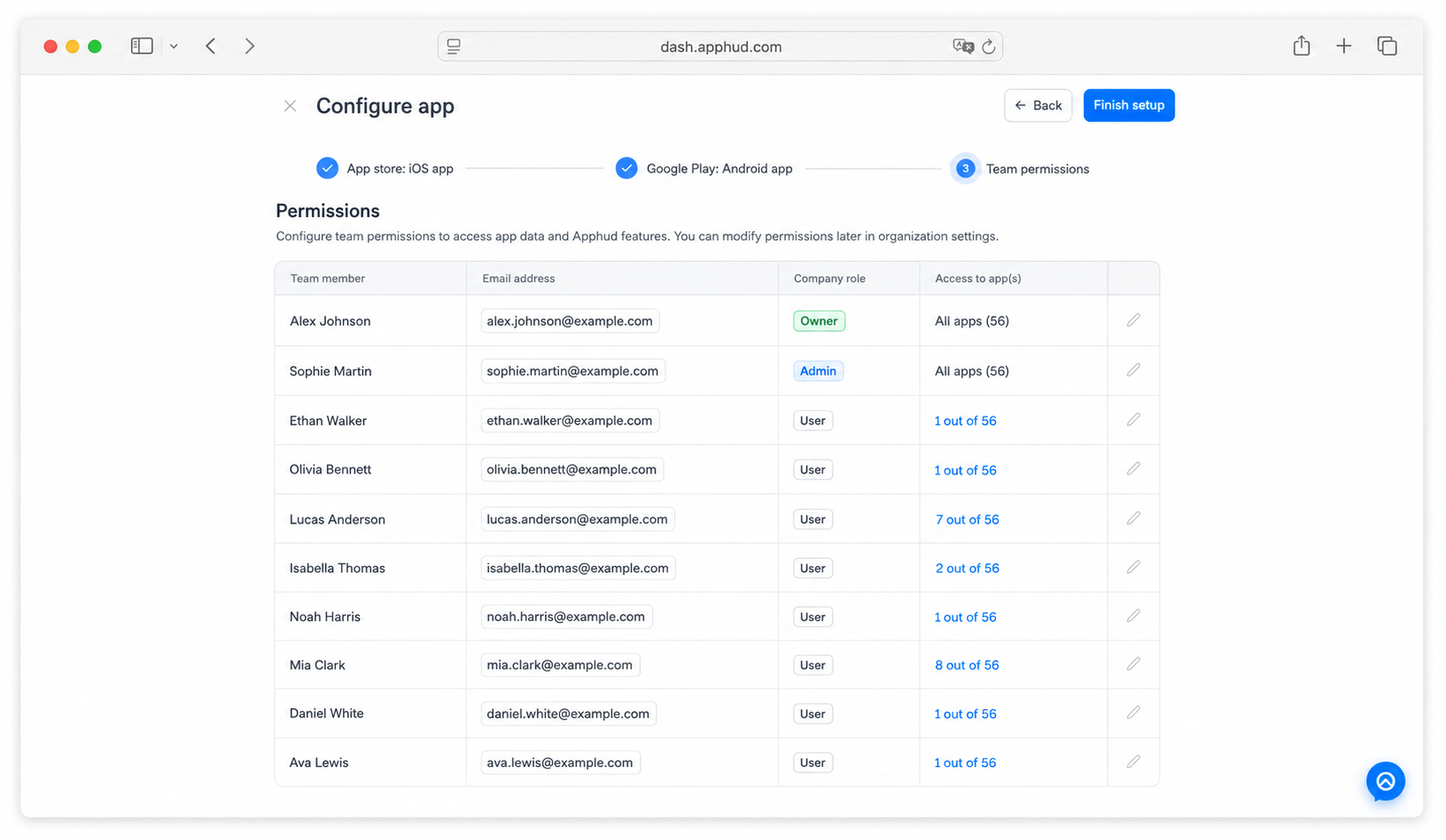
- It lists only members who have already accepted their invitation — pending invitees don't appear.
- Every team member with the User role starts at No access for the new app; grant access per member — Admins already have full access to it automatically.
- Editing here is per member and this app only — there's no bulk assignment, no full matrix, and you can't see a member's access to other apps from this step.
- You can skip it and configure access later on Team and permissions.
Because pending invitees aren't shown, an app you create while someone is still pending starts at No access for them — grant it after they accept.
Edit a team member
In the member's row, open the three-dot menu → Edit team member (or click their Access to app(s) count) to open the access matrix (apps × categories). From here you can:
- Switch the Team role — Admin or User. Switching to Admin removes the per-app matrix (Admins always get full access to every app).
- Edit a category inline on any app row, or click the pencil to open the setup dialog and apply a template or category levels across several apps at once. When the selected apps have different levels for a category, it shows Mixed rights until you pick one.
Work email is locked and can't be changed. Click Save changes — the member's UI updates on their next page load.
Remove a team member
In the row's three-dot menu, click Remove team member → confirm.
- The member loses access immediately on their next request.
- The seat is freed.
Self-request for access removal
Members can request to remove themselves from an organization they don't own — typically a former employer's organization. Submit a request to Apphud Support; we verify and remove the access without involving the Owner.
Managing invitations
The Sent invitations tab lists sent invites — columns Email, Organization role, Access to app(s), Invited at, and Status (Active / Expired). The three-dot menu offers:
- Resend invitation — triggers a new invitation email. The original invite link is replaced.
- Revoke invitation — after a confirmation prompt, invalidates the invite link. The invitee can no longer use it; the seat is freed.
Pending invitations count toward your seat limit (the X out of Y members added counter).
Seats and plan
The number of team members you can have is set by your Apphud plan. The header counter (X out of Y members added) reflects this — Y is your plan's seat limit, including the Owner.
- Both active members and pending invitations count toward the limit.
- Premium plans include additional seats — see Pricing.
- Collaborators access Premium features through the Owner's subscription. They don't need a separate Apphud subscription. However, if a collaborator owns their own Apphud organization, that organization needs its own subscription.
FAQ
Can I add a member who can create new apps but doesn't see existing ones?
No. The ability to create new apps belongs only to Administrator and Owner — and Admins automatically have full access to every existing and future app. There's no role that combines "create apps" with "limited view of current apps". If you need to isolate a teammate to specific apps, use the User role and grant them only the apps they should access; new apps you create later won't appear for them unless you explicitly grant access.
What's the difference between Administrator and a User with Full access to every app?
- An Administrator sees every current and future app automatically — no per-app configuration.
- A User with Full access to selected apps sees only those apps. New apps you add later are not auto-shared and must be granted explicitly.
Use Admin for trusted colleagues who should track everything. Use User + Full access for contractors / agency partners who should only see specific apps.
Why can't a User see analytics even after I gave them Full access?
App permissions are configured per app — granting analytics in App A doesn't apply to App B. Open the member's edit dialog and check Edit permissions for the specific app they're viewing.
Why isn't CSV export working for my Marketing manager?
Among the templates, Marketing manager and UA manager already set Data export = Full access; Developer and Support manager set it to No access. If exports are missing, open the member's matrix and set Data export = Full access for that app.
Can a User export charts from Analytics?
Exporting a report needs two permissions: Analytics & Dashboards to open Reports, and Data export = Full access to use the Export CSV / Copy / Share actions on the chart's table. With Analytics access but Data export = No access, reports are visible but those actions are disabled (greyed out). Copy to clipboard is gated too — it isn't a way around the export permission.
Can I invite the same email to multiple organizations?
Yes. The same Apphud account can belong to multiple organizations; the user switches between them via the profile menu Switch organization.
Can I invite a team member to multiple apps at once?
Yes. The App(s) dropdown supports multi-select — choose all relevant apps in the Add / Edit member dialog, then configure per-app permissions for each.
Does removing a member free a seat?
Yes — both removing an active member and revoking a pending invitation free a seat on your plan immediately.
Can an Admin remove the Owner?
No. Only ownership transfer (via Organization settings → Transfer ownership) changes the Owner — and only the current Owner can initiate it.
Can two members have the Owner role at the same time?
No. Each organization has exactly one Owner. To hand over ownership, the current Owner uses Organization settings → Transfer ownership, after which they become an Administrator (or are removed, depending on the chosen option).
Do collaborators pay for Premium features?
No. Collaborators access Premium features through the Owner's subscription. If a collaborator also owns their own Apphud organization, that organization needs its own subscription.
Updated 22 days ago