
A/B Tests Overview
Run A/B tests on paywalls and App remote config to find the best-performing variation. Tests inherit a Targeting's audience and platforms; you choose what to vary.
A/B tests let you compare variations of paywalls and App remote config against a Control and measure which performs best. Every A/B test runs on top of an existing Targeting — the test inherits that targeting's audience filters and platforms. You only choose which of its assets to vary.
Find A/B tests in the left sidebar under Growth tools → A/B tests.
How a test works
- Pick an existing Targeting to define the audience and platforms.
- Pick assets to vary — placements (with their paywalls) and/or App remote config.
- Define variations — each variation gets its own paywall per a tested placement and/or its own app remote config JSON. The Control variation always serves what the Targeting already serves.
- Allocate audience size (share of matching users entered into the test) and variation weights (how those users split across variations).
- Launch.
Paywalls used as variations are frozen at launch — see Paywall snapshots.
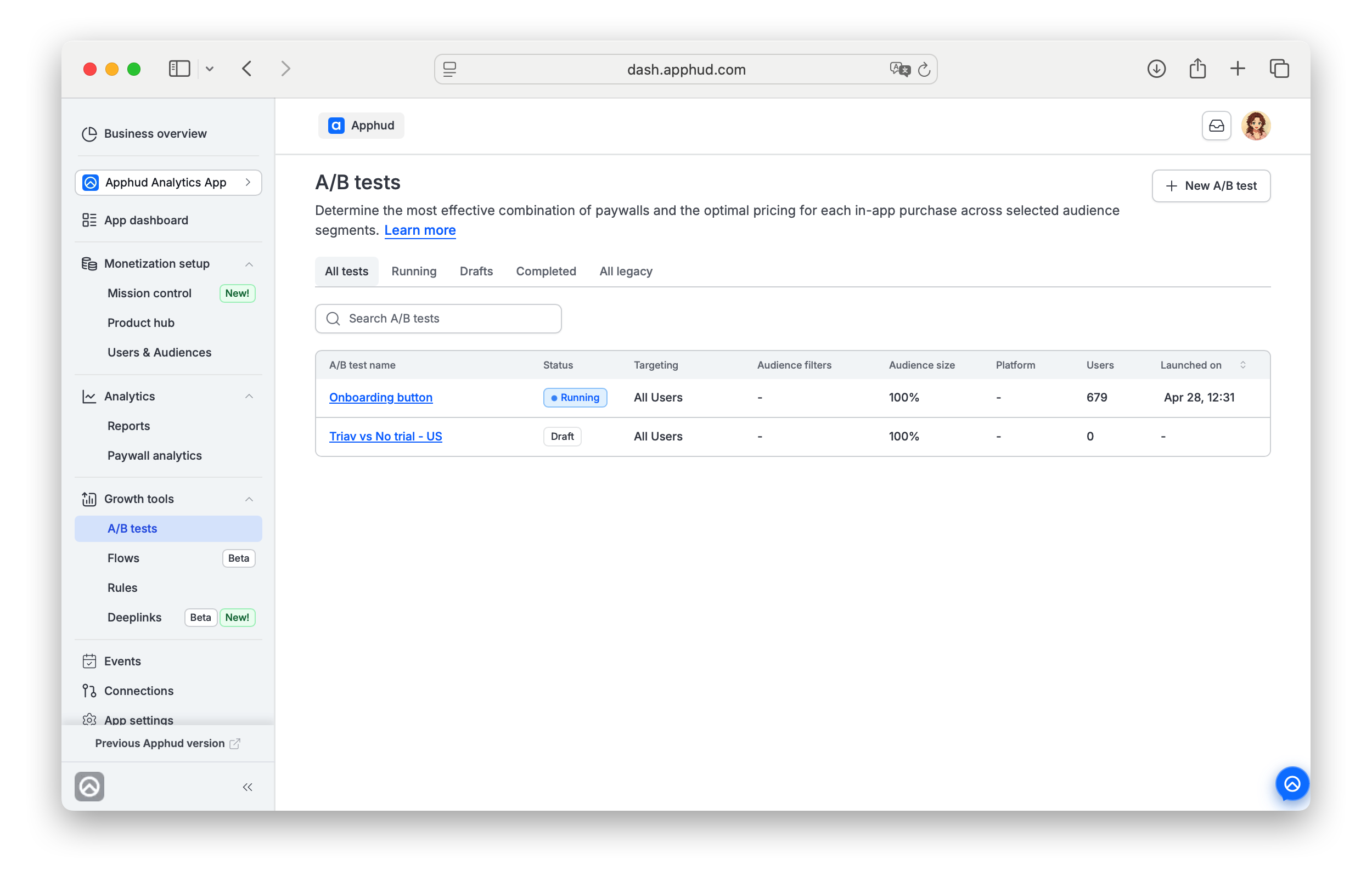
A/B tests list
The list page has five tabs and a search box.
| Tab | Contents |
|---|---|
| All tests | All Tests launched after Apphud 2.0 redesign launch (since the 1st of July, 2026). |
| Running | Active tests. |
| Drafts | Saved tests not yet launched. |
| Completed | Finished tests. Metrics are preserved; edits are locked. |
| All legacy | A/B tests created in the previous Apphud version. Read-only — new tests use the v2.0 format. |
Columns: A/B test name (link to detail) · Status · Targeting · Audience filters · Audience size · Platform · Users · Launched on (sortable).
Click a row to open the test detail page.
Test states
| State | What you can do |
|---|---|
| Draft | Edit any field. Save & return. Run test on selected user IDs (→ Testing). Review & launch. Delete. |
| Testing | Sandbox-only preview. Add / remove test user IDs and Save. Edit the test. Cancel testing (→ Draft). |
| Running | Edit Audience size and Variation weights. Duplicate. Complete A/B test. Asset configuration is locked. |
| Completed | Read-only. Duplicate. Metrics are preserved. |
Create a test
Two entry points:
- Growth tools → A/B tests → + New A/B test — opens the targeting picker.
- From a Targeting — opens the picker with that targeting preselected.
Step 1 — Pick a Targeting
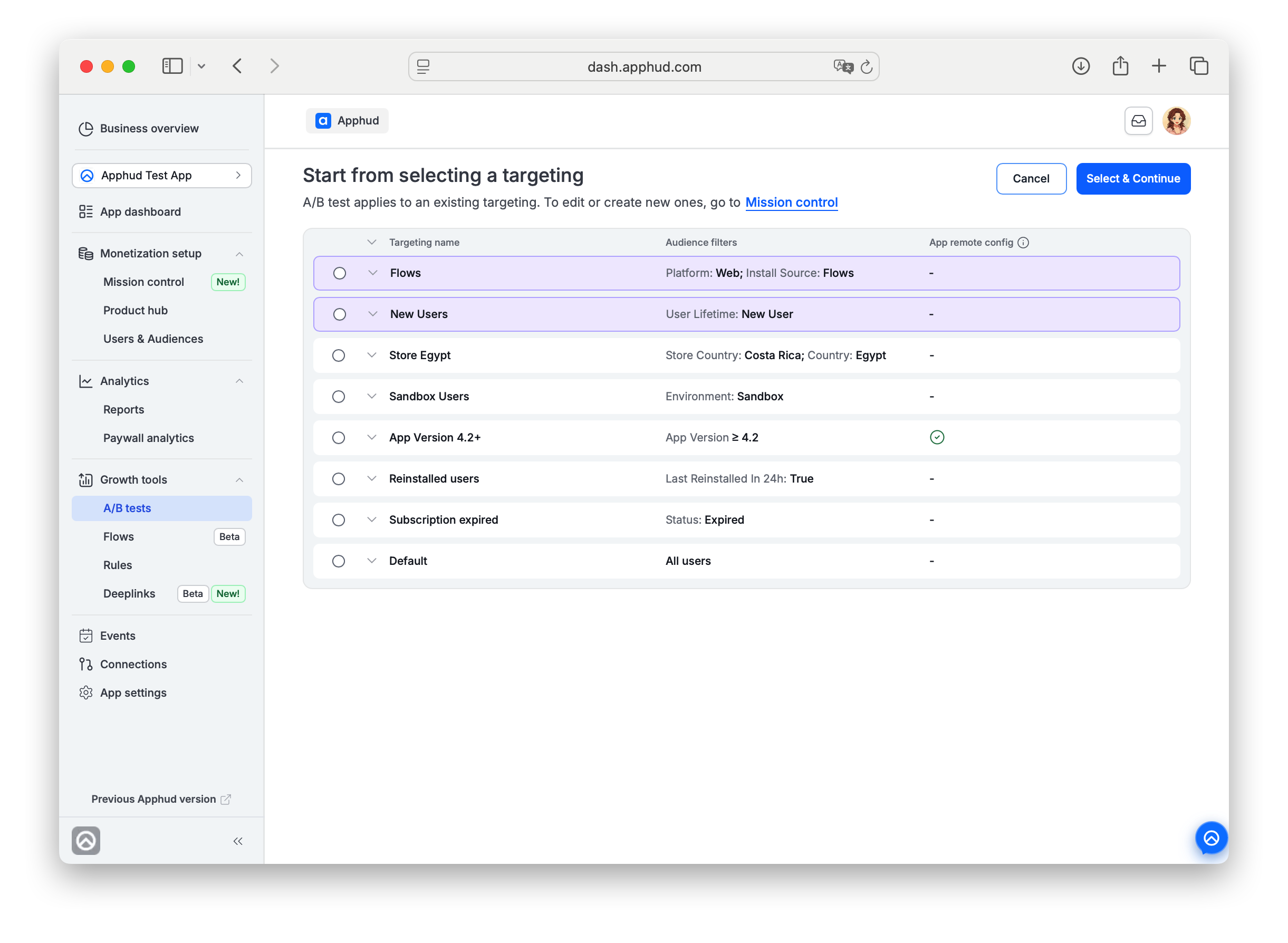
The Start from selecting a targeting view lists every Targeting configured for your app.
Each row shows:
- Targeting name (chevron to expand and see the targeting's placements and paywalls).
- Audience filters — the conditions that define the targeting's audience.
- App remote config — green ✓ if the targeting has app remote config configured; otherwise
-.
Targetings that already have a Running A/B test are highlighted in purple. Pick one and click Select & Continue. A confirmation modal asks you to confirm — once you start creating the test, the targeting can't be changed.
General information
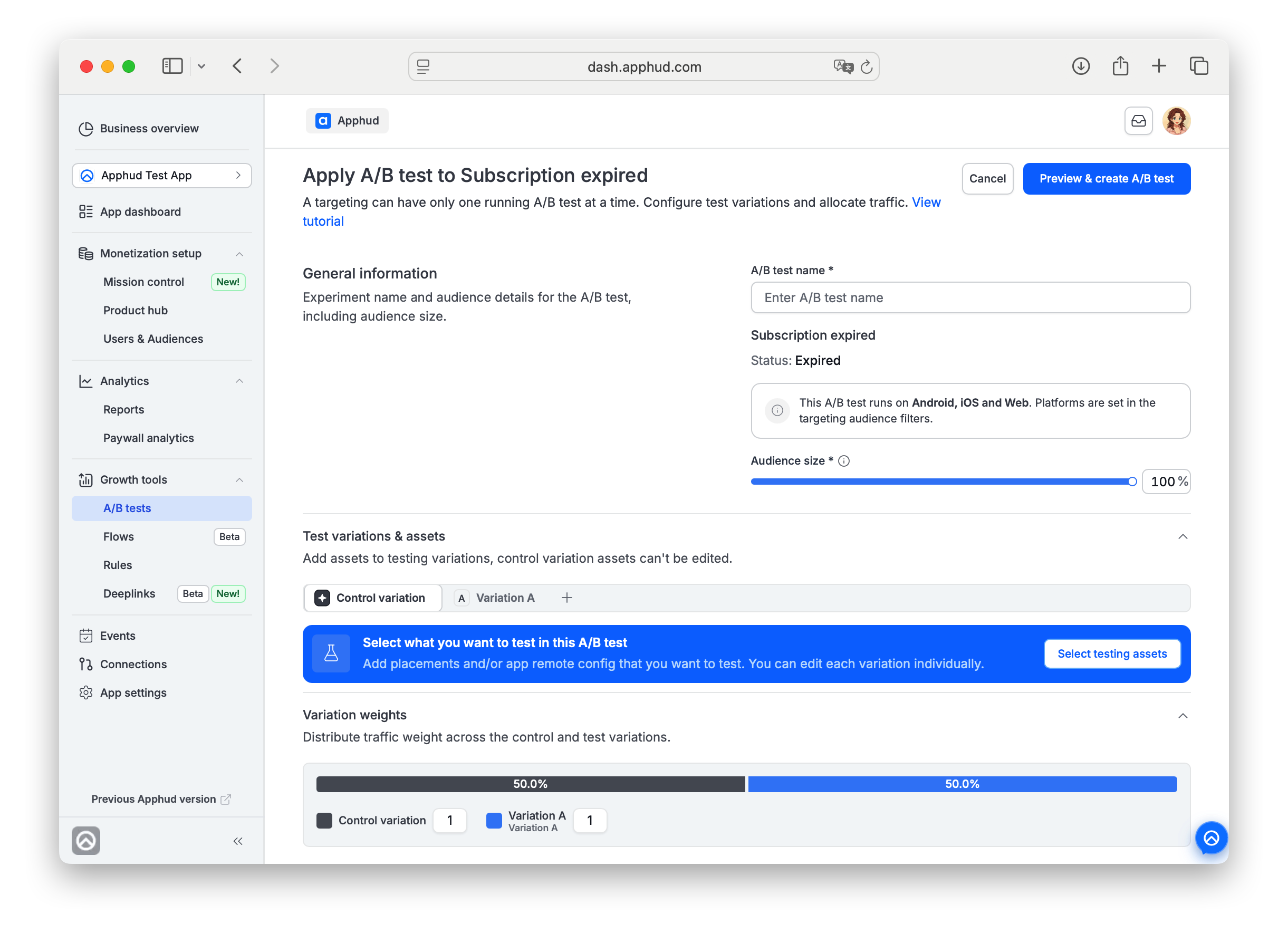
The below needs to be configured first
- A/B test name (required) — name your test for the list view. Will be used as a filter in analytics.
- Audience size — slider, 0-100%. Default 100%. Use Edit audience size to change it.
- Manage test users — optional. Pin specific user IDs to specific variations for QA. See Manage test users.
- Right-side meta — the Targeting name, audience filters, and platforms (set by the Targeting, not editable here, e.g. "Subscription expired" and "Status: Expired").
Step 2 — Pick assets to vary
Click on Select testing assets button on the banner asking to select a testing object(s).
The Select what you want to test modal asks which of the Targeting's assets your test will vary:
- App remote config — checkbox at the top. Opt in to test different JSON configs delivered to your SDK. Can be tested alone, but without placements you'll only get Users and Overall Proceeds — add placements too if you want per-variation view/purchase metrics.
- Placements & paywalls — pick one or more of the Targeting's placements (each shows its currently-assigned paywall and screen).
Put checkmarks in all objects you'd like to test. Click Select assets. You land on the Draft test detail page with Control variation showing the selected objects.
Testing App remote config without placements limits your metricsAn A/B test with no placements has nothing to compare variations on, so it only reports Users and Overall Proceeds — no views, no per-variation purchases. If your config targets specific placements, add those. If it applies app-wide, add all placements anyway (without changing their paywalls) just to get comparable metrics.
Running a paywall experiment in the app without placementsIf your app is on Apphud iOS SDK 3.4.0 or later, you can A/B test your paywalls even if you never adopted Placements. Your app keeps reading the
paywallsarray, and Apphud delivers the assigned variation right there.Set it up:
- Go to Mission Control → Placements and create a placement for each paywall you want to test. Using the same identifier as the paywall isn't required, but it keeps things easy to follow.
- Create an experiment and add the paywall(s) to it — each is now wrapped in its placement.
- In Variation A, change the paywall(s) content however you like.
In your app: nothing to change. Keep fetching the paywall from the
paywallsarray exactly as before — placements never reach your app code. The paywall comes back under its original identifier, carrying the content of the variation the user was assigned to, and purchases are attributed to that variation automatically. If your app is in Observer Mode (you record purchases yourself), keep sending the paywall identifier viawillPurchaseProductFrom(:)as usual.Good to know: this works on iOS SDK 3.4.0 and later — earlier versions aren't supported. Android apps must use placements to run experiments.
Step 3 — Configure the Draft
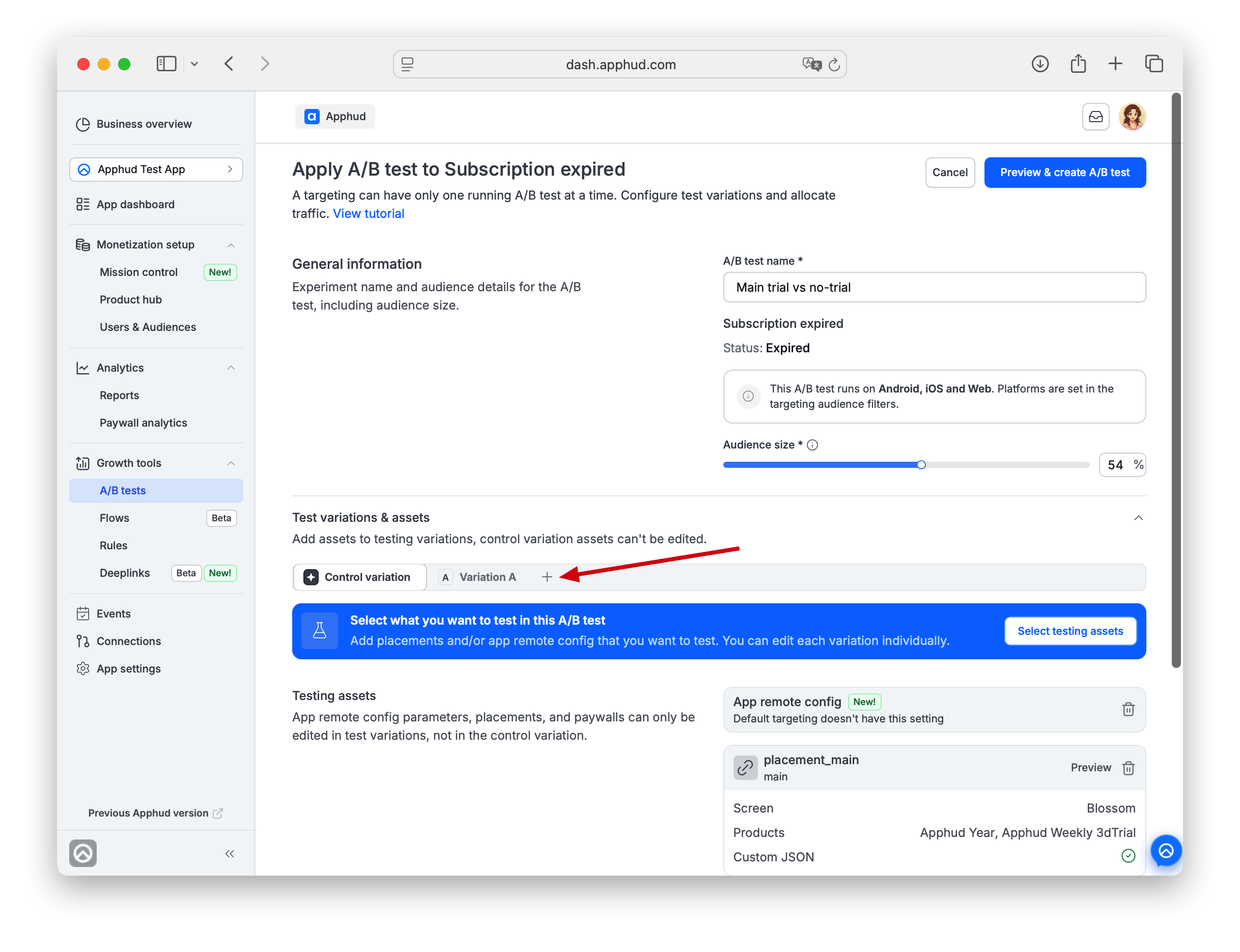
The unsaved Draft detail page has two top-of-page actions:
- Cancel — deletes the traft Draft.
- Preview & create A/B test — proceed to the preview step.
Test variations & assets
- Every A/B test must have the Control variation (locked — it serves whatever the Targeting already serves) and at least one test variation. The minimum is Control plus Variation A — neither can be removed.
- To add more test variations, click + (the add button) at the end of the variation tabs — up to 5 test variations total (Variation A / B / C / D / E).
- To remove an added variation, open its tab and click Delete variation X (under Specify variation) — available from Variation B onward.
- Click a test-variation tab to configure it:
- Variation name — defaults to "Variation A" / "B" / etc.; rename for clarity.
- App remote config (if you opted in at Step 2) — JSON editor. Write the config this variation will deliver to the SDK.
- Per-placement card — one card per placement you chose. The card shows the current paywall and a Configure button to override it for this variation. Configure opens the same paywall editor as in Paywalls, with two tabs — Modify existing (start from a copy of an existing paywall) or Create new (start from scratch). Either way, this never edits the live paywall — it always creates a new paywall scoped to this variation (see Paywall snapshots).
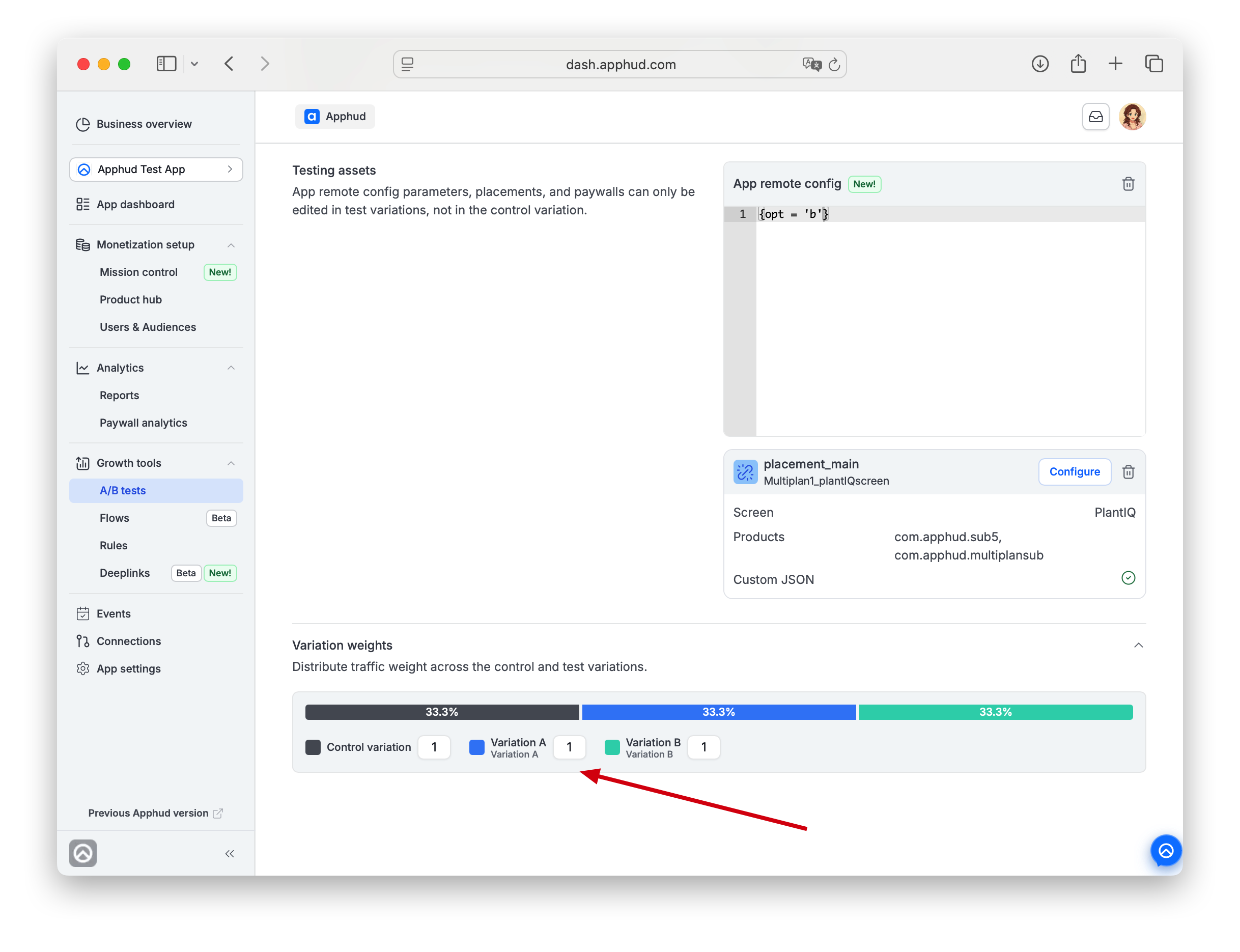
Variation weights
Distribute traffic across Control + test variations using whole-number ratios (e.g., 1:1 = 50/50, 1:2 = ~33/66). The UI shows both the ratio inputs and the resulting percentage bar.
Editable any time before launch — and also after launch (Running tests).
Step 4 — Review & launch
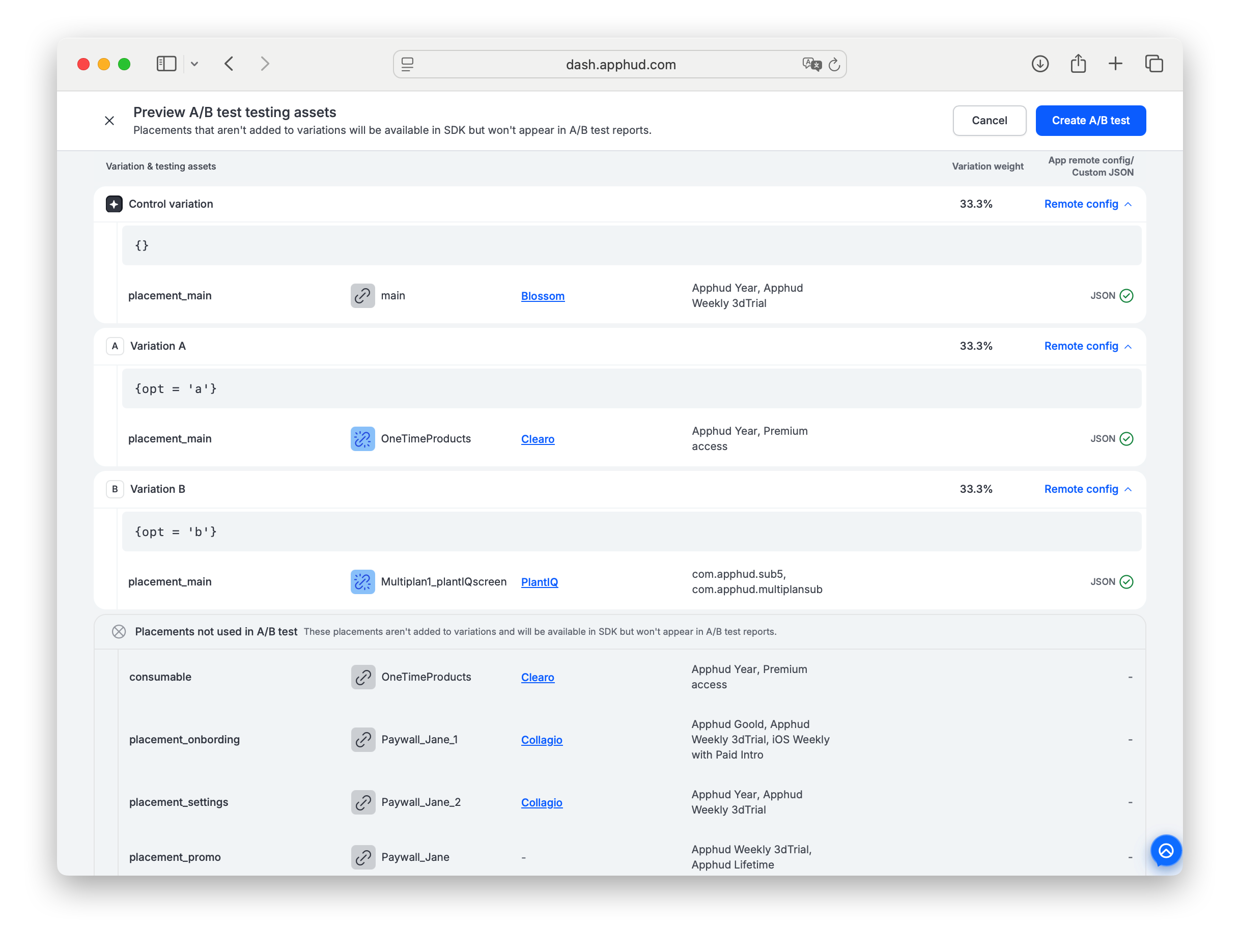
Once all variations are configured, click Review & launch test. The Preview A/B test testing assets page shows the final state:
- Per-variation rows with weight, paywall, products, and JSON ✓.
- A Placements not used in A/B test callout (if any) — placements that belong to the Targeting but weren't included in any test variation.
Unused placements still work — they just don't reportPlacements you didn't include in any variation continue to serve their normal paywall to users in the test. They just won't appear in A/B test reports.
Click Create A/B test to save the Draft.
Launch A/B test
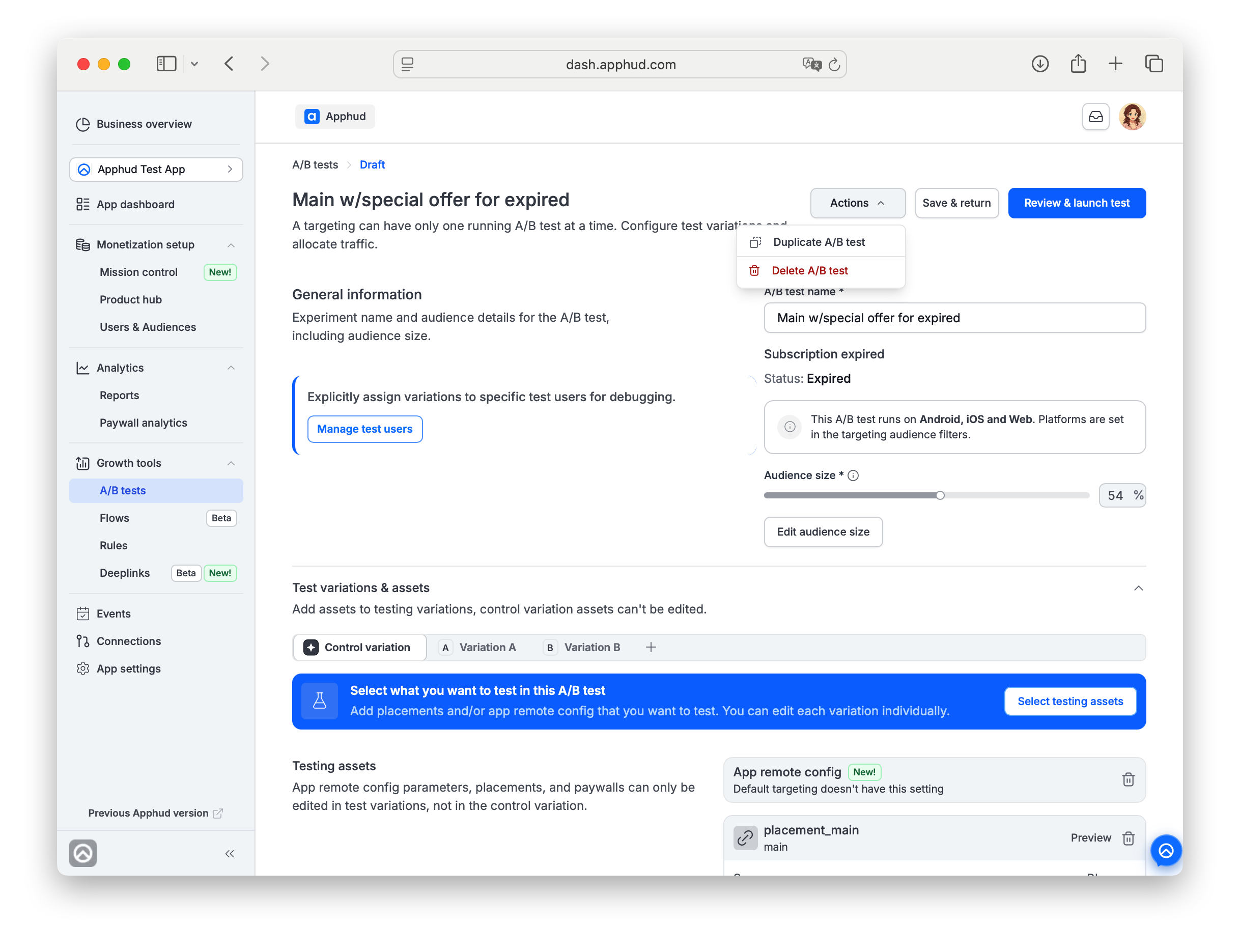
The saved Draft test page has three top-of-page options:
- Actions — allows to duplicate or delete the draft.
- Save & return - allows to adjust and save the draft
- Review & launch test — moves from Draft to Running and starts allocating users.
Audience size
The Audience size slider sets the share of matching users that enter the test.
- 100% — every user matching the Targeting is allocated to one of the variations.
- 0% — no new users are allocated. Users already in the test stay in their variation.
- Intermediate (e.g., 50%) — proportional allocation among new users matching the Targeting.
Users not allocated to this test (because audience size < 100% or because they don't match the Targeting) follow the normal Targeting rank and fall into the next matching Targeting.
Audience size is editable on a Running test.
Variation weights
Variation weights split the entered users across Control + test variations.
- Weights are entered as ratios (whole numbers).
Control 1 · Variation A 1= 50/50.Control 1 · Variation A 2= ~33/66. - The UI shows both the ratio inputs and the resulting percentages.
Why ratios?In the previous Apphud version weights were entered as percentages. Users sometimes set them to combinations that didn't sum to 100%. Ratios remove that ambiguity. The percentage bar is still shown so you see the resulting split at a glance.
Weights are editable on a Running test.
Testing mode — verify on sandbox users
Before launching, run the test on specific sandbox users to check it works — we recommend verifying both the paywall visuals and the purchase flow. In Testing mode, only the sandbox IDs you list enter the test; production users are unaffected.
Switch a Draft into Testing mode
- Open the Draft test. In General information, click Run test on selected user IDs.
- In the User-specific test variations dialog, add each sandbox User ID and pick the Variation it should be shown — a test variation (Variation A / B / …) or Control variation. Use Add user ID for more rows, Clear all to reset.
- Click Switch to Testing.
The test moves to Testing status — shown that way both in the A/B tests list and on its Targeting in Mission Control. A banner confirms the test is in Testing mode; you can still edit the test and see which variation each test user gets in the app.
- Only the listed sandbox IDs enter the test, each in the variation you assigned.
- Production users and unlisted sandboxes don't enter it. Listed users bypass audience-size and weight allocation.
Update the list while testing
While in Testing mode you can add more sandboxes — click View testing users, add IDs via Add user ID, and Save the list (new IDs take effect after saving).
Exit Testing mode
When done, open the dialog and click Cancel testing. A confirmation appears — "All testing user IDs will be removed, the A/B test will be switched to Draft." Confirm, and the test returns to Draft. From Draft, click Review & launch test to go live: the test becomes Running and moves to the top of the Targeting priority in Mission Control (see Test priority).
Overlapping tests are blockedSeveral tests can be Running or Testing on one Targeting at the same time, but only if they test different placements and no more than one of them tests App remote config — see Several tests on one Targeting. If a test overlaps with another Running or Testing test, you can't switch it to Testing mode or launch it. You'll see an error like "Cannot start the experiment: placements {placement} intersect with experiment(s) {test name}". The same check runs when you save changes to a test that is in Testing mode. To free the placement, Complete the other test (or, if it is in Testing mode, cancel testing), or pick different placements for this one. Drafts can always be created and saved.
Paywall snapshots
Paywalls used as test variations are frozen copies — made when you create the test and rebuilt each time you edit the draft, but not refreshed at launch. The test keeps its own snapshot of each variation's paywall.
- Editing the original paywall in Product Hub doesn't change what the test serves.
- Deleting the original paywall doesn't affect the test — variations keep serving the snapshot.
- Product set, product order, and Custom JSON are frozen.
The Control variation always uses the live paywall that the Targeting currently serves — it's not a snapshot. Editing the Targeting's default paywall mid-test will update what Control variation users see.
Paywall Screens render the frozen product set but pull the live UI from Figma. You're responsible for keeping the Figma file unchanged during the test.
What updates when you edit a paywall mid-test
- Test-variation paywalls are frozen copies. A copy is made when you create the test and rebuilt every time you edit the draft — but launching does not refresh it. A draft left untouched for weeks launches with the copies from your last edit; to pull in newer content, edit the draft. This holds even when a variation uses Use existing paywall — still a frozen copy, not a live link.
- Control (and any placement you didn't override) stays live. These point at the Targeting's current paywall. Rebind that placement to another paywall in Targetings and Control updates automatically across all unfinished tests.
App remote config
App remote config is a JSON parameter object delivered to the SDK alongside paywalls. You can A/B test it as a separate asset.
In a test variation, write the JSON the SDK will receive for users assigned to that variation. Your app code reads the values and varies behavior — onboarding length, feature flags, copy strings, anything you map.
- The Control variation uses the Targeting's current app remote config (or no config if none is set).
- Each test variation uses its own JSON defined in the variation tab.
Several tests on one Targeting
You can run several A/B tests on one Targeting at once — for example, one test on the onboarding paywall and another on the freemium paywall — and adjust or complete each test on its own. There is no limit on the number of tests running on one Targeting at the same time, as long as they don't overlap. Parallel tests work with any SDK version.
- Tests can't overlap. A placement can be tested by only one Running or Testing test at a time, and only one of them can test App remote config. Otherwise launching is blocked — see Overlapping tests are blocked.
- Users join every test they qualify for. Each test has its own audience size, so a user can end up in some tests and not in others.
- The app receives one merged set of placements. Each test the user joined supplies only the placements it tests, taken from the user's variation. All other placements come from the Targeting as it is, and no placement appears twice. A user who isn't in any test gets the Targeting as it is.
- Views and purchases count for the right test. Each paywall view and each purchase is credited only to the test that owns the placement where the paywall was shown.
- Mission Control shows every test. On the Audience targeting tab, each placement of a Targeting shows the A/B test that tests it. Hover the test name to see when it was launched, its audience size and how many users it has affected; click it to open the test in a new browser tab.
- Rolling out a winner doesn't stop the other tests. It is blocked if another running test tests one of the placements you roll out, or the App remote config that the winner changes.
- A placement that is tested by a Running or Testing test can't be deleted.
Test priority and user reallocation
You can run multiple A/B tests at the same time — on different Targetings, or on one Targeting if they test different placements. When tests run on different Targetings, the SDK picks the variation for a given user based on Targeting rank.
- When a new A/B test is launched on a Targeting, that Targeting moves to the top of the rank. The most recently launched test always wins for overlapping audiences.
- When the test is completed, the Targeting returns to its original rank position.
If a user is currently in test A1 on a broader Targeting and a higher-priority test A2 is launched on a narrower Targeting they also match, the user is reallocated to A2 immediately. Revenue and events that already happened in A1 stay attributed to A1; everything new is attributed to A2.
If A2 is later completed and A1 is still Running, the user returns to A1.
Complete and evaluate
When you're confident in a variation, click Complete A/B test on the Running test detail page.
The Complete modal shows preliminary indicators per variation: View to Purchase, Trial Conversion, ARPU, ARPPU. Each variation also shows Effect (% change vs Control) and P-value (statistical significance). For metric definitions and significance rules, see Analyzing Experiments.
You must check I'm sure I want to complete the A/B test to confirm. The button stays disabled otherwise.
Don't complete based on borderline P-valuesA result is significant only when P-value ≤ 0.05. Don't complete the test while the P-value is just above the threshold — borderline results are too uncertain to act on. Either wait for more data or accept that the test is inconclusive.
After completion:
- Users who were in the test stay assigned to their variation — they keep seeing the variation's paywall and their revenue keeps flowing to the test.
- Users newly matching the Targeting follow the normal Targeting rank — they go to the next matching Targeting.
- The Targeting returns to its original rank position (see Test priority).
Roll out the winning variation
Once a Completed test has a clear winner, you can apply that variation's assets to the test's Targeting permanently. From then on, every user matching the Targeting gets the winning paywall(s) and App remote config as the new default.
Available on Completed tests only. To roll out, you must first Complete the test.
How to roll out
-
Open the Completed test's detail page.
-
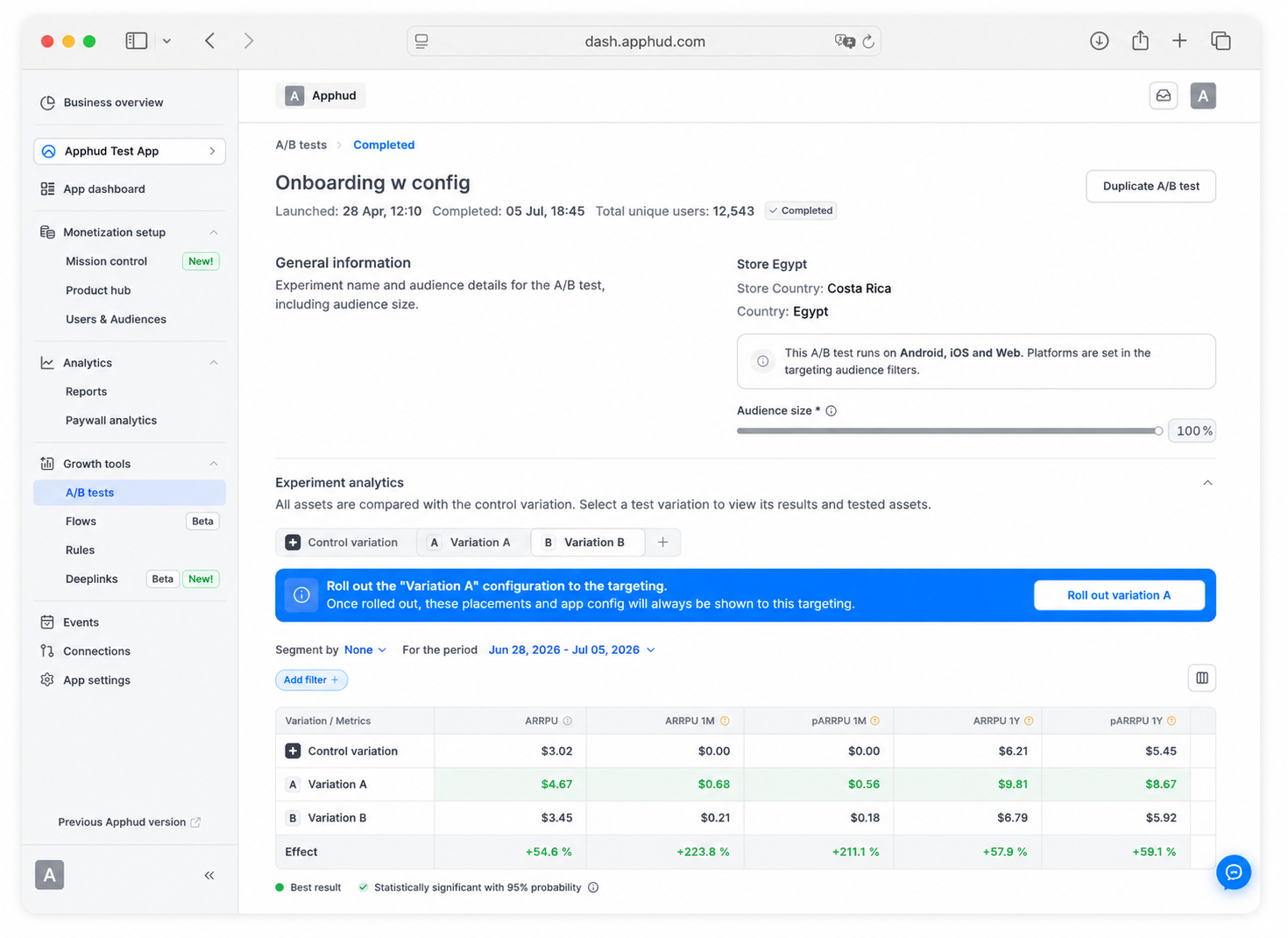
Scroll to Experiment analytics. The default view shows the Control variation tab. While on Control, you'll see a hint:
Select your winner variation to roll out it's results to the targeting.
-
Click the test variation you want to roll out (Variation A / B / etc.). A blue banner appears:
Roll out the "Variation X" configuration to the targeting. Once rolled out, these placements and app config will always be shown to this targeting.
On the right of the banner: Roll out variation X button.
-
Click the button. The Roll out Variation X modal opens, listing every tested placement in a table: Placement, Current paywall, Winner paywall, How to roll out, and Identifier if need to create.
For each placement, pick how its winning paywall is applied:
-
Update paywall content — overwrites the placement's current paywall content in place, keeping the same paywall id and identifier.
-
Replace entire paywall (shown as Create new paywall when the variation's paywall was built from scratch with Create new) — puts a whole paywall on the placement instead of editing the current one. What happens depends on whether you changed the variation:
- Unchanged copy — you picked an existing paywall under Modify existing and changed nothing. The placement is switched to that existing paywall. No new paywall is created, and Identifier if need to create is ignored. For example, if the placement currently uses paywall X and the variation is an unchanged copy of paywall Y, after roll-out the placement uses Y.
- Changed copy or built from scratch — Apphud creates a new paywall with the variation's content. Identifier if need to create is pre-filled with a suggested ID built from the placement and the experiment's ID. Keep it or type your own: it must be unique among the app's paywalls, up to 120 characters, letters, numbers, dash and underscore only.
"Unchanged" means an exact match with the original paywall as it is at roll-out time, not just a screen that looks the same: the screen, Custom JSON, other paywall settings, and the products with their order and per-product settings must all be identical. Changing any of them, even only the product order, makes it a changed copy.
Paywall-only apps: don't change the default selectionIf your app doesn't use placements — it's running the paywall-only experiment mode described in Step 2 above — Apphud already pre-selects Update paywall content for every eligible placement here, since Replace entire paywall would create a new identifier your app never reads. This lowers the risk of a mistake, but doesn't rule it out — don't switch a row to Replace entire paywall unless you know what you're doing.
Conflicting replacementsIf two placements in the variation share the same current paywall and both are set to Update paywall content with different winning content, roll-out is blocked with a "conflicts with another replacement for the same paywall" error. Set one of them to Create new paywall instead, or roll out separately.
Click Roll out in the modal to confirm your choices.
-
-
A final confirmation dialog opens:
Roll out the "Variation X" configuration to the targeting? Placements and app remote config from "Variation X" will be applied to "{targeting name}" targeting.
This action cannot be reverted.
-
Click Roll out to confirm. The variation's paywall(s) — applied per the mode chosen for each placement — and App remote config replace the Targeting's current configuration for the corresponding assets.
What roll-out does
-
Every placement in the variation updates the Targeting's paywall for that placement: its content is overwritten in place, the placement is switched to an existing paywall, or a new paywall is created — see the modes in How to roll out above.
-
The variation's App remote config (if any) becomes the Targeting's App remote config.
-
The change is irreversible — undo means manually re-configuring the Targeting back to the old assets via Mission Control → Targetings.
-
After roll-out, the variation tab shows a confirmation badge:
Variation X assets have been applied to the targeting.
The Audience size area also shows: "You've applied assets from Variation X to this audience."
You can only roll out one variation per testEach test variation has its own Roll out button, but the action is permanent — once you've rolled out Variation A, you can't go back and roll out Variation B from the same test. Pick the winner deliberately.
Duplicate a test
Available on Running and Completed tests via Duplicate A/B test.
Duplicate opens the targeting picker again — you must pick a Targeting (you can re-pick the same one).
- Control variation uses the new Targeting's current setup for the tested assets (paywall per placement, app remote config).
- Test variations carry over from the source test — paywalls, products, Custom JSON, app remote config.
- Paywalls in test variations are snapshotted again at the moment you Run the duplicate.
Using A/B tests in Observer Mode
You can use A/B tests on paywalls and App remote config even in Observer Mode. If you don't use Apphud SDK to make purchases, you need to tell Apphud which paywall (and optionally which placement) was used when the purchase happened — otherwise the SDK can't attribute the purchase to the right test / variation.
iOS — call willPurchaseProductFrom before the purchase:
Apphud.willPurchaseProductFrom(paywallIdentifier: "paywallID", placementIdentifier: "placementID")
YourClass.purchase(product) { result in
    ...
}
Android — call trackPurchase after a successful purchase, passing both identifiers:
Apphud.trackPurchase(
    purchase: Purchase,
    productDetails: ProductDetails,
    offerIdToken: String?,
    paywallIdentifier: String? = null,
    placementIdentifier: String? = null
)
FAQ
If a user already has an active subscription and matches the Targeting, will they enter the test?
Any user who matches the Targeting is assigned to a variation when they launch the app, including users with active subscriptions. The subscription status is not checked at assignment time — only the Targeting's audience conditions.
If you don't want subscribers in the test, either:
- Add an extra audience condition on the Targeting like "In-app subscription status is not active", or
- Keep the Targeting broad and gate paywall display in your app code (only show the paywall if there's no active subscription).
Subscribed users will still count as part of the test audience (in the Users metric), but they'll never see the tested paywall. That's why experiment analytics may show more Users than Unique Views — conversions are calculated from Views, not from all assigned users.
Can the same user participate in multiple A/B tests at once?
Yes, with limits.
- Different placements on one Targeting — the user can join several tests on the same Targeting and receives the merged placements, see Several tests on one Targeting.
- Different paywalls — if the tests vary different paywalls, the same user can be in both.
- Same paywall in different placements — different placements are independent, so the user can be in both tests.
- Same paywall + same placement — only one A/B test at a time per paywall + placement pair for a given user.
What happens when a test on the user's Targeting completes — do they stay in or leave?
Users who were in the test stay assigned to their variation and keep seeing it. The Targeting returns to its original rank position, so newly matching users follow the normal rank order (next matching Targeting wins).
If a higher-priority test launches on a narrower Targeting the user also matches, do they move?
Yes. The user is reallocated to the higher-priority test immediately. Revenue and events from before the move stay attributed to the original test. New events go to the new test.
If the higher-priority test later completes and the original test is still Running, the user returns to the original.
What if a user no longer matches the Targeting (e.g., they updated the app version)?
The user stays in the test as long as it's Running. App version updates, country changes, etc. don't kick them out mid-test. Only completing or stopping the test removes the assignment.
I set audience size to 100% New Users but in Testing mode I see the variation on a device that already has the app installed. Why?
Testing mode ignores audience filters and user history. Any sandbox user gets allocated to the chosen variation at 100%. Testing mode is for verifying paywalls render correctly, not for testing user-split rules.
Why don't my sandbox purchases show in the experiment metrics?
Sandbox transactions are excluded from all aggregated analytics in Apphud — experiment metrics, charts, and the Total Spent field. Only production users contribute to metrics. Sandbox purchases still appear in the user's event timeline for testing purposes.
Why isn't user distribution exactly 50/50?
The assignment algorithm doesn't alternate users strictly. It applies internal balancing for statistical integrity. Early distribution may look uneven (e.g., 140/112) — proportions even out with sample size. A perfectly equal split is not required and not expected.
I edited a paywall used in a Running test. Did it affect the test?
No. Paywalls used as test variations are snapshotted at launch. Editing the original in Product Hub doesn't change what the test serves. The Control variation, however, uses the live paywall the Targeting serves — so editing the Targeting's default paywall does affect Control.
For details, see Paywall snapshots.
I changed the products in a variation's paywall, but the icon next to it didn't change. Why?
The icon (and the paywall preview) shows which paywall the variation uses, not what is inside it. It changes when you switch the variation to a different paywall — another existing one, or a new one built with Create new — and stays the same when you only change the products of the same paywall. The variation still serves the products you set.
Hover the icon for details. When the test starts, the icons update once more: a dark icon marks an existing paywall, and a light-blue icon marks a temporary paywall created only for this test and its placement. A temporary paywall has its own identifier in the SDK and appears in your paywall list in Mission Control only if you roll out the winner.
Can I edit or delete a paywall product that's used in a Running test?
- Edit the paywall — yes, but it doesn't affect the test (snapshot).
- Delete the paywall — yes; the test keeps serving the snapshot.
- Delete a product used by the paywall — no. The product can't be deleted while the test is Running.
Can I delete a placement used in a Running test?
No. A placement that is tested by a Running or Testing A/B test can't be deleted — Apphud shows "Cannot archive placement. A live A/B test uses it." Complete the test first (or cancel testing), then delete the placement. Placements that no test uses can be deleted as usual.
The Events page shows Paywall shown for the target paywall but it doesn't match the test's Unique Views. Why?
Several reasons:
- Repeated opens — a single user can trigger Paywall shown multiple times. Events counts all of them; Unique Views counts users.
- Data delay — experiment metrics update with a delay (up to ~1 hour) compared to raw events.
- Events before the test launched — same-day events that occurred before the launch appear in Events but not in test metrics.
- Background sessions — users who launched the app before the test started and kept it in the background are not assigned to the test. Their Paywall shown events on the target paywall appear in Events but not in the test.
Assignment happens at app launch, not when the app returns from background.
What's the difference between Completing a test and Rolling out a variation?
- Complete finalizes the test — no more users get allocated to variations; users already in the test stay assigned. The Targeting's underlying configuration doesn't change.
- Roll out writes the winning variation's paywall(s) and App remote config into the Targeting itself. From then on, the Targeting serves those assets to everyone matching it. Roll-out is irreversible and only available on Completed tests.
Standard workflow: Complete the test → review the winner → Roll out → optionally Duplicate to start the next test.
Can I roll out a variation, see it's not working, and roll out a different variation from the same test?
No. Roll-out is a one-way action per test. If you've rolled out Variation A and want a different configuration, edit the Targeting manually in Mission Control → Targetings or run a new test with Variation B's setup.
Can I assign a user to the test based on an in-app action (e.g., closing the onboarding paywall), not at launch?
Yes, but it requires app-side setup. The pattern:
- Define a custom user property (e.g.,
first_paywall_closed). - Create a custom audience on a Targeting using that property.
- Set up the A/B test on that Targeting.
- In your app, set the property when the action happens and flush it immediately.
- Refresh the user data and fetch placements after flushing.
Apphud.setUserProperty(key: .init("first_paywall_closed"), value: true)
Apphud.forceFlushUserProperties { _ in
    Apphud.refreshUserData { _ in
        Apphud.fetchPlacements { placements, _ in
            // placements are refreshed
        }
    }
}
See User Properties and Audiences for full details.
Updated 10 days ago