
Mission Control
Configure paywalls, placements, screens, and audience targetings in one central area.
Mission Control is Apphud's monetization setup area. It is where you decide which user sees which paywall, in which placement, with what configuration.
It contains four building blocks: Targetings, Placements, Paywalls, and Screens.
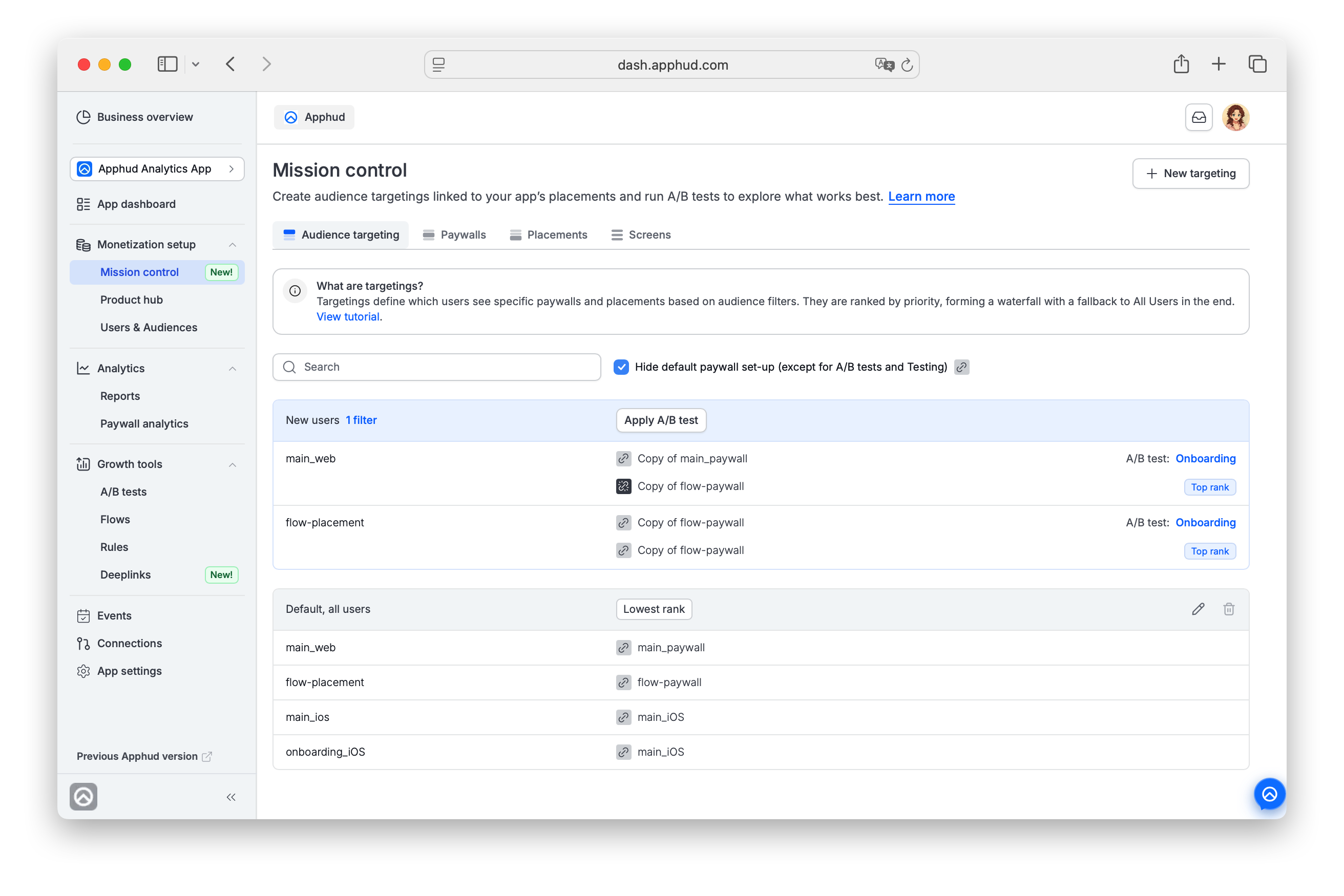
Capabilities at a glance
- Bind audiences to paywalls per placement using targetings
- Override paywalls per placement for specific audiences (other placements inherit from Default)
- Run A/B tests on full monetization schemes — vary multiple paywalls across placements at once
- Apply app-level remote config to all users matching a targeting
- Build paywall screens visually in Figma without code
- Use the Default targeting (All Users) as a fallback for unmatched users
When to use Mission Control
For a newly created app, once you have configured a Store(s) and added products in Product Hub you need to navigate to Mission Control to set up monetization schemas - add paywalls, placements, and then configure targetings.
For an already set-up app, in Mission Control, you can change which paywall an audience sees, run A/B tests across placements, or update remote configuration for a user segment.
For analytics on how those paywalls perform, see Paywall analytics or analytics reports with Paywall or Placement segmentation/ filters applied.
Key concepts
Targeting
A targeting binds an audience to a set of paywalls across placements. You can think about a single targeting as a monetization schema for a specific segment of users.
Each targeting has an audience filter, optional app-level remote config, and a paywall assignment per each placement.
Targetings are evaluated in priority order.
Placement
A placement is a named slot in your app — for example, onboarding, settings, promo_screen — where a paywall renders.
Coming from the previous version of Apphud?Targetings replace the old setup, where a placement had an ordered list of paywalls for different audiences. Each placement now has a single paywall per targeting, and you create multiple targetings to serve different audiences. See What's new in 2.0 for the full migration map.
Paywall
A paywall is a configuration of product bundles, screen, and custom JSON shown to the user. Paywalls are attached to placements through targetings.
Mind that bundles and permission groups that paywalls reference live separately, in Product Hub.
Screen
A paywall screen is the visual layout of a paywall, built in Figma using Apphud templates and rendered natively by the SDK.
Placement, paywall, and targeting relationship
Each combination of (targeting, placement) resolves to exactly one paywall. A placement cannot have more than one paywall in a given targeting, i.e. for a given audience.
Each placement gets the paywall for the Default targeting a moment of placement creation - you'll be asked to assign a fallback paywall (existing or create a new) for All Users audience.
For any other targeting, you can either keep the inherited from the Default targeting paywall or override it with an existing paywall or assign a new one.
ExampleIn most apps, the Default targeting acts as the base monetization scheme for all users. It usually contains the standard set of placement → paywall assignments shown to broad audiences.
Custom targetings are typically used only to override placements that should behave differently for a specific audience. For example, you may configure:
- one onboarding paywall for Audience = All Users
- another onboarding paywall for Audience = New Users
In this case, the New Users targeting must have a higher rank than Default, so matching users receive the overridden onboarding experience, while all other placements continue inheriting configuration from Default.
How targetings work
Mission Control uses a targeting-first model.
When a user opens a placement in your app, Apphud resolves which paywall to show in three steps:
- A/B tests first. If any targeting has an active A/B test and its audience matches the user, that test runs and decides which paywall variant the user sees. A/B tests take priority over rank-based evaluation.
- Rank-based matching. If no A/B test applies, custom targetings are evaluated in rank order. The targeting with the highest rank whose audience matches the user wins.
- Fallback to Default. If nothing matches, Default (audience: All Users) applies.
By the time your app calls Apphud.placements(), the correct paywall is already resolved — the SDK simply receives the result.
NoteBy default, placements are fetched automatically on SDK start.
If you need to set user properties before placements are fetched (e.g., for audience segmentation), you can defer placements fetching — see Placements for details.
Targeting waterfall rules
- Higher rank = higher priority. The targeting at the top of the list is evaluated first.
- Lower-priority targetings are not evaluated once a higher-priority match is found.
- Default is the fallback for unmatched users and is marked Lowest rank in the list (if no A/B Test applied). It cannot be deleted or reordered.
- A/B tests applied to a targeting escalate their targeting's priority above all rank-based evaluation.
Run A/B tests for Default (All Users) with cautionWhen a targeting has an active A/B test, it is evaluated before any rank-based custom targeting.
Thus, if Default targeting (audience: All Users) has an active A/B test , every user will enter that test — rank-based custom targetings will be bypassed entirely.
To run separate A/B tests for specific audiences (e.g. New Users, users coming from Store Country = United States, etc.), set them up on those custom targetings instead of Default.
Reprioritizing monetization schemas
To change the priority of a targeting, drag its card by the dotted handle on the left of the card header and drop it in the new position. The order is saved when you drop the card.
Targetings that can be reordered show a number — Rank: 1 is the targeting right above Default, and a higher number means a higher priority.
NoteTargetings that have an A/B test (Running or Testing) are highlighted in blue and have no drag handle, so they can't be reordered. A targeting with a Running test shows Top rank; a targeting whose tests are all in Testing mode shows a Testing badge. The Default targeting is always last, marked Lowest rank, and can't be reordered either.
Set up Mission Control
Ensure you configured Stores and Products in Product Hub. Then it's time to set up monetization schemas.
Typical setup order:
- (optional) Create paywall screens in Figma using Apphud templates. Register those in Apphud in Mission Control → Screens tab.
- Create paywalls with their product bundles, assign screens, and custom JSON in Mission Control → Paywalls tab.
- Create placements for each location in the user journey where a paywall should appear in Mission Control → Placements. Placements are named slots; they don't carry configuration themselves besides of a default paywall to be shown on a placement as a fallback for custom audiences and if user audience = "All Users".
- Create targetings to bind audiences to paywalls per placement in Mission Control → Targetings tab. Override placements only for audiences that should see something different from Default. You don't have to override every placement in every custom targeting. Anything left unconfigured inherits from Default.
- Verify the setup with the Hide default paywall set-up (except for A/B tests and Testing) checkbox: when it is checked, each custom targeting shows only the placements whose paywall differs from Default, plus the ones covered by A/B tests.
FAQ
What happens if a user matches two custom targetings?
The higher-ranked targeting applies. Lower-ranked targetings are ignored for that user.
What happens if no custom targeting matches?
The Default targeting applies. Default has audience "All users" and is always present.
Do I have to override every placement in every targeting?
No. Placements you don't configure in a custom targeting inherit their paywall from Default. Override only what differs.
How do A/B tests work in Mission Control?
A/B tests attach to a targeting. A single test can vary multiple paywalls across placements within that targeting, letting you compare full monetization schemes — not just one paywall in one slot. See
Can I delete the Default targeting?
No. Default is the fallback for users who don't match any custom targeting and is always required.
How do I test a paywall in sandbox without affecting real users?
Create a custom targeting with the audience filter Environment = Sandbox and assign your test paywalls there. Sandbox users will match this targeting; production users will fall through to the next matching targeting or Default.
Coming from the previous version of Apphud? The placement-first model has been replaced by a targeting-first model. See the migration guide for what changed and where things moved.
Updated 10 days ago