
Apple Retention Messaging
Show subscribers a message or an offer on Apple's cancellation screen, and connect Apphud to Apple's Retention Messaging API.
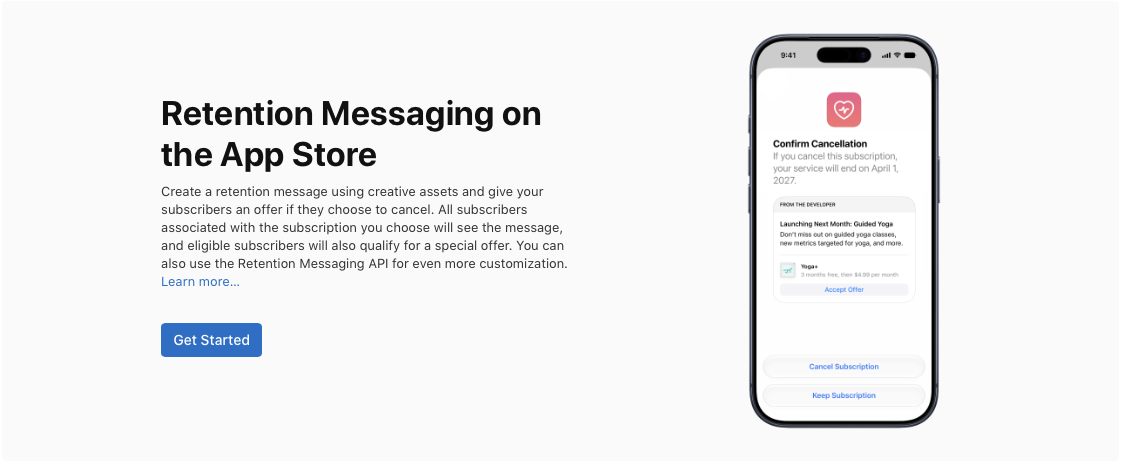
When a subscriber taps Cancel Subscription on iOS, Apple can show a retention message first: a short text, an image, a discount on the same subscription, or a switch to another plan. It appears in the From the developer block of Apple's own Confirm Cancellation screen. Apple shows examples of every variant in its Retention Messaging API documentation.
With Apple retention messaging in Rules, Apphud chooses the message for each subscriber in real time. Supported on iOS and iPadOS 15.1+, visionOS 1+ and macOS 14+.
Why set it up in Apphud
App Store Connect lets you set up basic retention messages, but every subscriber sees the same one. Apphud works through Apple's Retention Messaging API, so you decide who sees what:
- Different offers for different audiences. App Store Connect targets only by paid subscription duration and country. In Apphud you can target any audience from Users & Audiences: users in a trial, long-term subscribers, a country, an attribution source, an experiment group.
- A fallback for everyone else. If a subscriber matches none of your specific offers, Apphud shows your default offer. Production connects to Apple only when it has a default offer, so nobody is left without a message.
- A plan switch as a retention offer. Besides text and a promotional offer, you can suggest another subscription, for example a cheaper or a longer plan.
- Chosen in real time. Apphud picks the message at the moment the subscriber taps Cancel Subscription, by product, audience and language of the device.
- No SDK update. Apple asks Apphud's server directly.
If one message for everyone is enough, App Store Connect is the simplest way. See the comparison in Two ways to set up retention messages.
At a glance
| Question | Answer |
|---|---|
| What is it? | A message, a discount or a plan switch that Apple shows on its own Confirm Cancellation screen. |
| When does the subscriber see it? | After tapping Cancel Subscription, before the cancellation is confirmed. |
| What can it contain? | Text (with an image and bullet points), a promotional offer, or a switch to another plan. |
| Who approves the content? | Apple reviews every message, locale by locale. In Sandbox, Apple approves at once. |
| Who chooses the message for a subscriber? | Apphud, in real time, by product, audience and locale. |
| Do I need an SDK update? | No. Apple asks Apphud's server directly. |
| Do I need access from Apple? | Yes, to Apple's Retention Messaging API. The request form is linked from the Apphud page. See Request access from Apple. |
In Apphud, every message you configure is called an offer. Its type decides what it contains: only text, a promotional offer, or a plan switch. One offer is the default offer, the fallback for everyone else.
Before you start
- The App Store is connected to the app in Apphud, with the In-App Purchase Key and the Issuer ID. See App Store Credentials.
- Your auto-renewable subscriptions are added as products in Apphud Product Hub.
- The app has at least one audience, unless you use All users.
- Apple has approved the app's access to the Retention Messaging API. Apple reviews the request, so send it first. See Request access from Apple.
Request access from Apple
Apple has to grant the app access to the Retention Messaging API, and Apple reviews the request. Send it before you set anything up: you can't connect until access is granted.
Open Apple retention messaging in Growth tools → Rules (see Step 1), then click Request access in the banner, which opens Apple's request form. If Apple refuses the request, for example because access is not granted yet or the In-App Purchase key is wrong or revoked, the page shows the red banner Apple refused production access for this app. See Troubleshooting.
Step 1. Open Apple retention messaging
In Apphud, open Growth tools → Rules. Apple retention messaging is the second block at the top of the page. Click the pencil icon to open it.
The page has two catalogs, Production and Sandbox, with their own offers. Production is open by default.
Step 2. Create a default offer
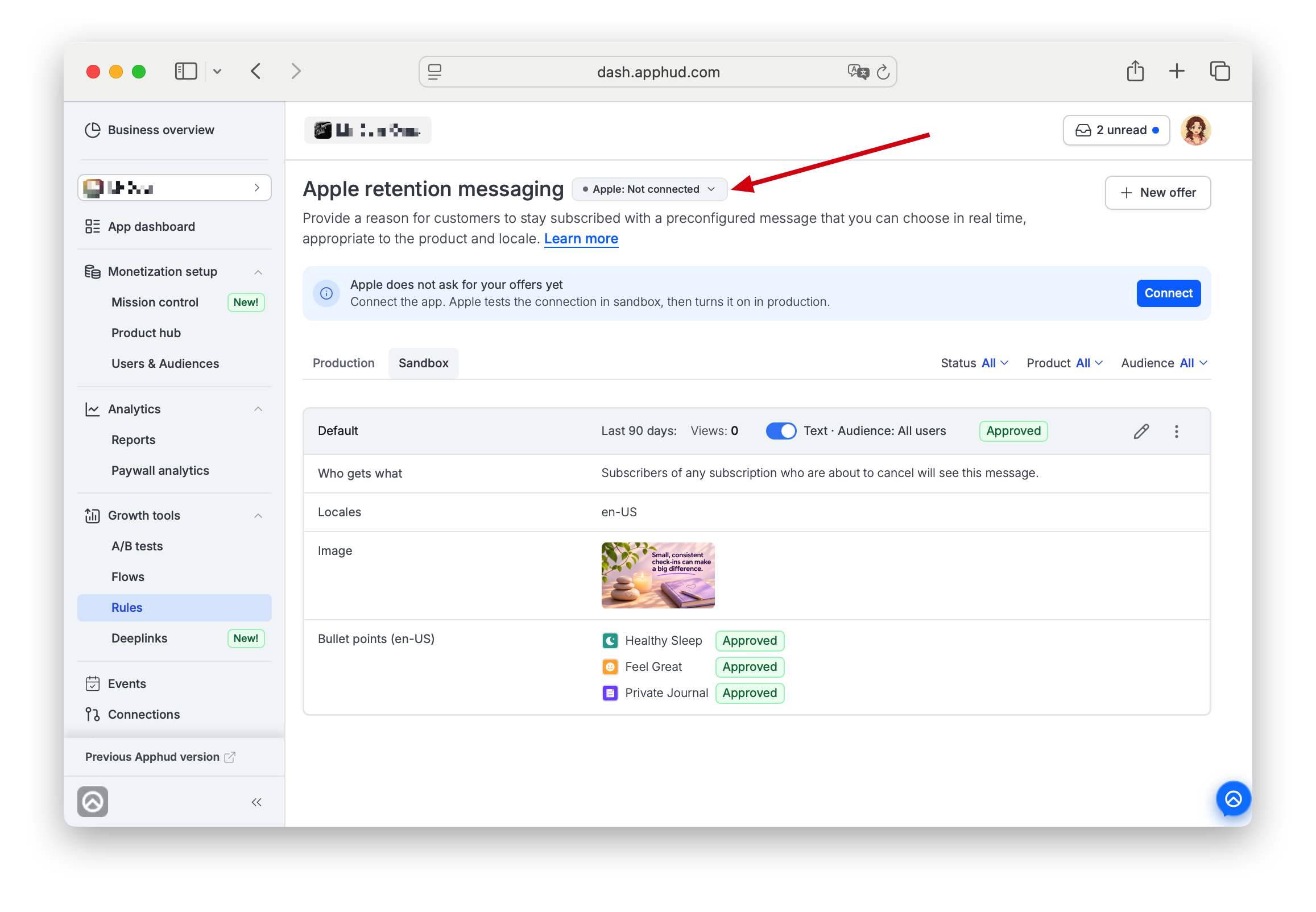
Apple needs a fallback message for subscribers who match no other offer. Create a text offer in the Sandbox catalog (see Create an offer), turn it on with the switch on its card, then choose Make default in its menu. In Sandbox, Apple approves the message at once. More about the default offer: Default offer.
Step 3. Connect Apphud to Apple
Connect needs the default offer from Step 2: without an enabled default offer with an approved message in the Sandbox catalog, Apphud asks you to create one first.
Click Connect in the banner Apple does not ask for your offers yet, or open the Apple status label next to the page title and click Connect there. Apphud registers the app with Apple: first in sandbox, then Apple's performance test, then production. This can take a few minutes.
| Status | Meaning |
|---|---|
| Connected | Apple asks Apphud for retention messages. |
| Connecting… | Registration or the performance test is in progress. |
| Waiting for a default offer | Production connects once an approved text offer is the default. |
| Not connected | Apple does not ask Apphud yet. |
| Needs attention | Apple refused access, or the connection or sync failed. Open the label for details. |
The label opens a panel with the state of Sandbox and Production, the result of the Performance test (Running, Passed, Failed or Not run yet) with its success rate, the real-time URL Apple calls, and the date of the last request from Apple.
Step 4. Test in sandbox
Switch to Sandbox, subscribe with a sandbox account, open the subscription settings on the device and tap Cancel Subscription. You should see your offer.
Step 5. Go live in production
Open an offer's menu in Sandbox and choose Copy to production. The copy is created turned off and sent to Apple for review. Turn it on once Apple approves it.
Production needs its own default offer. Once Apple has approved the copy of your default offer, turn it on and choose Make default in its menu in Production. Production connects to Apple once it has a default offer.
Create an offer
Click New offer at the top right of the page. The offer is created in the catalog that is open now, Sandbox or Production. Create offers in Sandbox first.
| Field | What to enter |
|---|---|
| Name | A name to recognize the offer in the list. |
| Type | What the subscriber gets: Text (a message only), Promotional offer (a discount or free period on the same subscription) or Switch plan (a suggestion to switch to another subscription). An offer has one type: Apple does not combine them in one message. |
| Audience | Who sees the offer: All users by default, or any audience from Users & Audiences. The audience must describe subscribers who are still active when they tap Cancel Subscription, not people who already cancelled. See Troubleshooting. |
| Who gets what | The subscriptions the offer is for. Choose a Current product, or tick All current products to cover every subscription of the app, including the ones you add later. |
| Messages | The text for each locale. See Messages. |
What else you set depends on the type:
- Text: nothing else.
- Promotional offer: the Promotional offer ID of an offer created in App Store Connect. See Promotional Offers. Apphud signs the offer with the app's In-App Purchase Key. Offered product is the product the promotional offer is set up on in App Store Connect. It can differ from the product being cancelled, but it must be in the same subscription group. Below the field, the promotional offers of this product from Product Hub are suggested as Offers of this product. With All current products, Offered product is required.
- Switch plan: Switch to, another subscription from the same subscription group in App Store Connect. Billing plan is optional: Not set, Billed upfront or Monthly, 12-month commitment.
You can change the type of an offer later, except for the default offer. An offer that has an image or bullet points must stay Text.
Messages
An offer holds a message for each locale. A new offer starts with en-US. Choose another language in the list to add a locale. Apphud does not translate: you write the text for every locale yourself. For each locale you set:
- Title: up to 66 characters.
- Description: up to 144 characters.
- Image (optional, text offers only): PNG, JPEG or WebP, at least 1920 px wide, up to 10 MB. Proportions from 16:9 to 24:1 stay as they are. A taller image is cropped to 16:9, and a wider one to 24:1. Transparent areas turn white. Apphud converts the image to the format Apple requires before sending it.
- Alt text (required with an image): up to 150 characters. VoiceOver reads it out.
- Title position: above or below the image.
- Bullet points (optional, text offers only): up to 5 short lines under the description. Each has an icon (PNG, JPEG or WebP, at least 512 × 512 px, up to 10 MB; other shapes are cropped to a square, and transparent areas turn white), a text of up to 66 characters, and a description of the icon that VoiceOver reads out. Use the arrows to change the order and the trash icon to remove a line.
Click Create offer. When you edit an offer, the button is Save. In Production, Apple reviews the messages. In Sandbox, Apple approves them at once. When every locale is approved, turn the offer on with the switch on its card.
Offer statuses and Apple review
Apple reviews each locale of an offer, and each image, separately. A message is shown only when its text and all its images are approved. The review applies to Production: in Sandbox, Apple approves a message at once and the card shows Approved right away.
Click the status label on an offer card to see what Apple is reviewing. The panel lists the Text (the title, description and bullet point texts, reviewed as one), the Image and the Bullet point icons, each with its own status and the locales it applies to. Apple shows the offer once the text and every image are approved.
Apple reviews messages and images against its own requirements. For example, content must not be misleading or inaccurate. Read them before you write the messages: Setting up retention messages in Apple's documentation.
| Status | Meaning |
|---|---|
| Waiting for review | Apple has the messages and has not decided yet. The offer can't be turned on. |
| Approved | Apple approved every locale. Use the switch on the card to turn the offer on or off. Subscribers see it while it is on. |
| Rejected by Apple | Apple did not accept a message and gives no reason. The card lists the locales as Not accepted by Apple. Edit their text and save: the new version goes to review. |
When you change the text of an approved offer, the card shows New text in review (or New text rejected by Apple), and the approved text keeps showing until the new one is approved.
The switch on the card is available only after Apple has approved every locale. Use the Status, Product and Audience filters above the list to find an offer. The Status filter has Active, Inactive, Waiting for review and Rejected by Apple.
Manage offers
To change an offer, click the pencil icon on its card or the offer's name. The menu on the card has these items:
- Make default: see Default offer. It is greyed out, with a hint, while the offer can't be the default, and it is not shown on the current default offer.
- Copy to production: only in Sandbox. Creates a copy of the offer, with its images, in the Production catalog. The copy is turned off and goes to Apple for review. The Production menu doesn't have this item.
- Delete: deletes the offer and its messages. This can't be undone.
Default offer
The default offer is the fallback. Apphud shows it when no other offer fits. Apple waits 700 ms for Apphud's answer. If it does not arrive in time, Apple shows the retention message you set up in App Store Connect for the subscription, if there is one, and otherwise the default message, so every catalog needs a default offer.
Only an enabled text offer that has a product and an Apple-approved message in every locale can be the default. It can't use All current products, and its Type and Audience can't be changed. There is only one default offer in a catalog, and it is shown to all users. You can't delete it while it is on: turn it off or make another offer the default first.
Disconnect
Open the Apple status label and click Disconnect. Apple stops asking Apphud for retention messages, in sandbox and production, and no Apphud offer is shown until you connect again. Your offers stay in Apphud.
How Apphud chooses a message
When a subscriber starts to cancel, Apple asks Apphud which message to show. Apphud looks at three things:
- Product: the subscription being cancelled must be one of the offer's products, or the offer must cover All current products.
- Audience: the subscriber must belong to the offer's audience. An audience is a saved group of users, the same as on the Users & Audiences page.
- Locale: the offer has a message for the subscriber's device language.
Apphud checks the offers that name the cancelled product first, then the offers for All current products. Within each group it goes from the most recently created offer and shows the first one that fits. If none fits, the default offer is shown. The offers in the list are shown in this order, the newest first.
| Situation | What the subscriber sees |
|---|---|
| Product, audience and locale match one offer | That offer. |
| Several offers match | An offer for the cancelled product comes before an offer for All current products. Among offers of the same kind, the most recently created one. |
| An offer has no approved message for the subscriber's device language | Apphud skips that offer and checks the next ones. The same language in another region counts as a match. |
| A Switch plan offer would switch the subscriber to the plan they already have | Apphud skips that offer and checks the next ones. |
| No offer matches | The default offer, in the subscriber's language. If it has no message in that language, Apphud uses English (en-US), then any other English, then any language the default offer has. |
| There is no default offer with an approved message | Apple's standard cancellation screen. |
Example: your audience is "Switzerland" and the offer has messages in German, French and Italian. Swiss subscribers get the offer, and each of them sees the text in their own device language. A subscriber whose device language has no message in this offer does not get this offer: Apphud checks the next offers and then shows the default offer.
Two ways to set up retention messages
Since November 2026 you can set up basic retention messages directly in App Store Connect, without a third-party service. See Apple's guide, Configure retention messages. Apphud works through Apple's Retention Messaging API, which lets you choose the message for each subscriber.
| App Store Connect | Apphud | |
|---|---|---|
| Where you set it up | App Store Connect. | Rules → Apple retention messaging. |
| Who sees which message | Every subscriber sees the same header and body. Apple decides who gets the attached offer by its eligibility settings: paid subscription duration, wait between offers and countries. | Apphud chooses the message for each subscriber in real time, by product, audience and locale. |
| Who you can target | By paid subscription duration and country. | By any audience from Users & Audiences: purchase history, user properties, attribution, experiments. |
| Number of messages | Up to 10 per app, and one message per subscription. | Several offers for one subscription, each for its own audience. |
| What the subscriber can get | Text, text with an image, or text with a retention offer. | Text, a promotional offer, or a switch to another plan. |
If one message for all subscribers is enough, App Store Connect is the simplest way. Use Apphud when different subscribers need different messages, for example users in a trial and long-term subscribers, or when you want to suggest another plan.
You can use both. When Apphud is connected, Apple asks Apphud first and shows the offer Apphud chooses. If Apphud does not answer in time, Apple shows the App Store Connect message for the subscription.
Troubleshooting
Connect says to add an App Store In-App Purchase key with a valid issuer id first
Add the key and the Issuer ID, or fix them, in App settings → Mobile platforms → App Store. See App Store Credentials.
Connect says to enable a default offer first
Connect needs a default offer in the Sandbox catalog: a text offer that is turned on, made the default, and has an approved message. Create it as described in Step 2. Create a default offer, then click Connect again.
The banner says Apple refused access
Apple answers the same way when access has not been granted yet and when the In-App Purchase key is wrong or revoked. Check the key in App settings → Mobile platforms → App Store. See App Store Credentials. If the key is fine, click Request access in the banner. The banner names the environment, Production, Sandbox or both.
The page says the connection to Apple failed
The message includes the reason. Fix it and click Connect again.
The page says the offers are not syncing with Apple
Apphud could not send your offers to Apple. The message shows when Apphud tries again.
The performance test does not start
Apple runs the test with an active auto-renewable sandbox subscription of this app. Buy one with a sandbox account, then connect again.
I can't turn an offer on
Apple has to approve every locale first. See Offer statuses and Apple review.
A subscriber saw the default offer instead of mine
Check that the offer is on, that the cancelled subscription is one of its products (or the offer covers All current products), that the subscriber is in its audience, and that it has an approved message for the subscriber's device language. See How Apphud chooses a message.
An offer for users who already cancelled never shows
Apple asks Apphud when an active subscriber opens the subscription page and might cancel. The subscription is still active and set to renew at that moment. It is cancelled only when the subscriber taps Cancel Subscription on Apple's Confirm Cancellation screen, after your message. So an audience of people who have already cancelled, for example one with auto-renewal off or "Trial cancelled", never matches: Apple does not ask about them. Subscribers who tap Cancel Subscription are not in that audience and see the default offer. Choose an audience that describes a subscriber who is still active, for example by product, trial or paid, subscription age, country, attribution source or experiment group.
A subscriber saw Apple's standard cancellation screen
Apphud had no message to give: no offer matched, and there is no default offer with an approved message. Make a default offer and check that the status in Apple is Connected. See Default offer.
Updated about 2 hours ago